Add Purchase Order
1
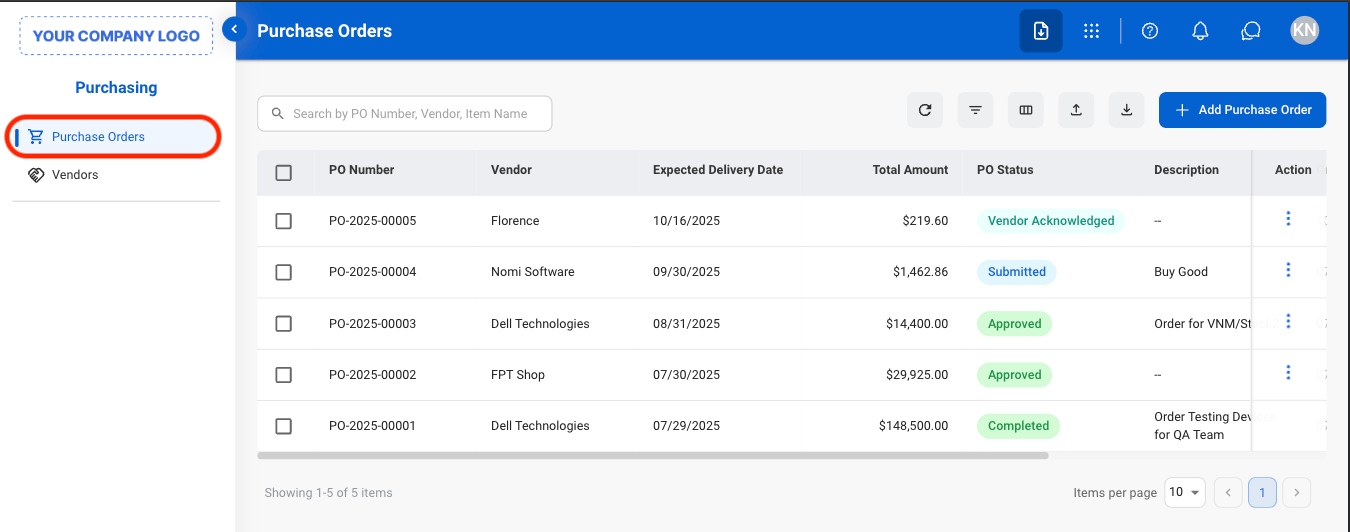
Navigate to Purchase Orders
2
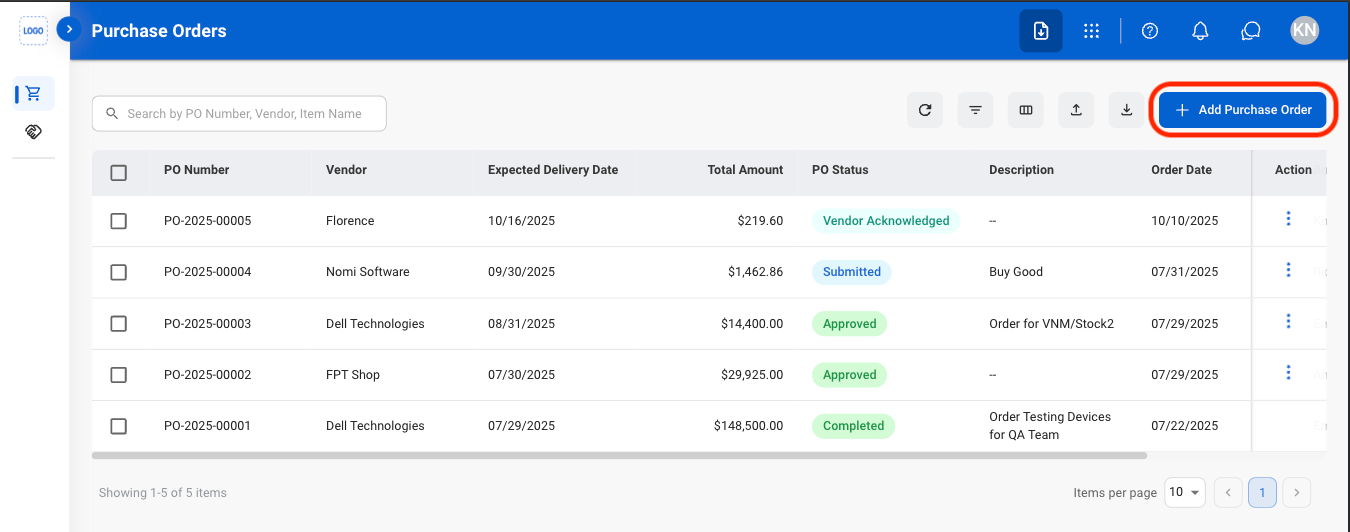
Select Add Purchase Order
3
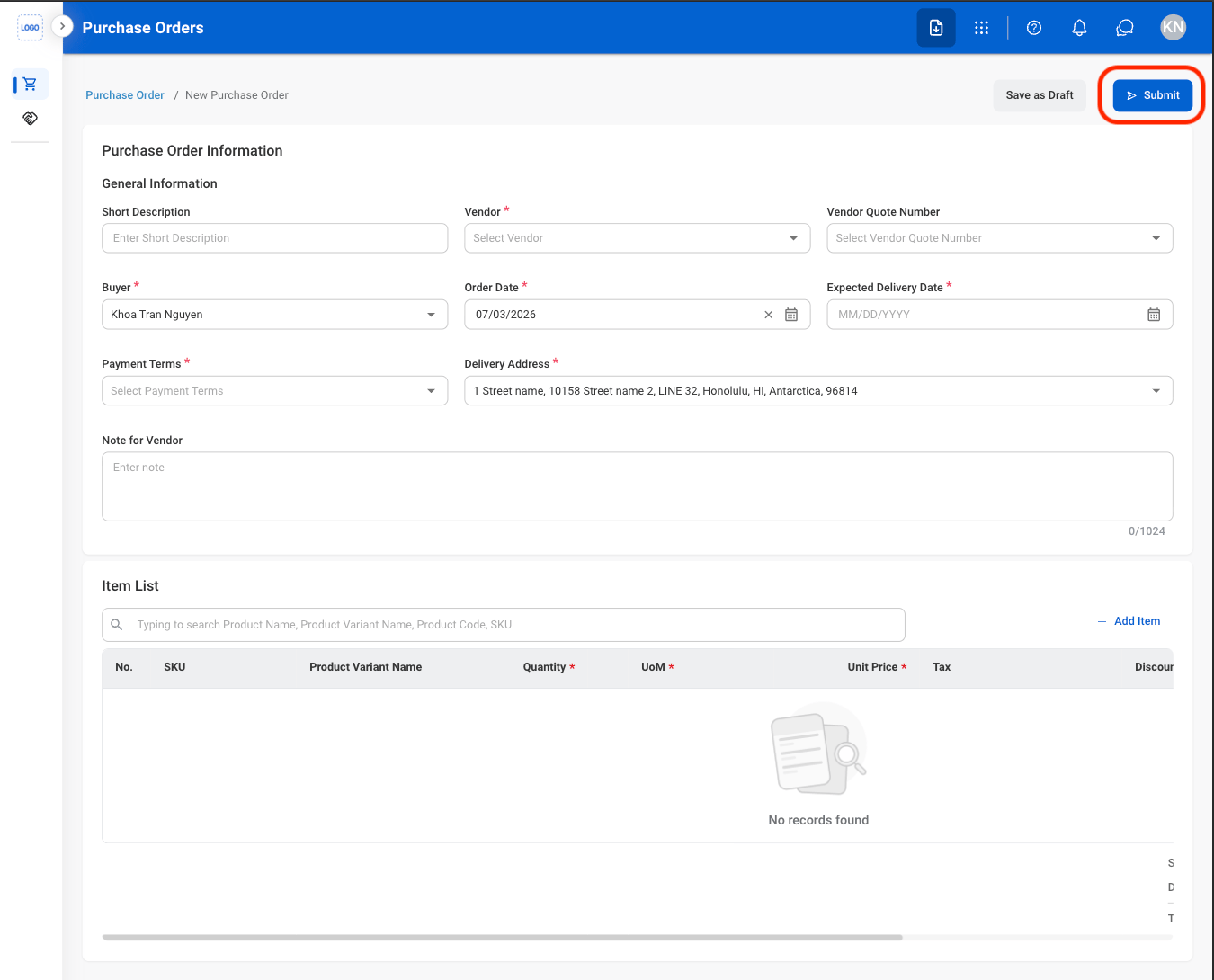
Fill in the required information
View Purchase Order Details
1
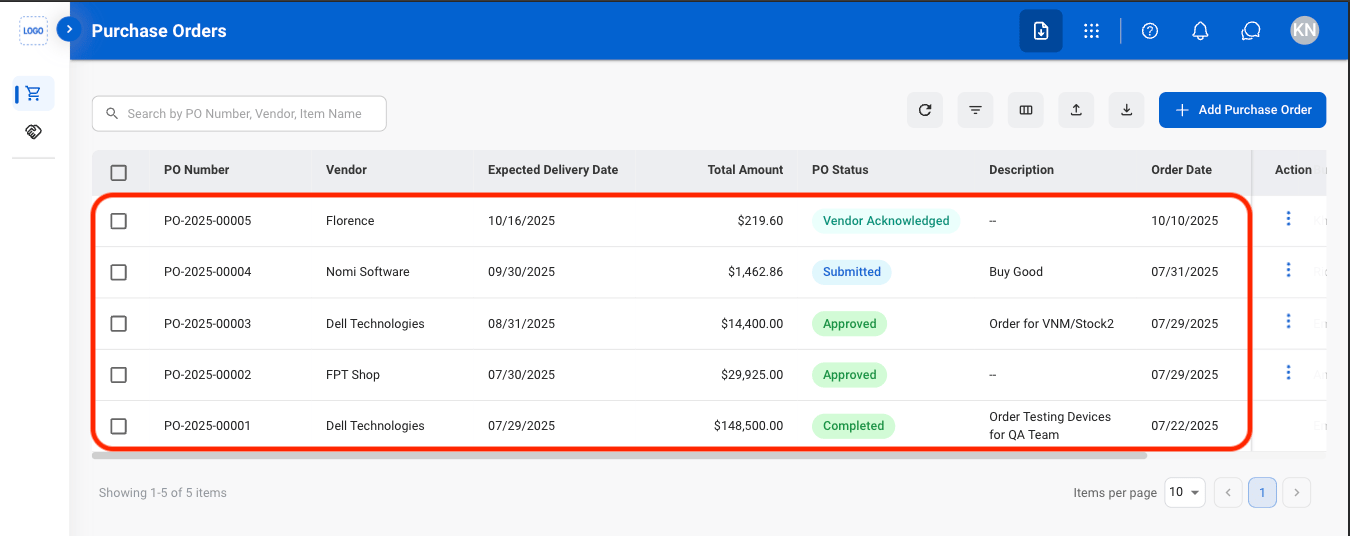
Select a purchase order
2
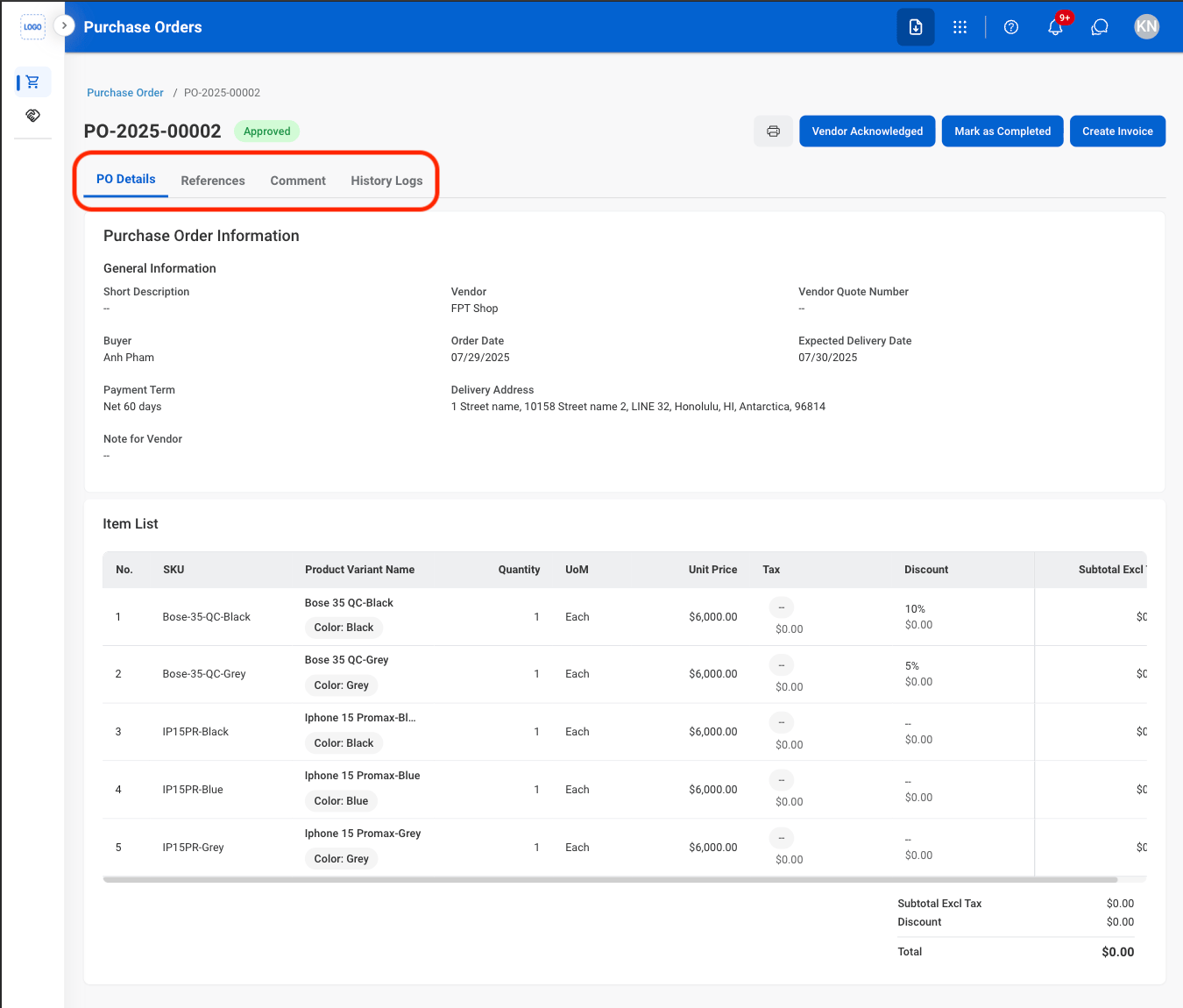
Select a tab to view more information
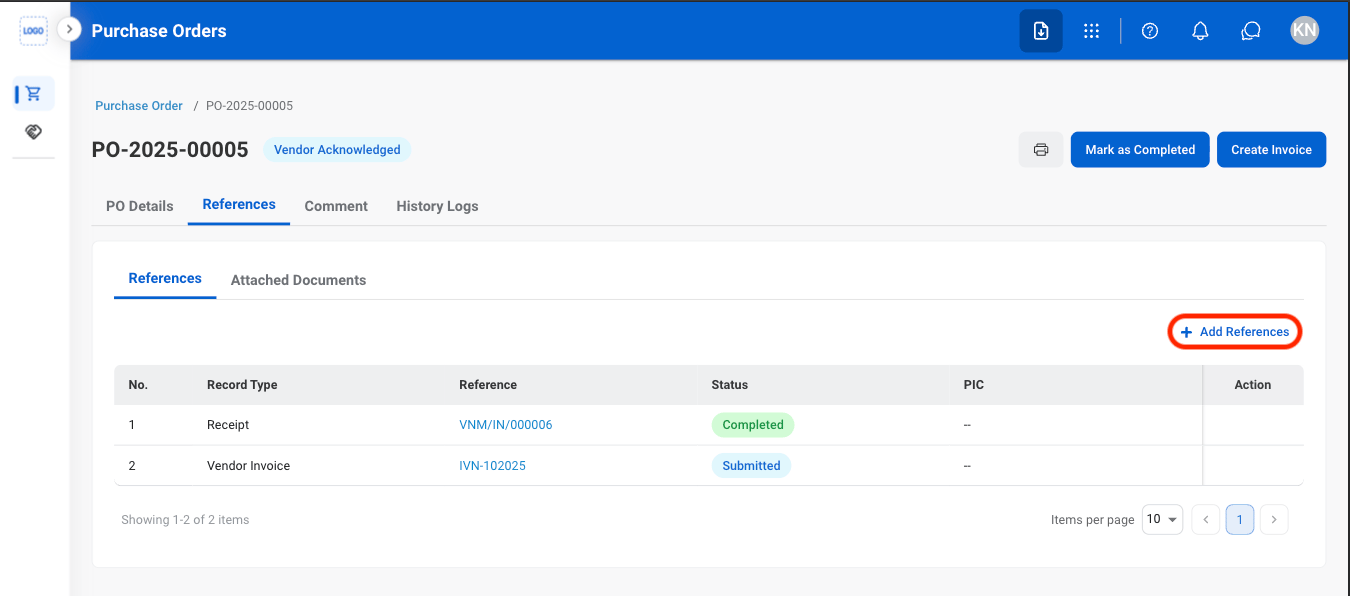
Add References
1
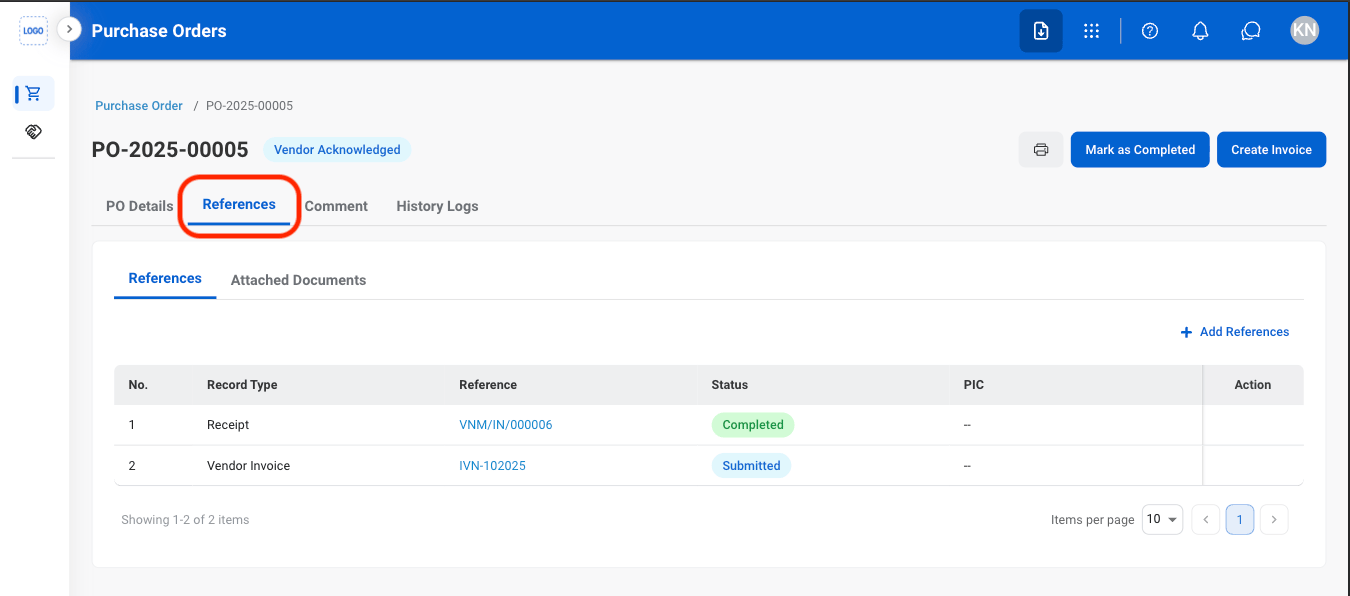
Navigate to References
2
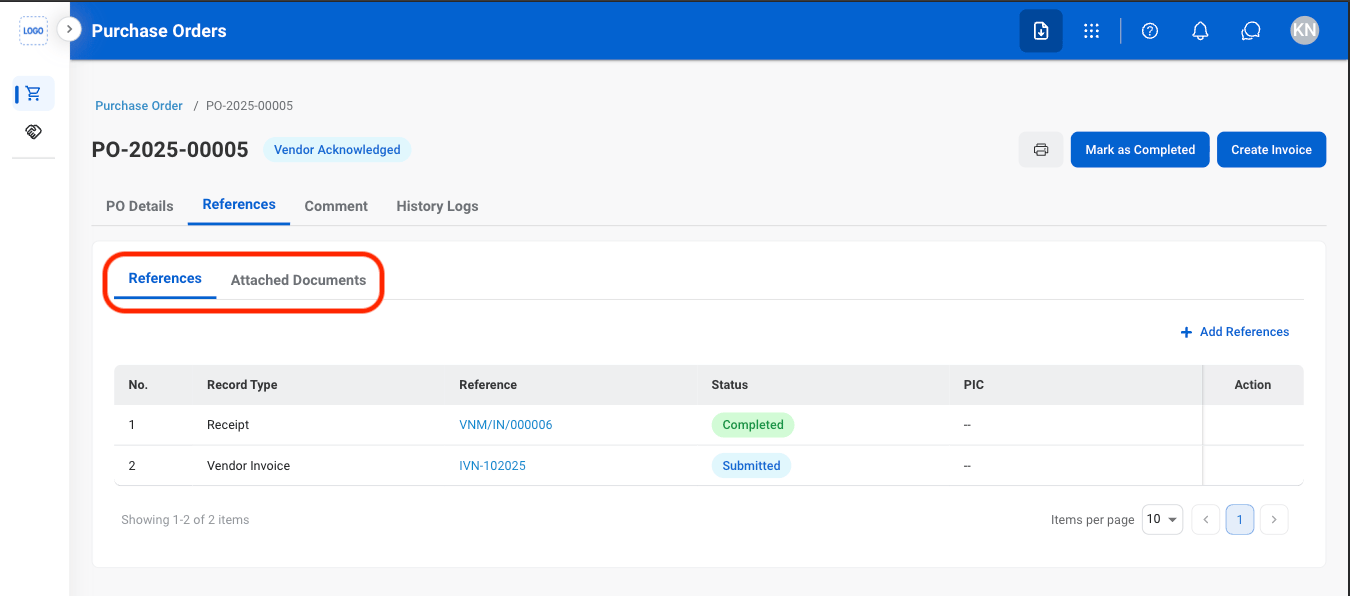
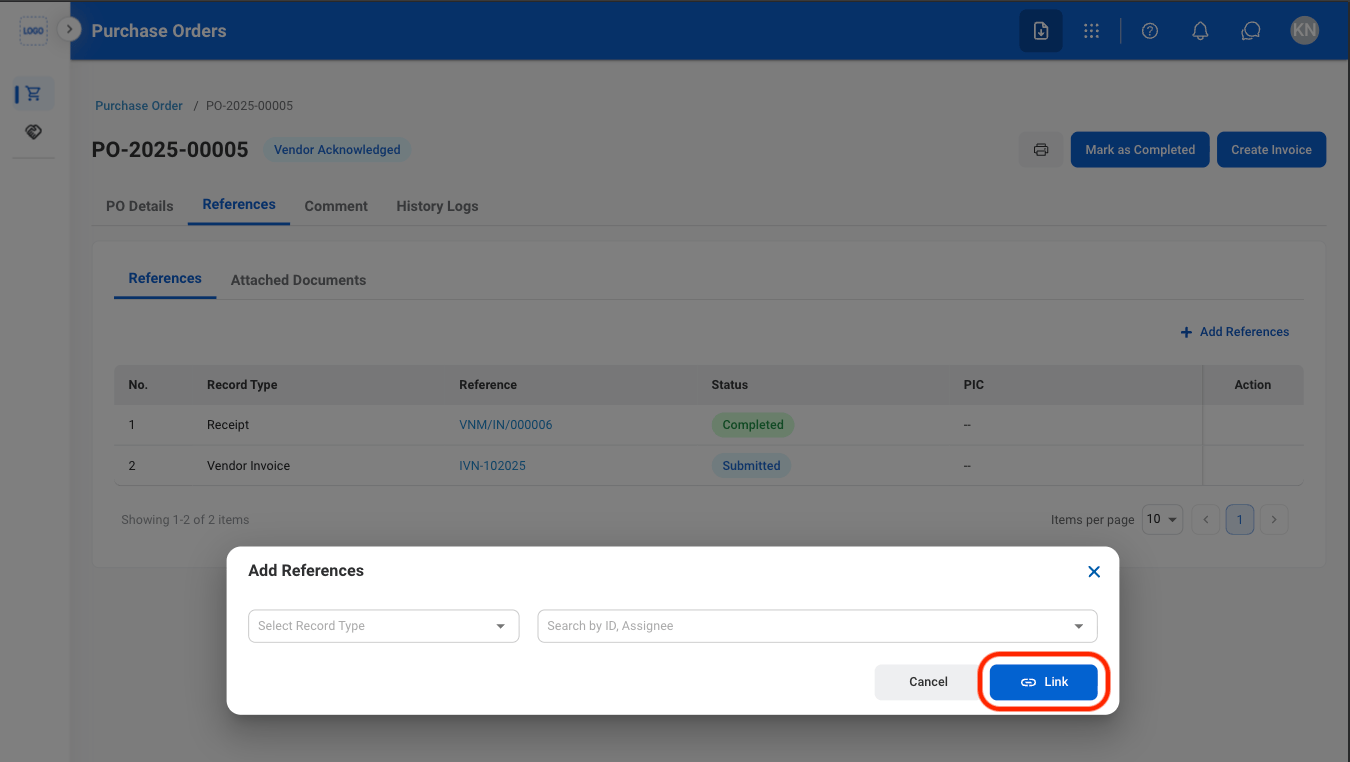
Select a reference type
3
Select Add
4
Fill in the required information
Mark an Order Status
1
Select a status
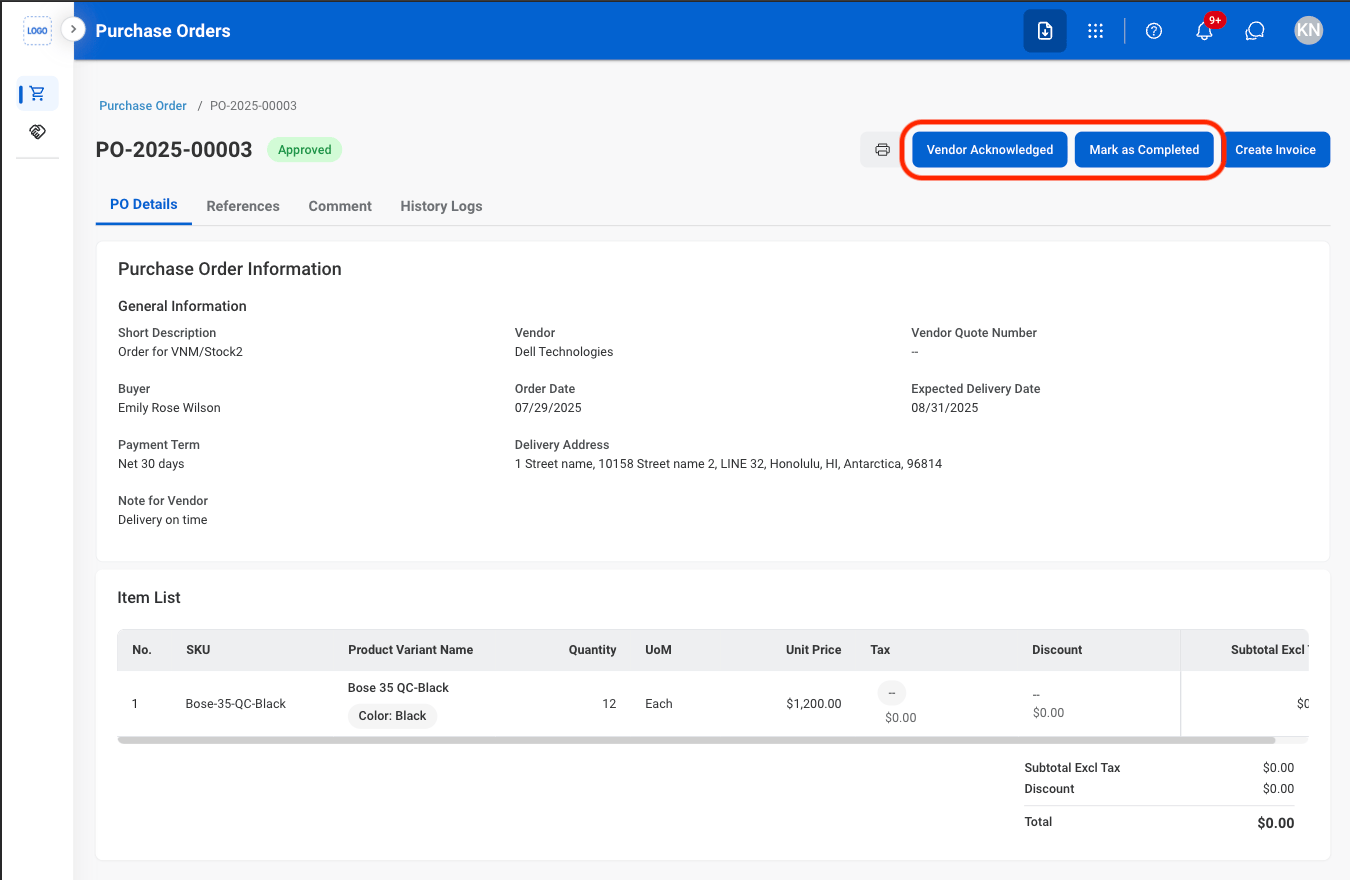
- Vendor Acknowledged: Mark the purchase order as acknowledged by the vendor.
- Mark as Completed: Mark the purchase order as completed once the procurement process has been fulfilled.
2
Confirm the status change
Select Confirm to complete or Cancel to exit without saving changes.
Once a status is changed, it cannot be reversed.
Create an Invoice
1
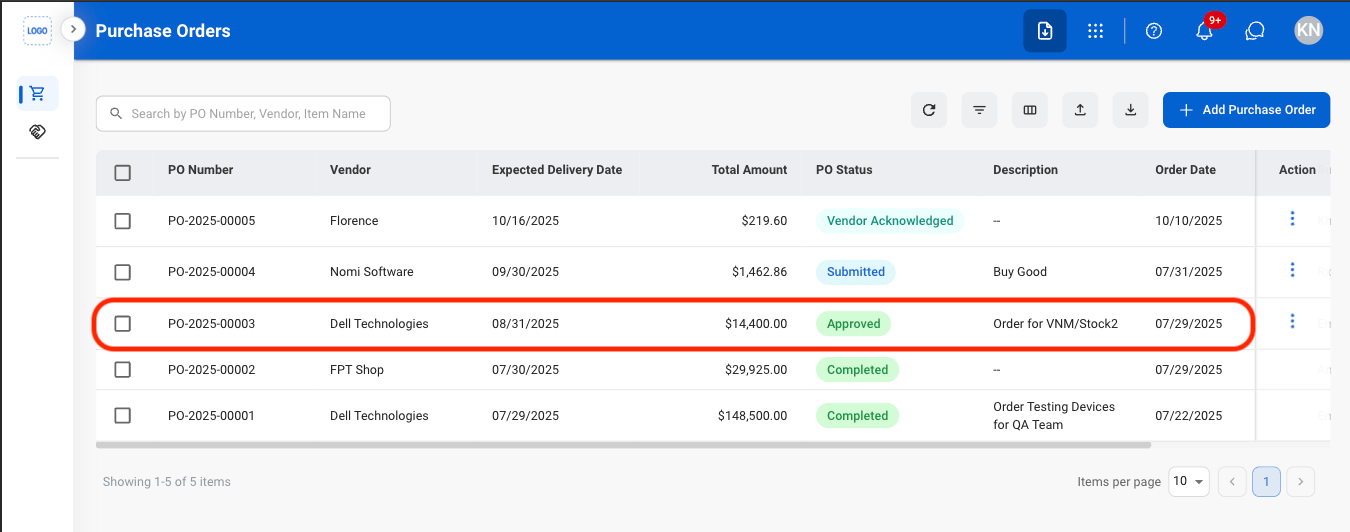
Select an approved Purchase Order
2
Select Create Invoice
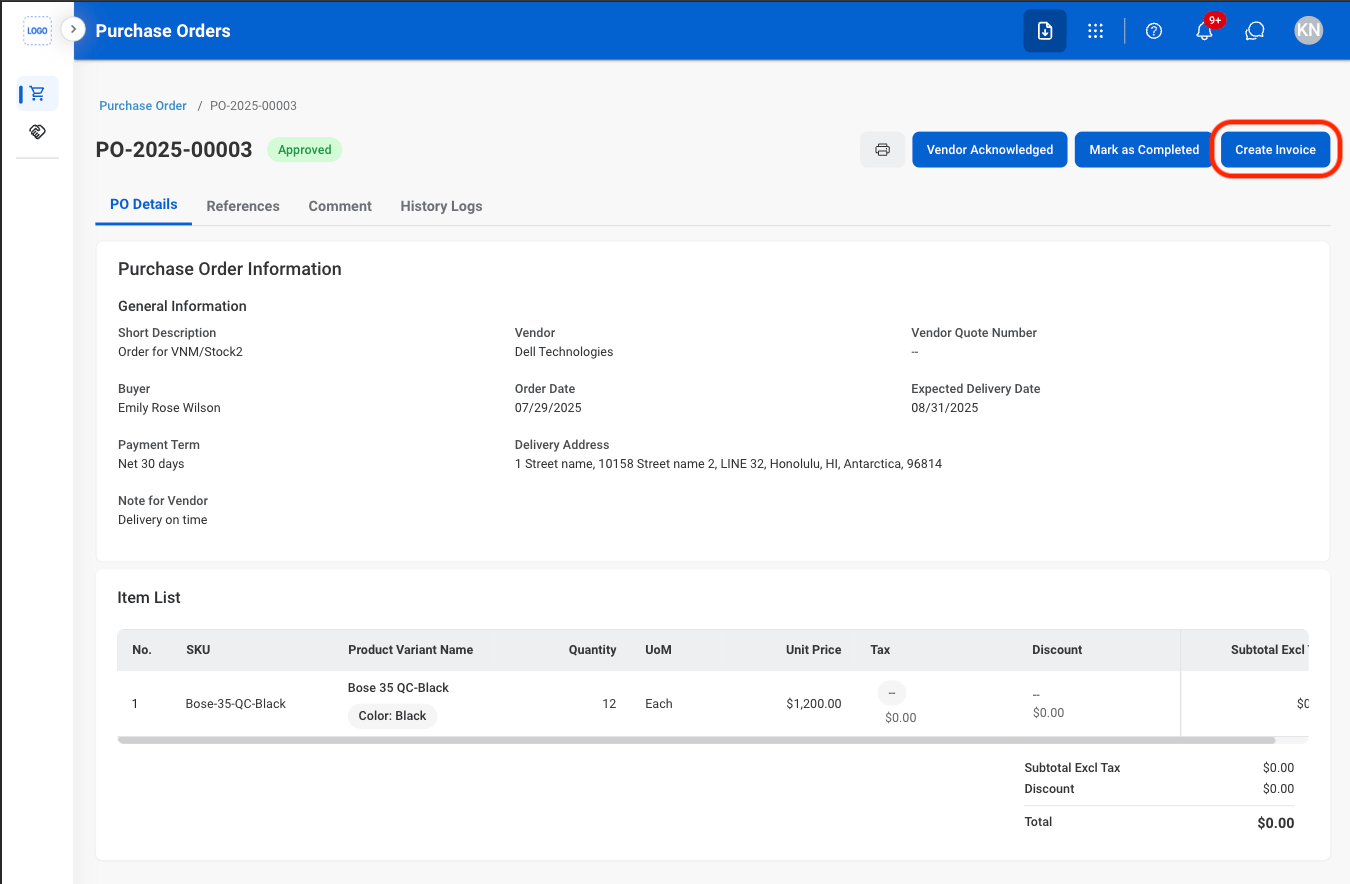
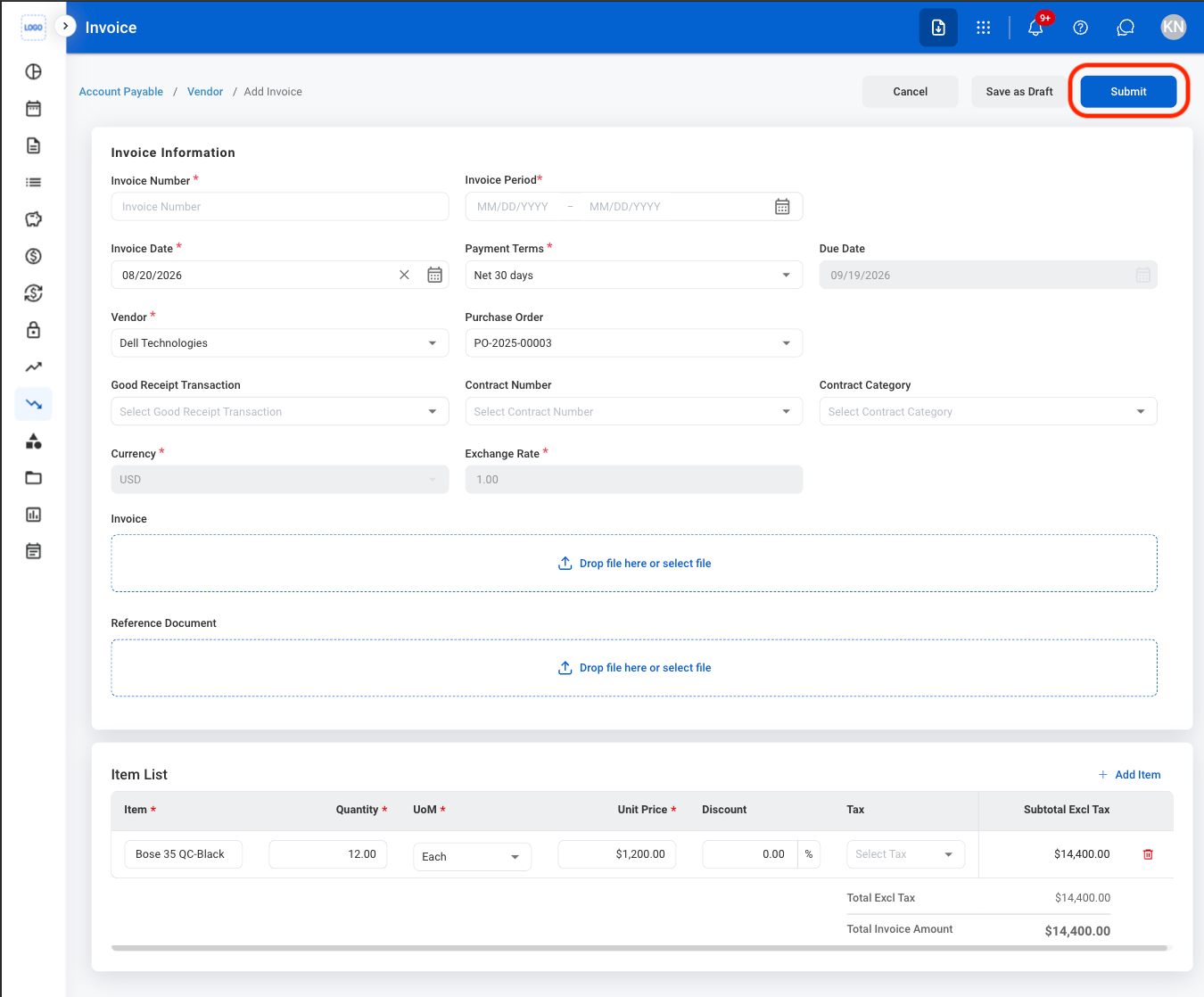
Selecting Create Invoice opens the invoice creation screen in the Accounting module, where you can enter and manage the invoice details.
3
Fill in the required information
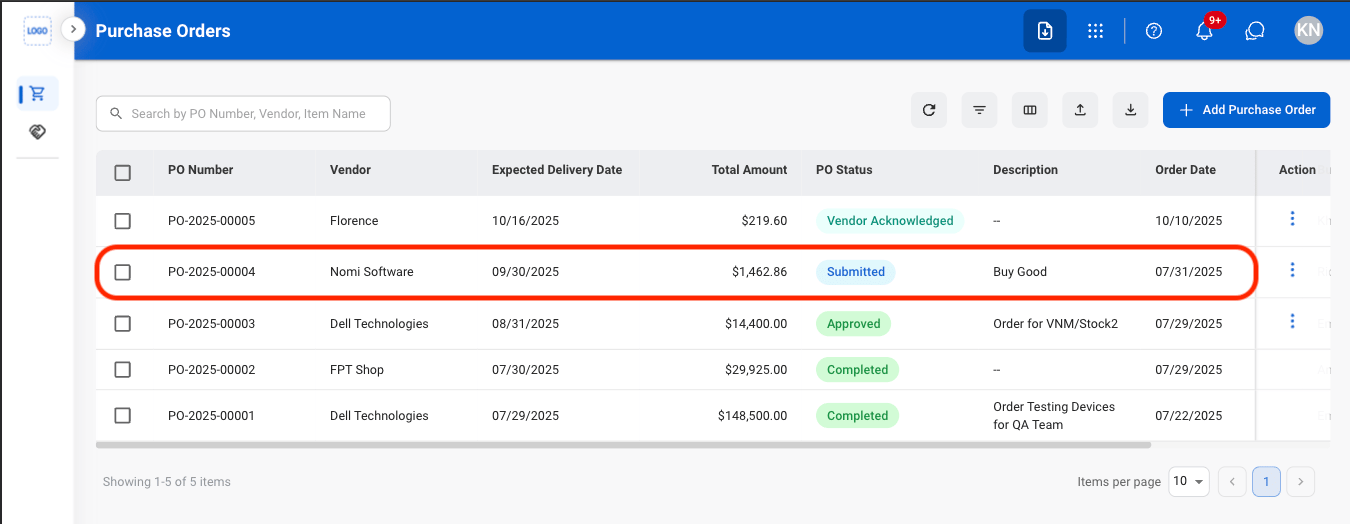
Review a Submitted Purchase Order
1
Select a submitted review
2
Select an approval decision
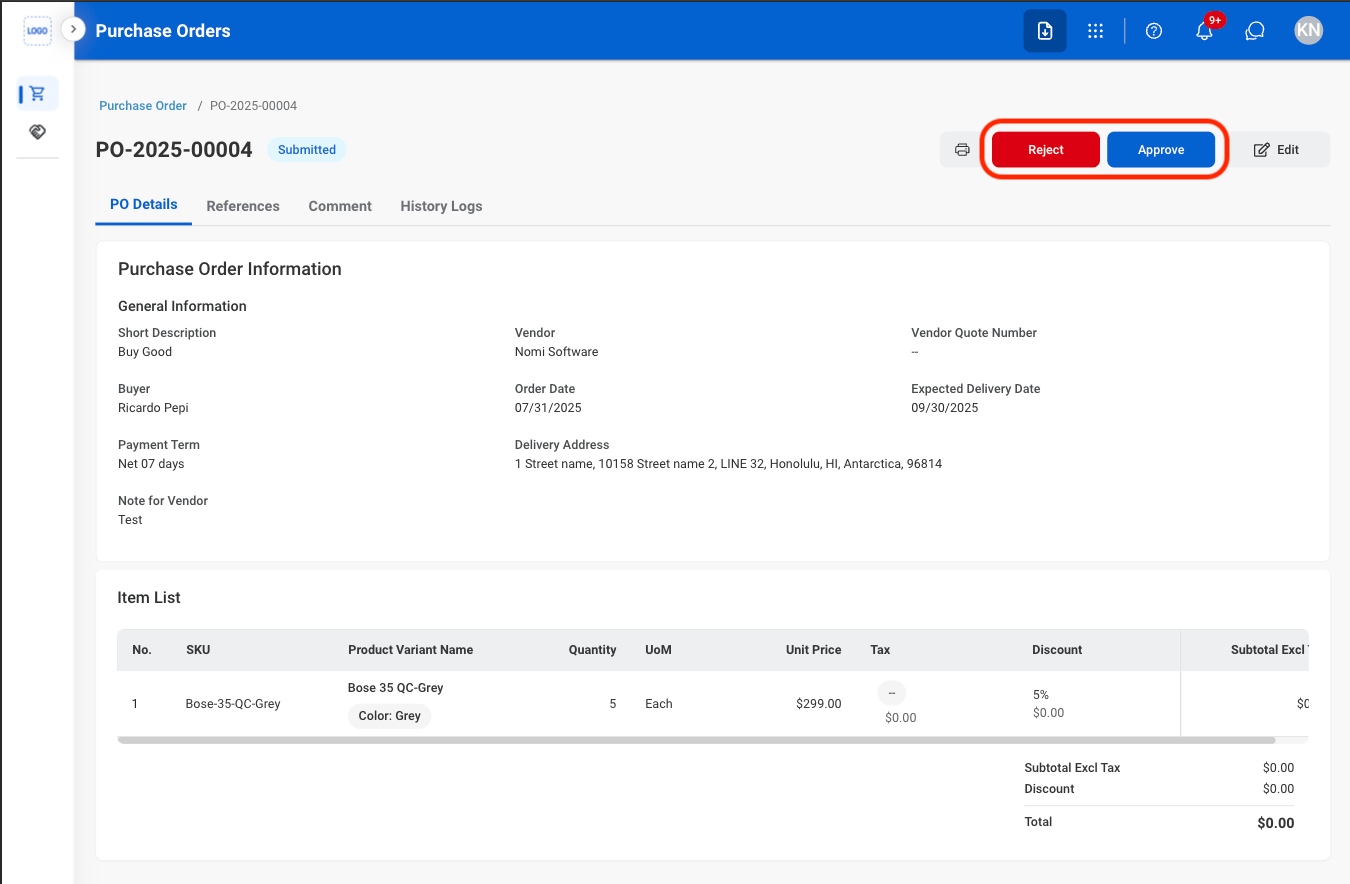
- Approve: Confirm that the purchase order is approved and can proceed for fulfillment.
- Reject: Decline the purchase order and prevent it from proceeding for fulfillment
Cancel Purchase Order
1
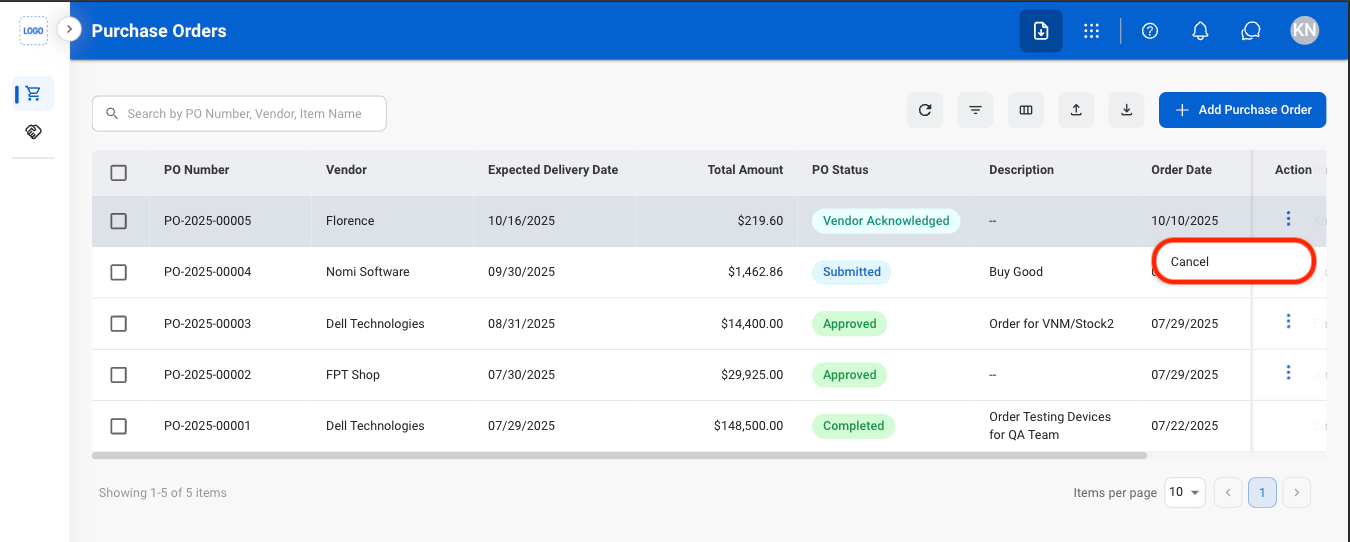
Select the ellipsis in the Action column
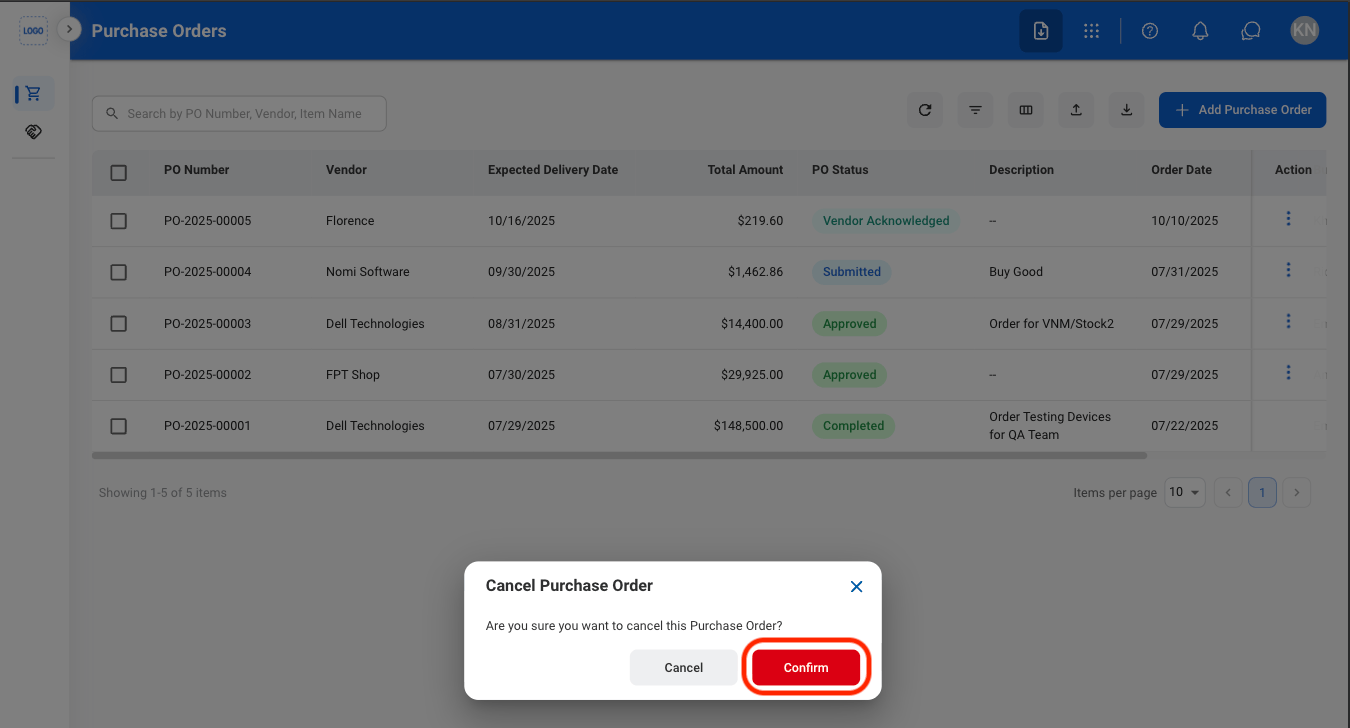
2
Confirm the action