Add an Opportunity
1
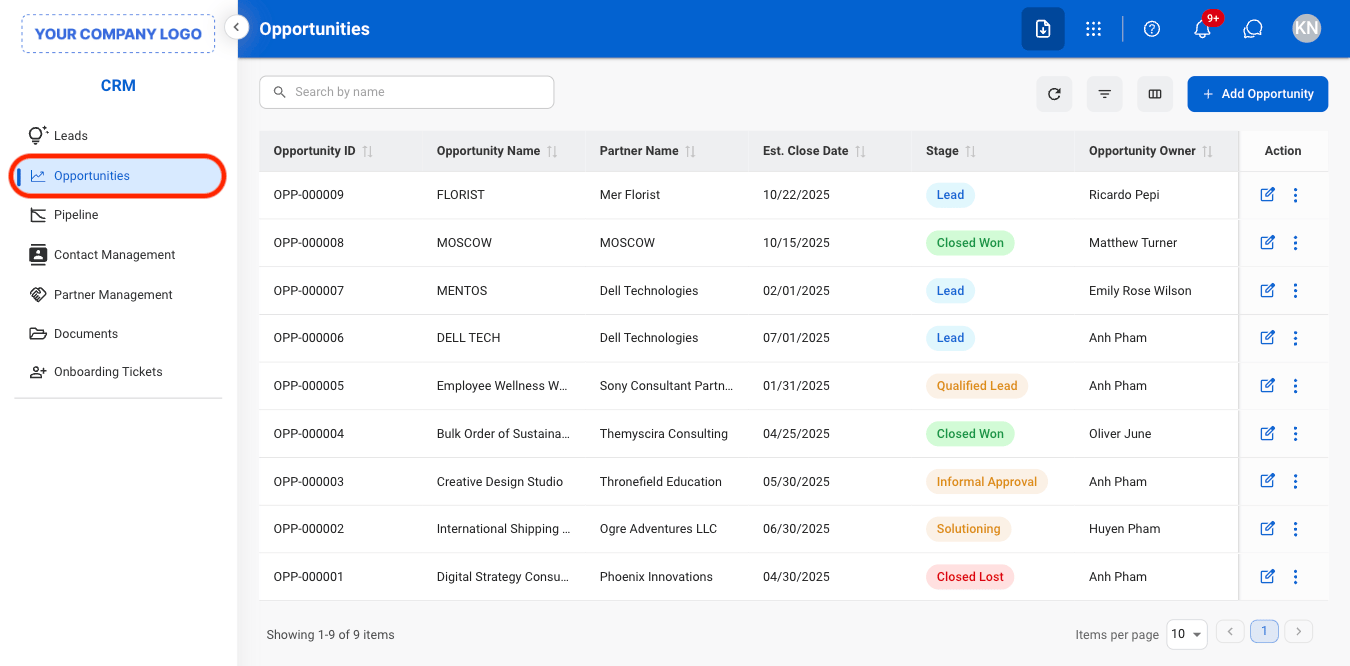
Navigate to Opportunities
2
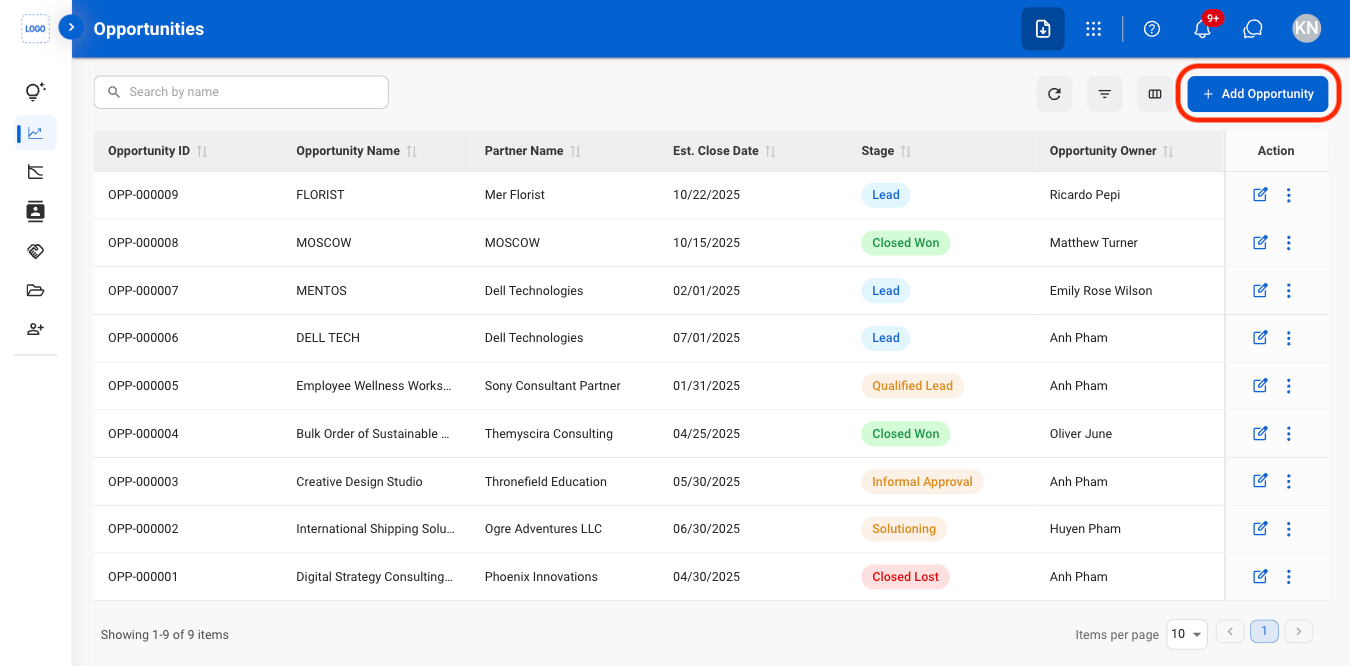
Select Add Opportunity
3
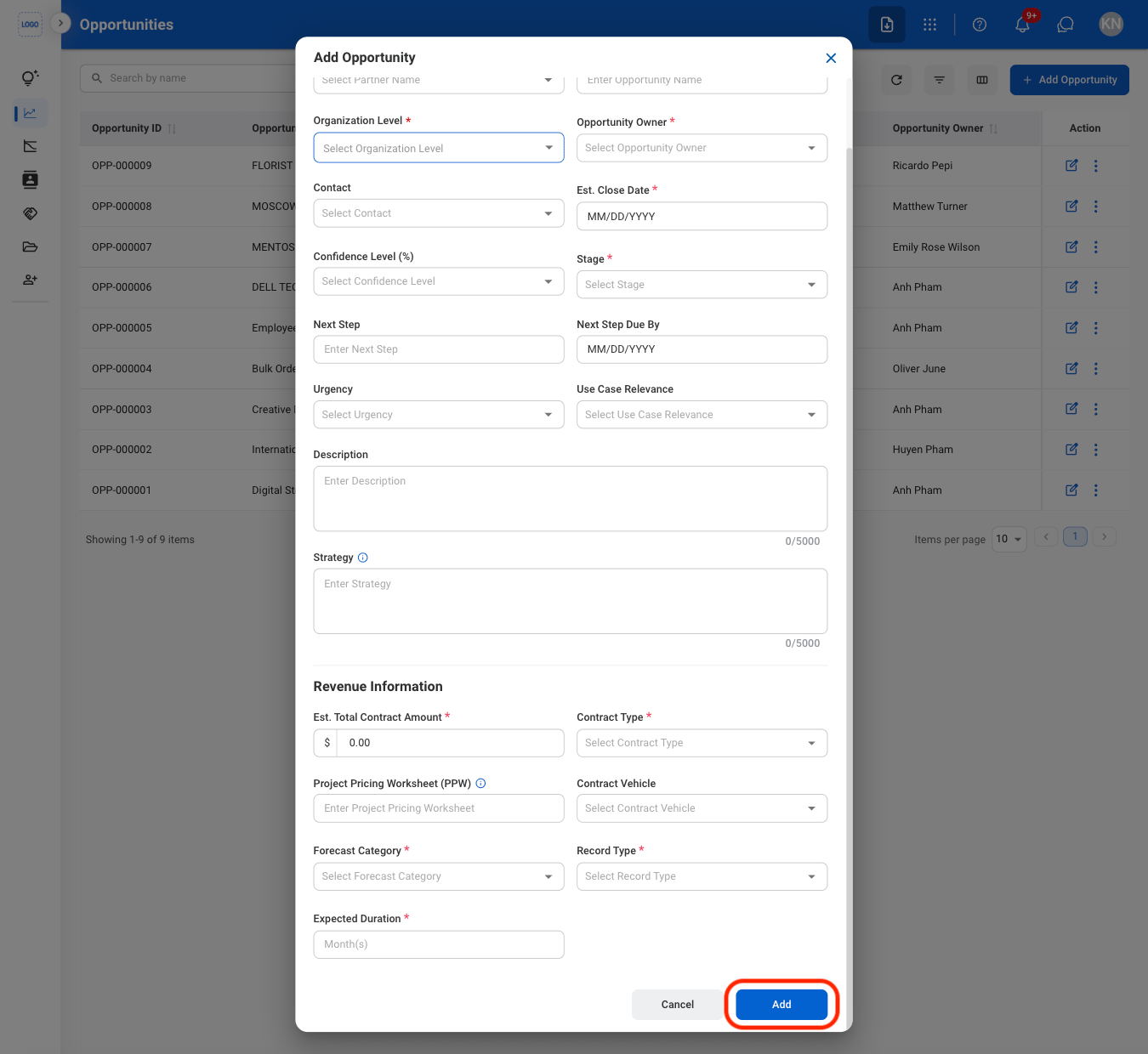
Fill in the required information
Modify an Opportunity
1
Select an action
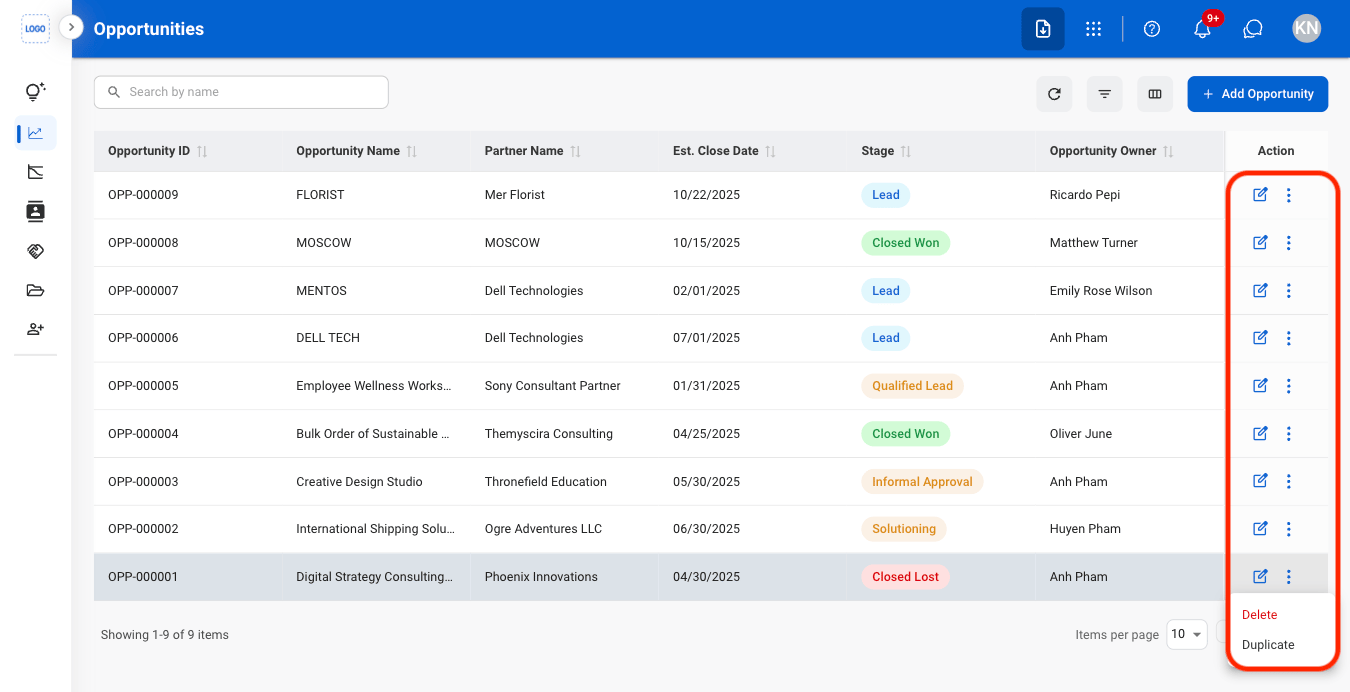
- Edit: Update opportunity information.
- Delete: Permanently remove the opportunity from the system.
- Duplicate: Create a copy of the opportunity to use as the basis for a new opportunity record.
2
Confirm the action
- Edit: Fill in the required information. Select Update to complete or Cancel to exit without saving changes.
- Delete: Select Delete to complete or Cancel to exit without saving changes.
- Duplicate: Fill in the required information. Select Save to complete or Cancel to exit without saving changes.
Add a Note
1
Select an Opportunity
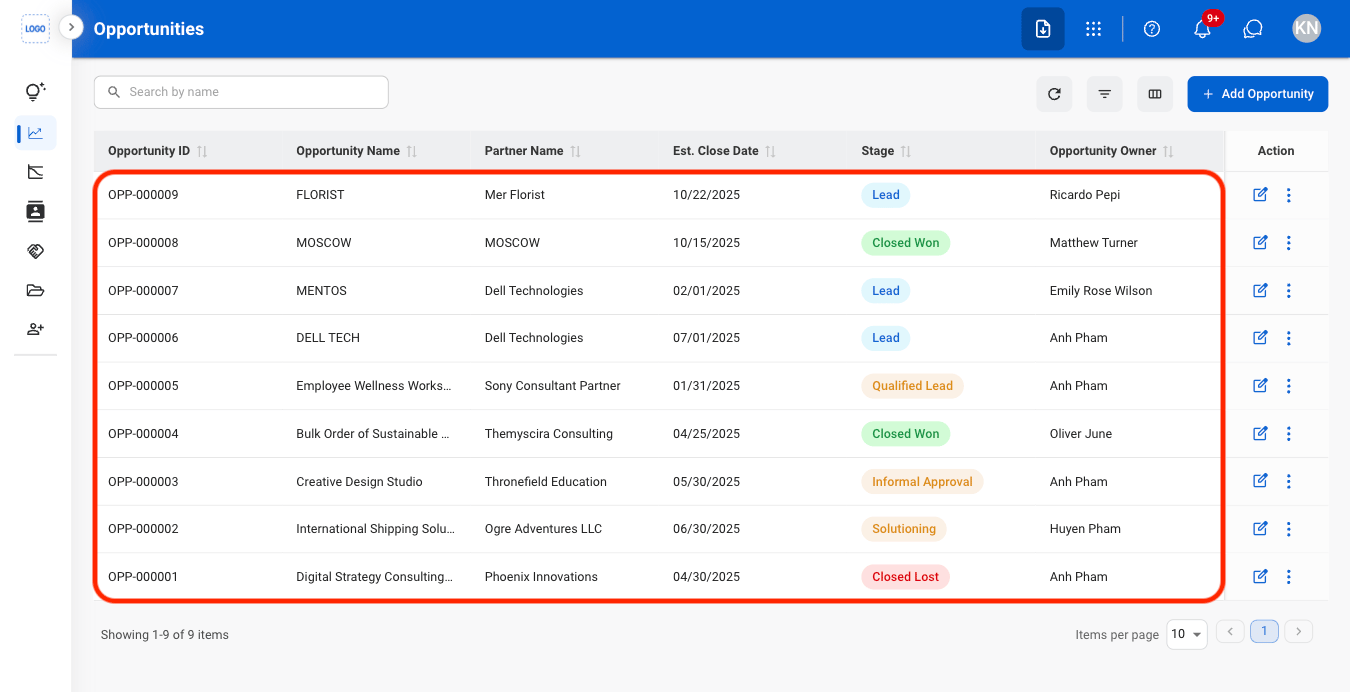
2
Select Add Note
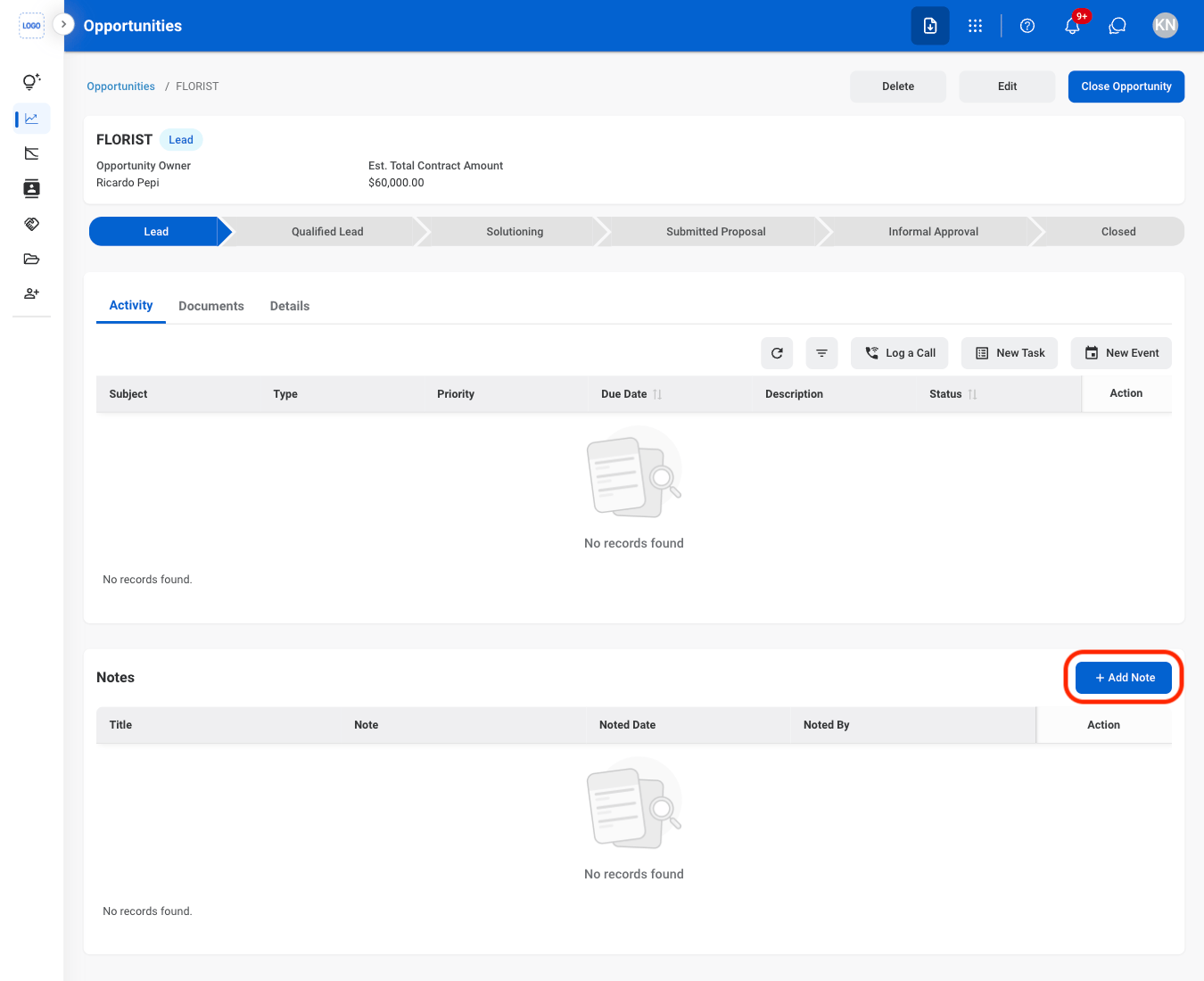
3
Fill in the required information
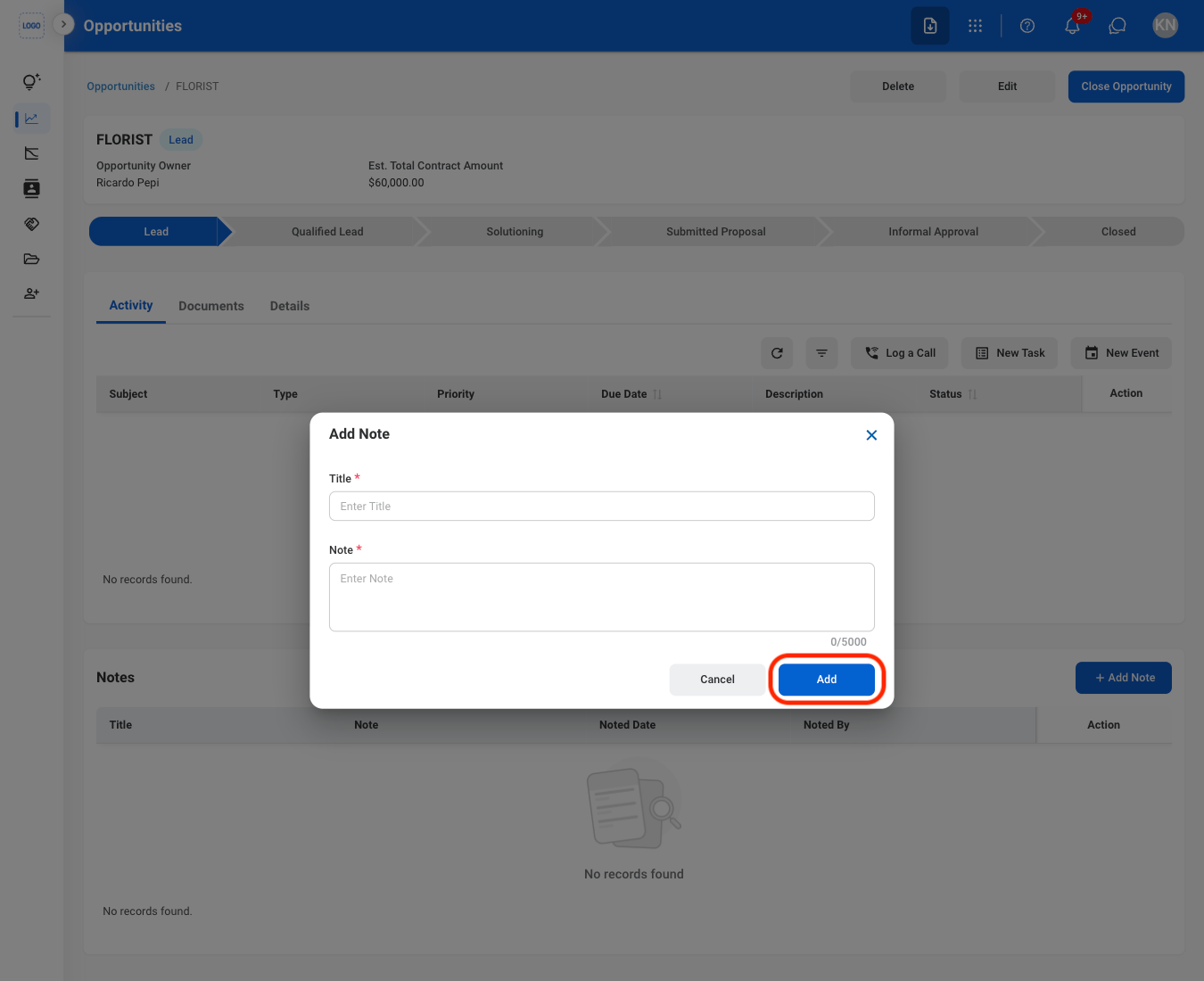
Add a Document
1
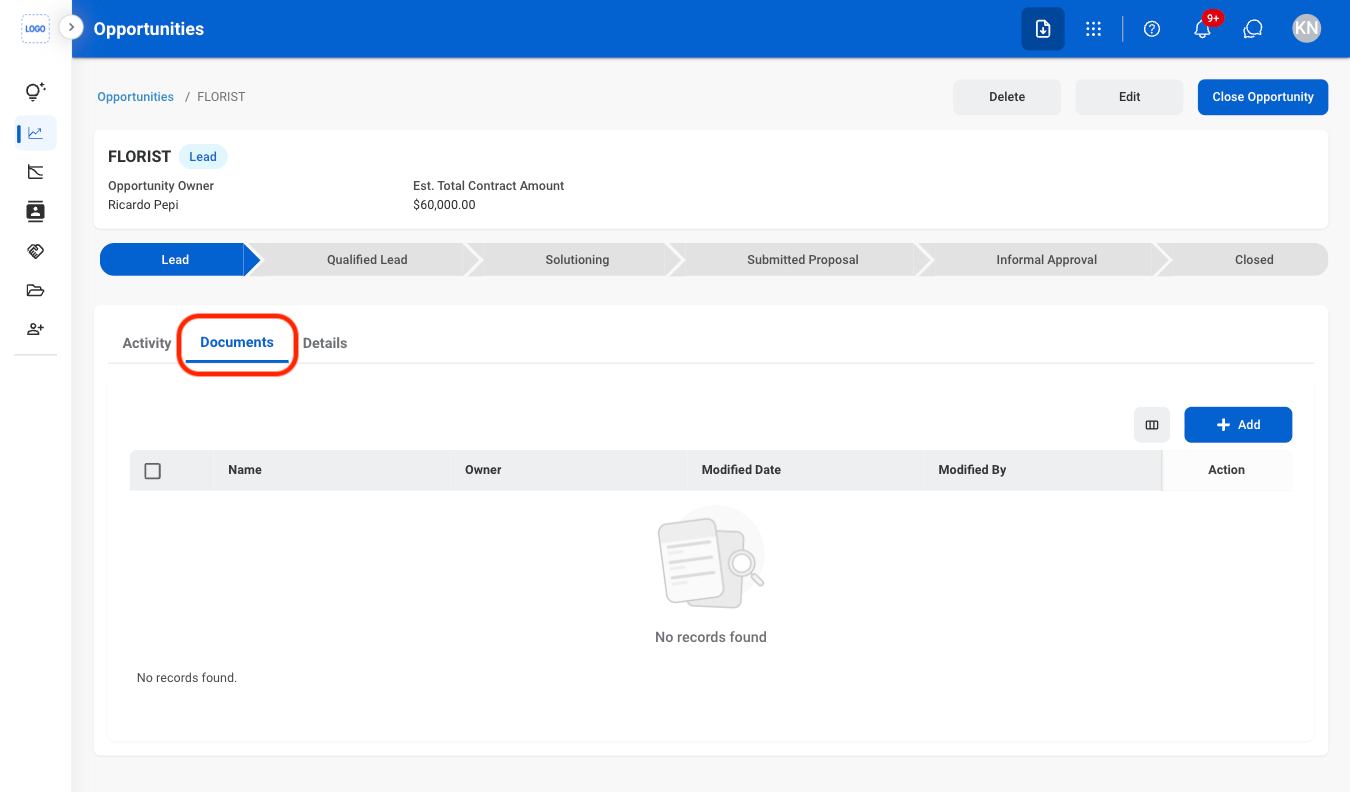
Select the Documents tab
2
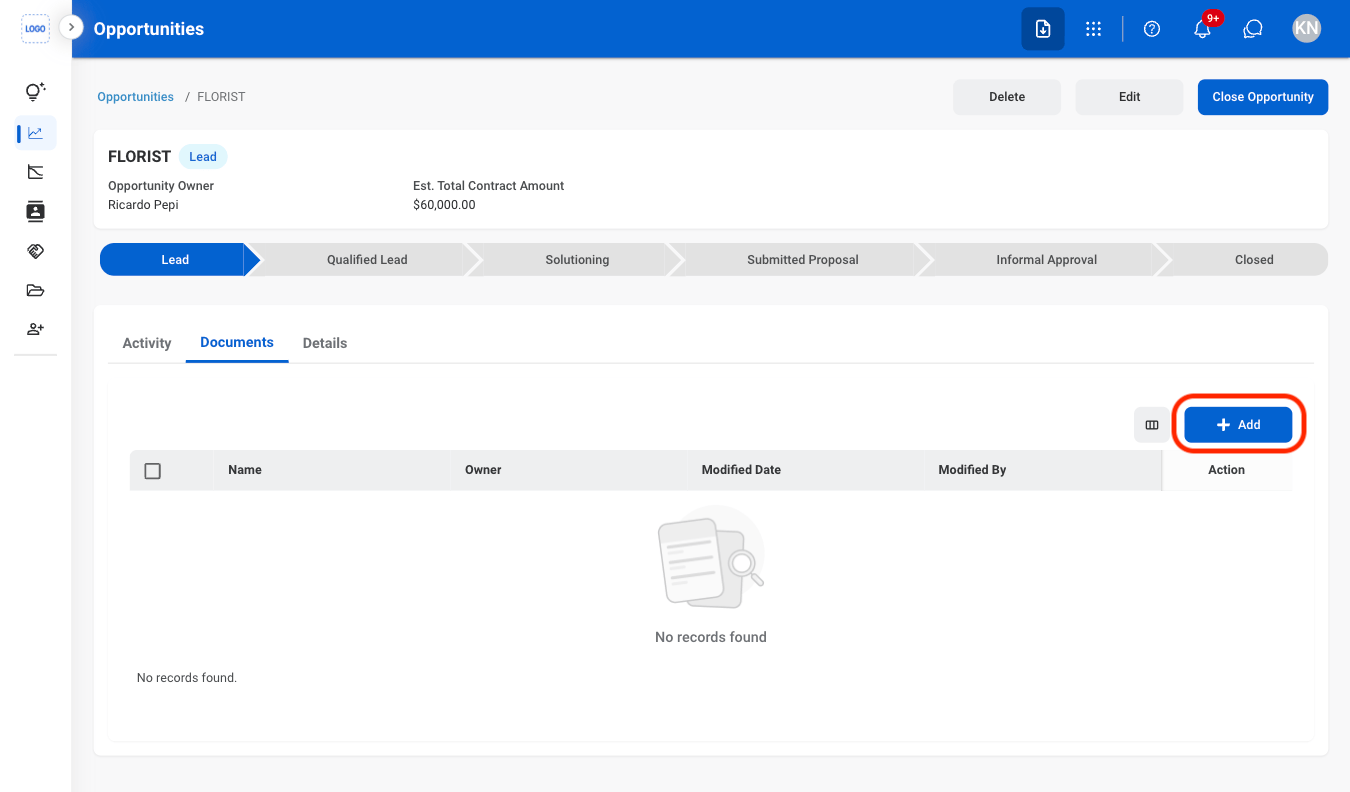
Select Add
3
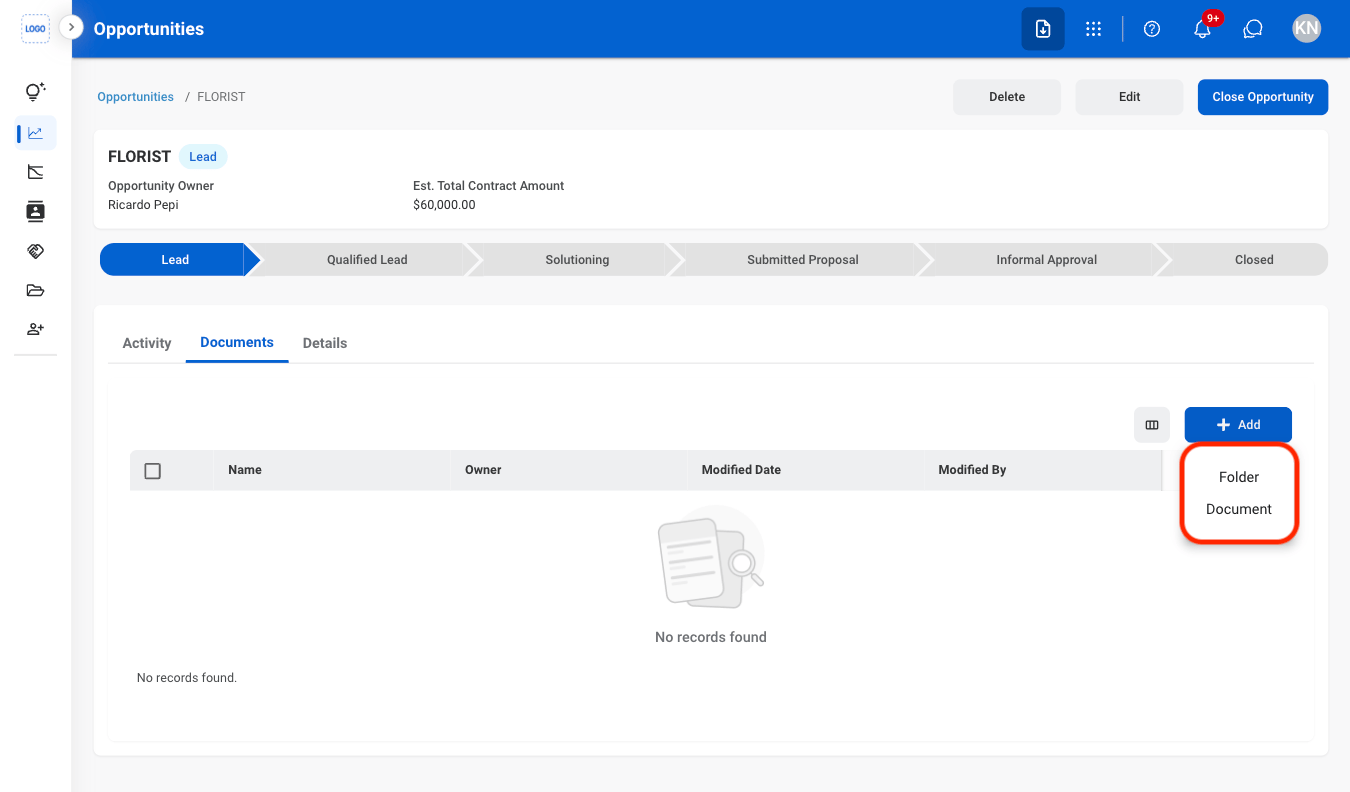
Select Folder or Document
4
Fill in the required information
Select Save to complete or Cancel to exit without saving changes.
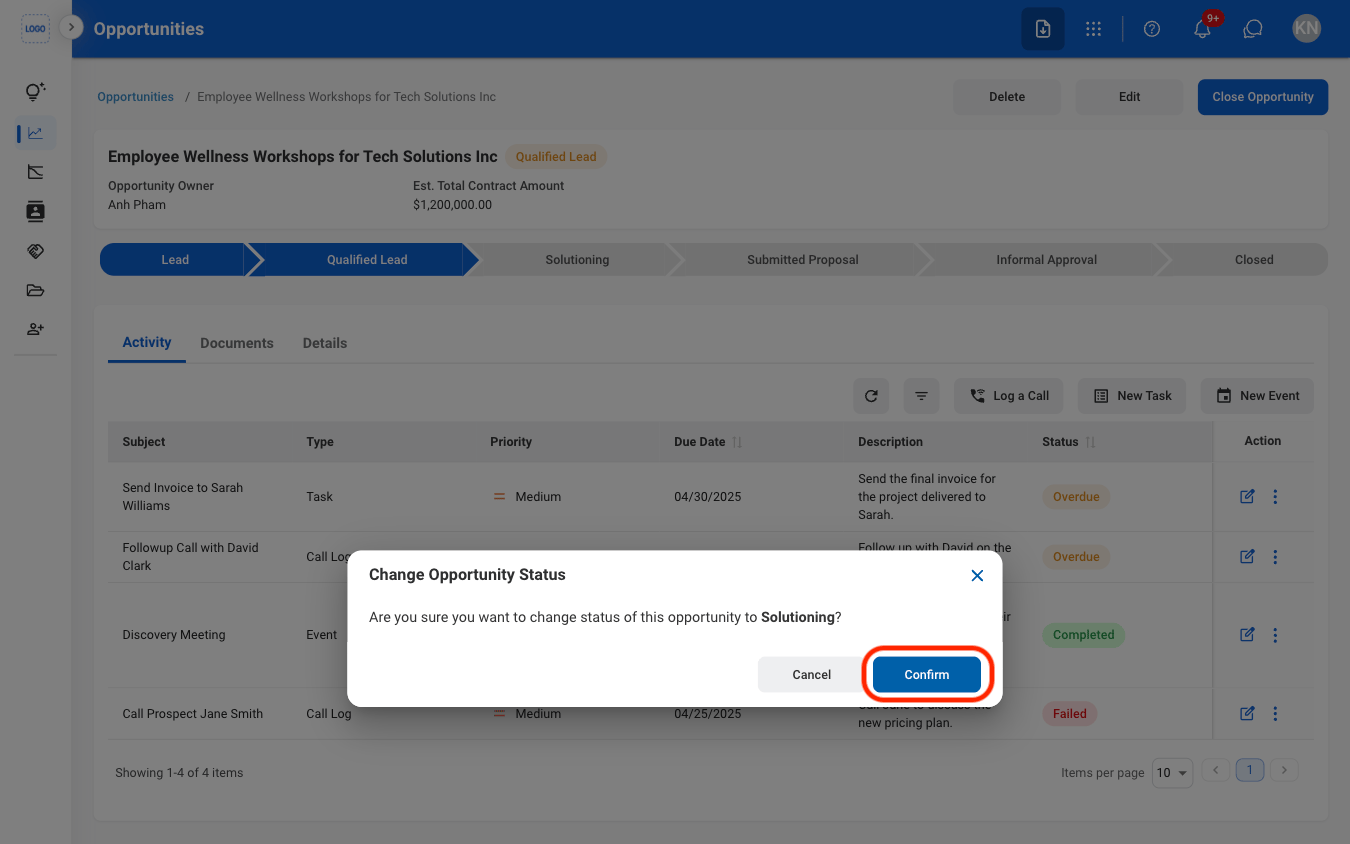
Change an Opportunity Status
1
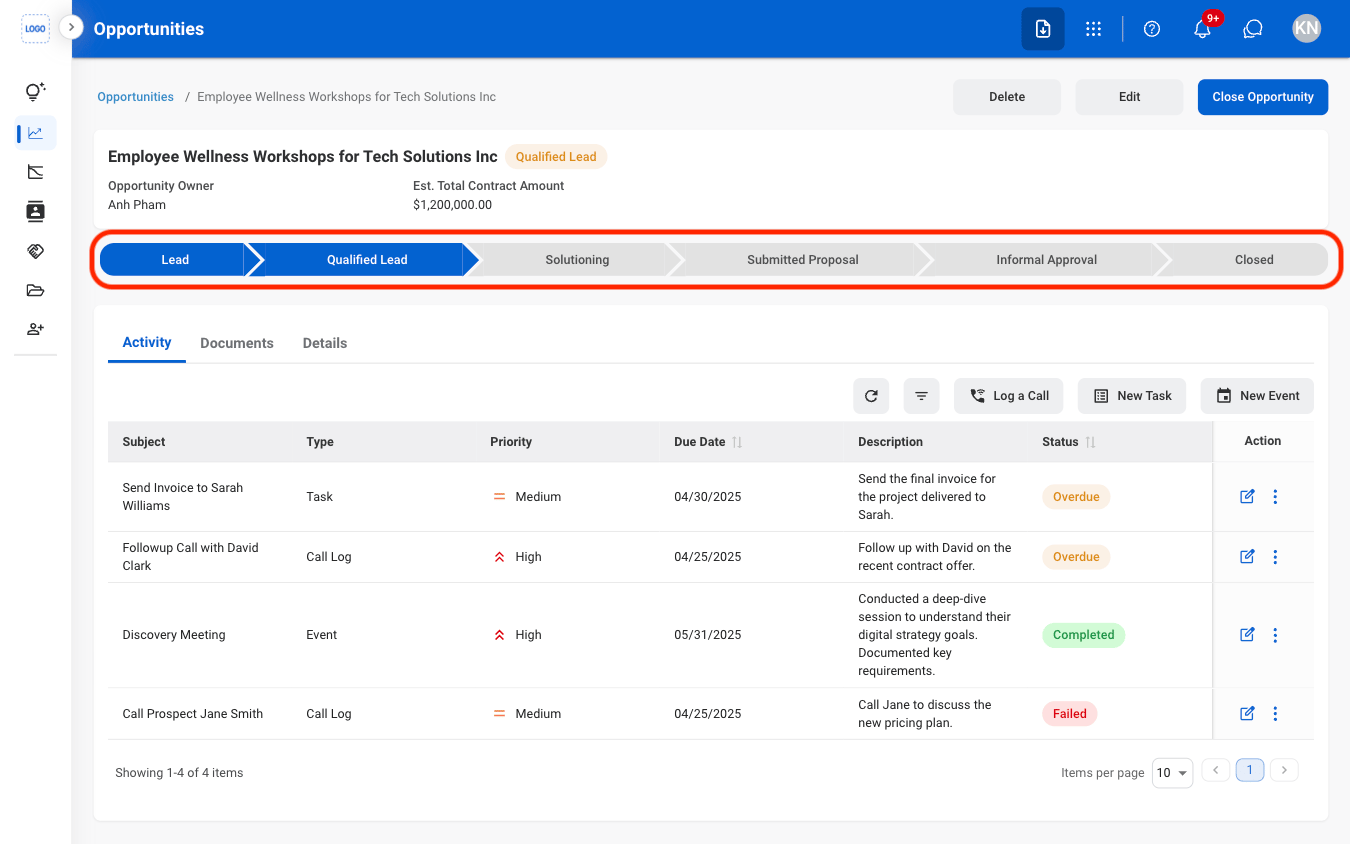
Select an Opportunity Status
2
Confirm the action
Close an Opportunity
1
Select an opportunity
2
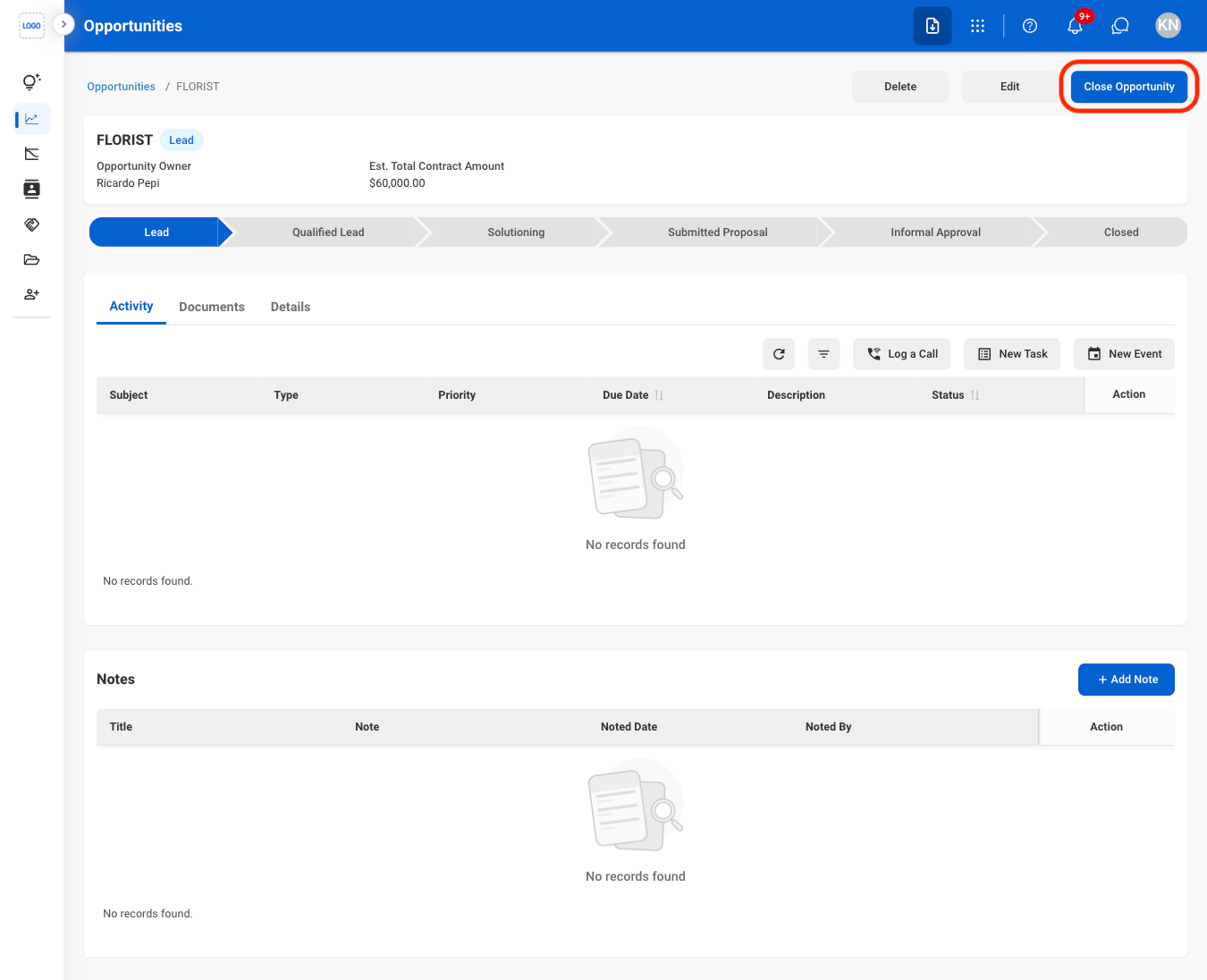
Select Close Opportunity
3
Fill in the required information
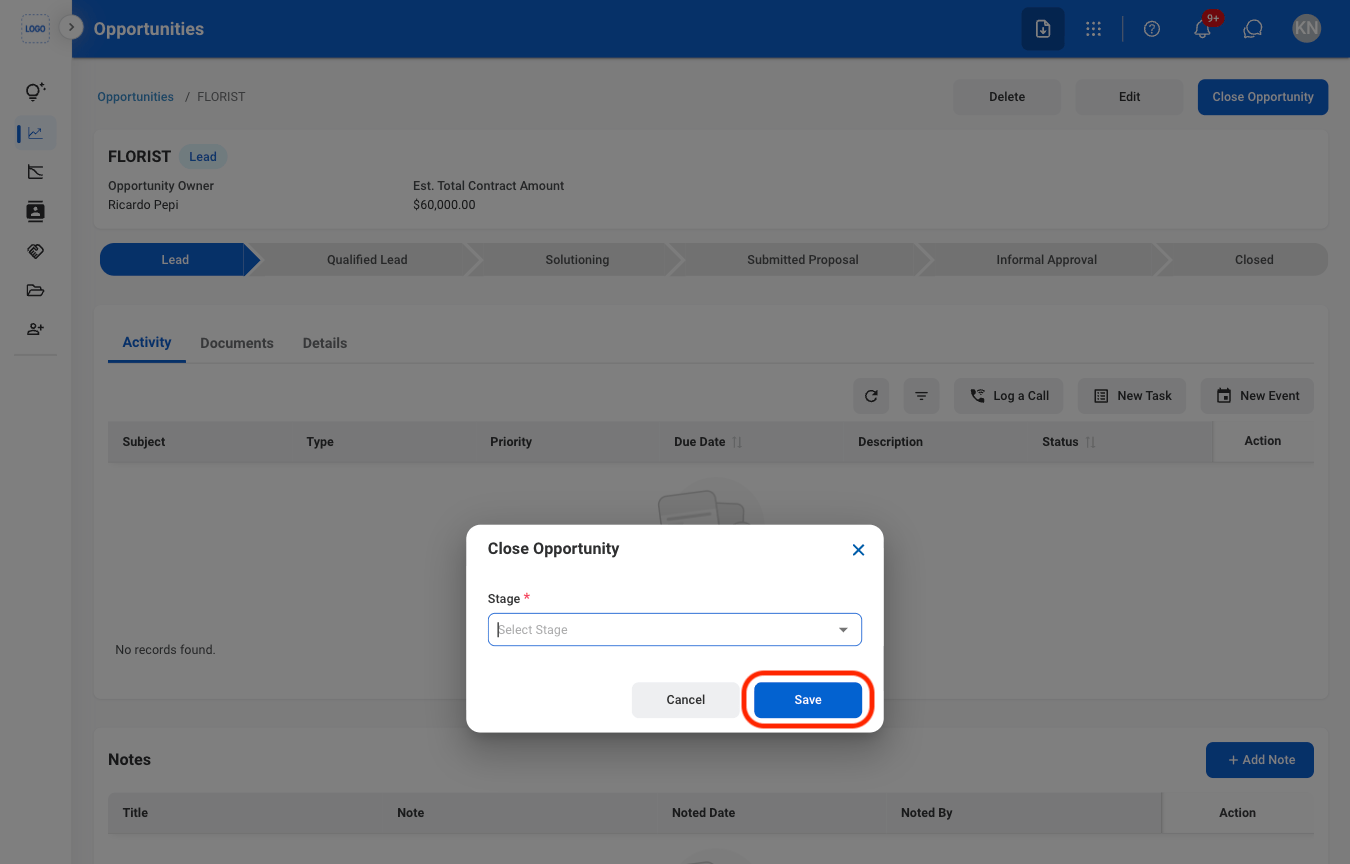
- Closed Won: Mark the opportunity as successfully completed after the sale has been won.
- Closed Lost: Mark the opportunity as closed without a successful sale.
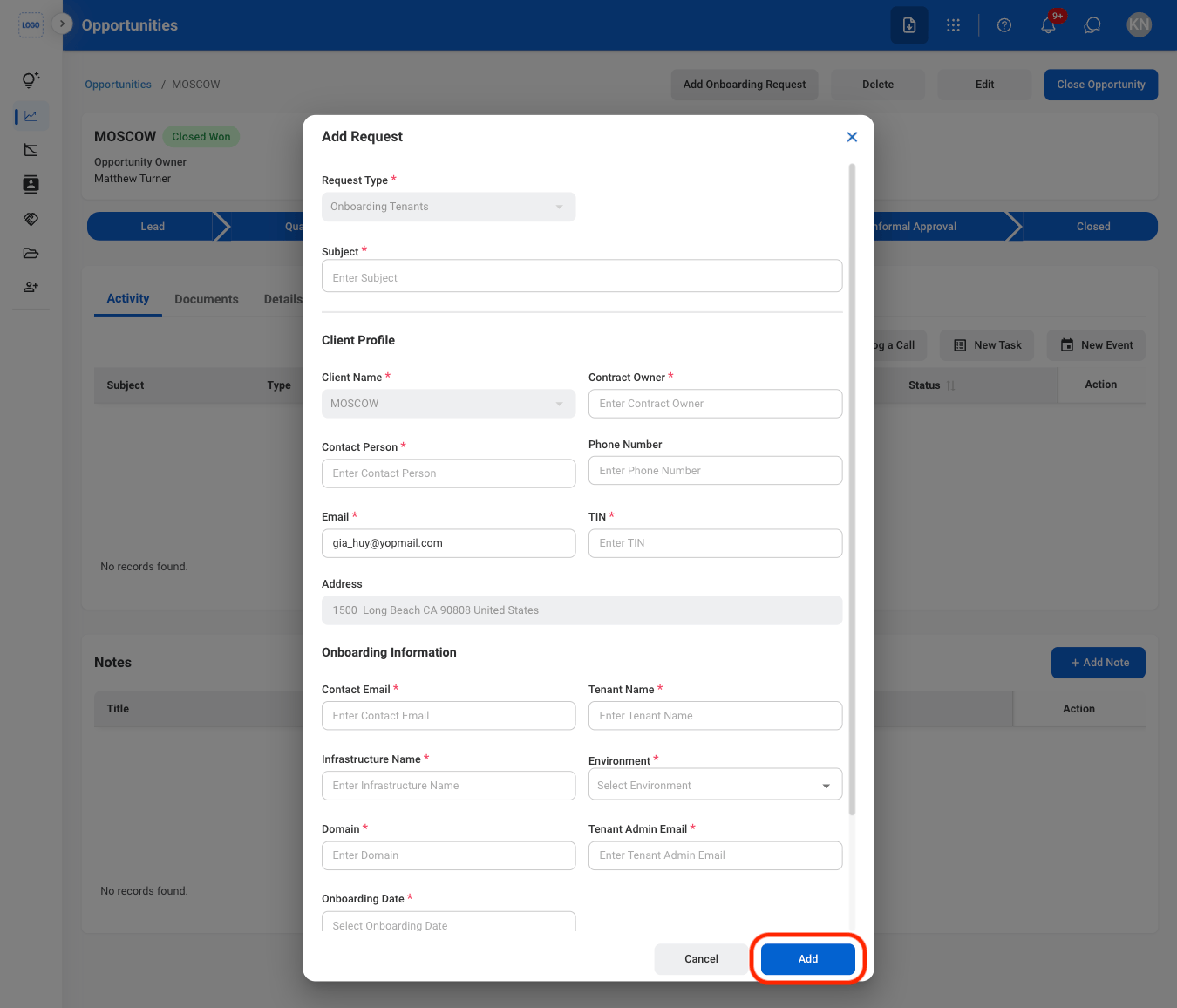
Add an Onboarding Request
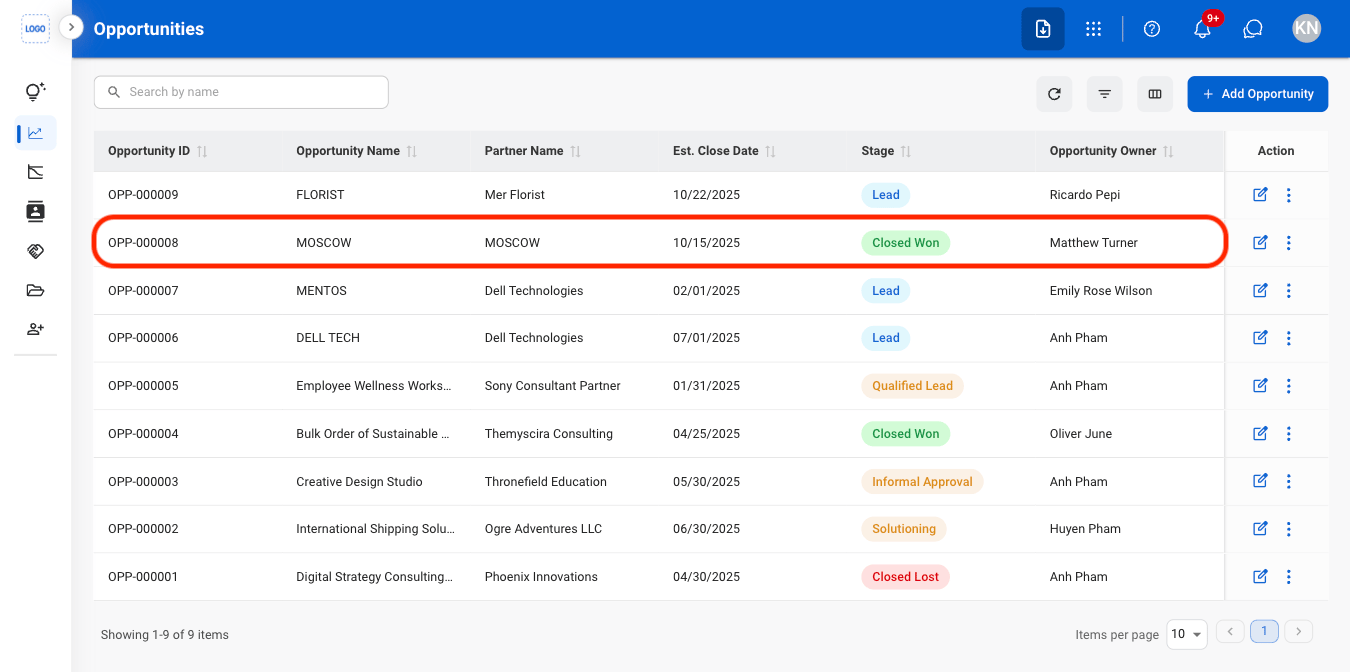
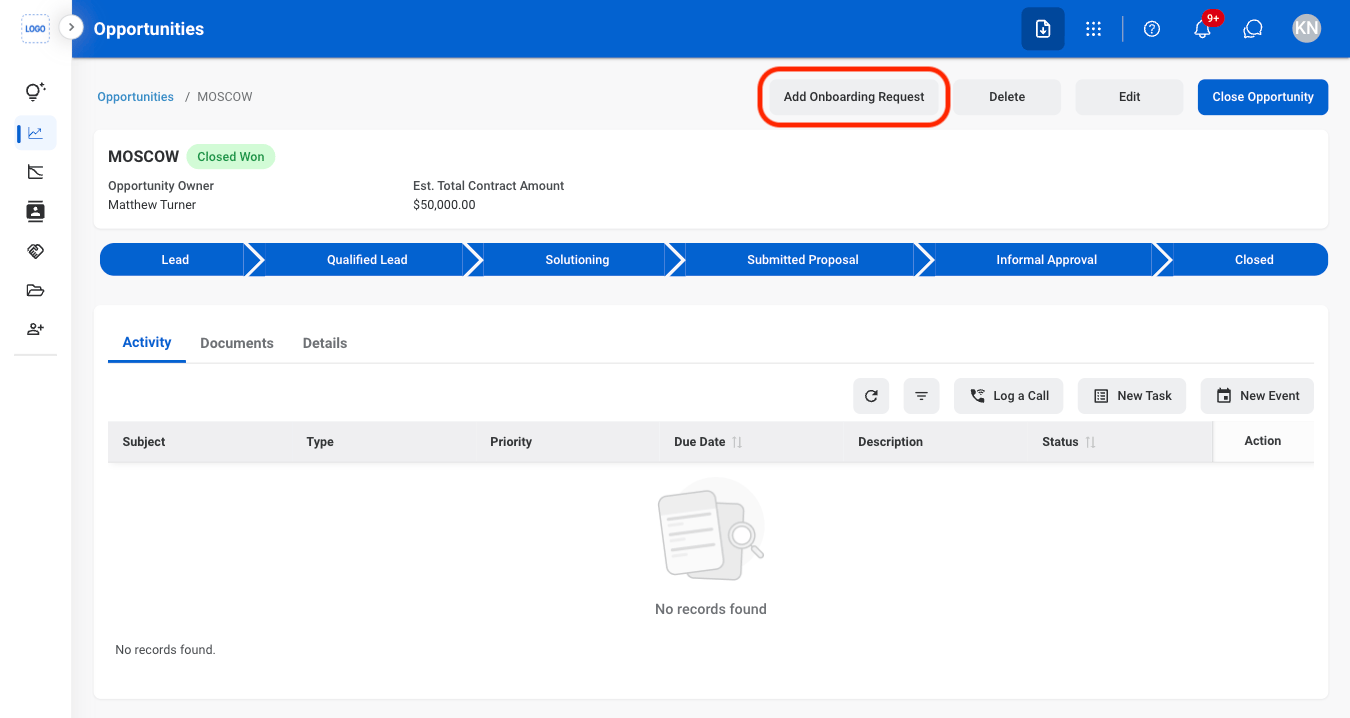
Create onboarding requests for customers with successfully won opportunities. Creating an onboarding request automatically creates a corresponding record in the Onboarding Tickets section for further processing.Onboarding requests can only be created after the opportunity stage has been updated to Closed Won.
1
Select an opportunity in the Closed Won stage
2
Select Add Onboarding Request
3
Fill in the required information