Create a New Dashboard
1
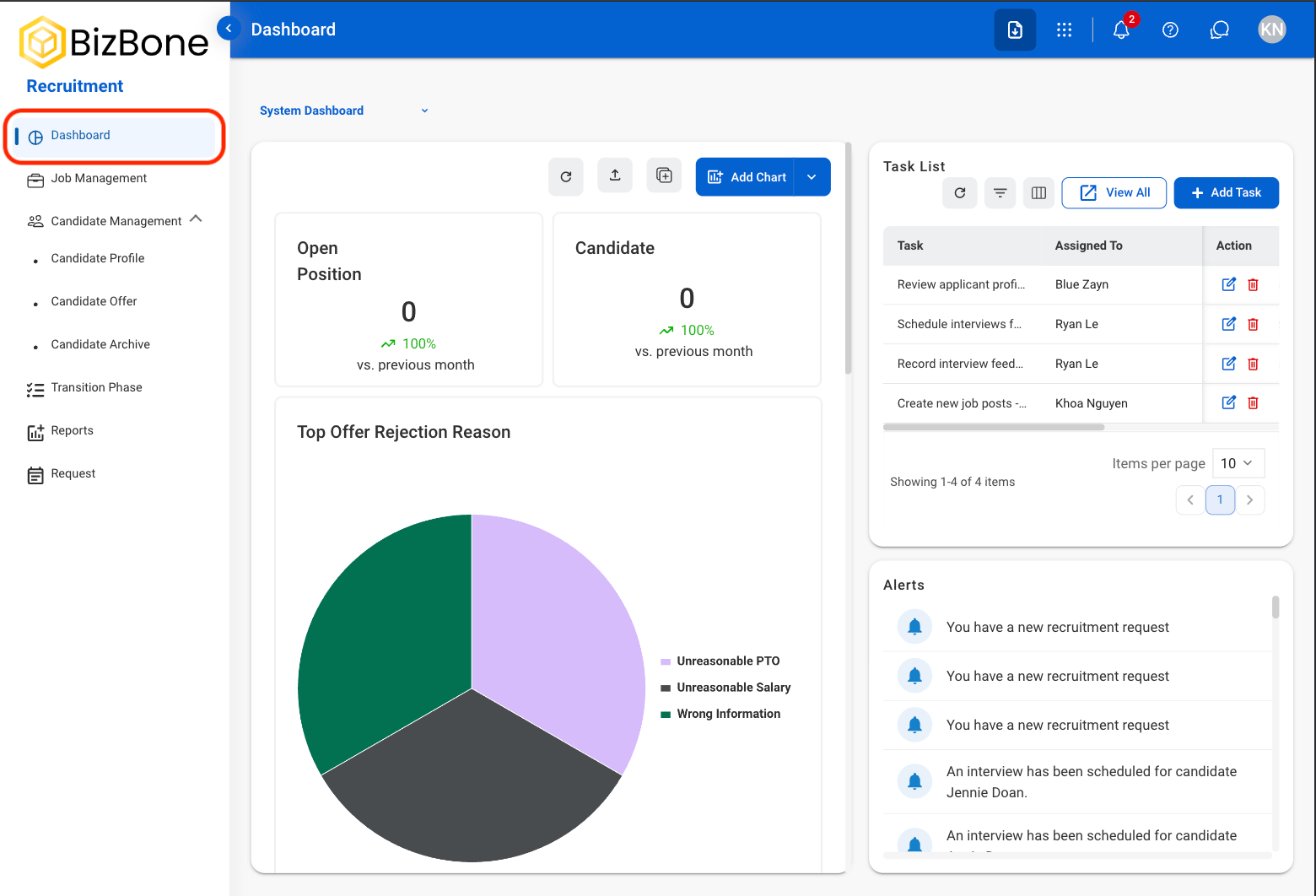
Navigate to Dashboard
2
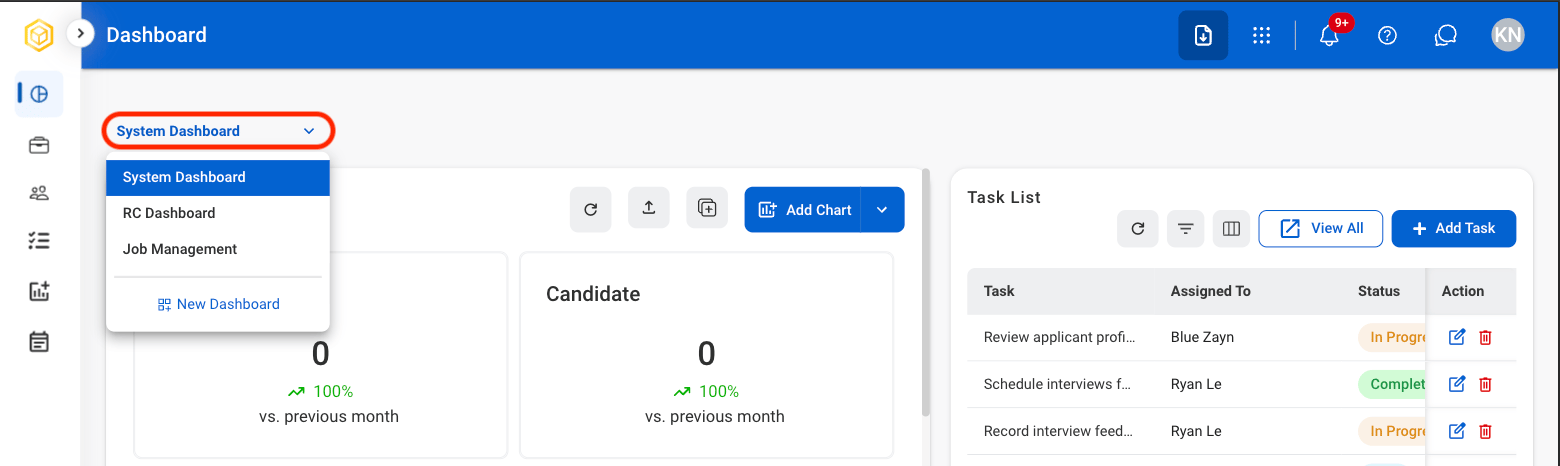
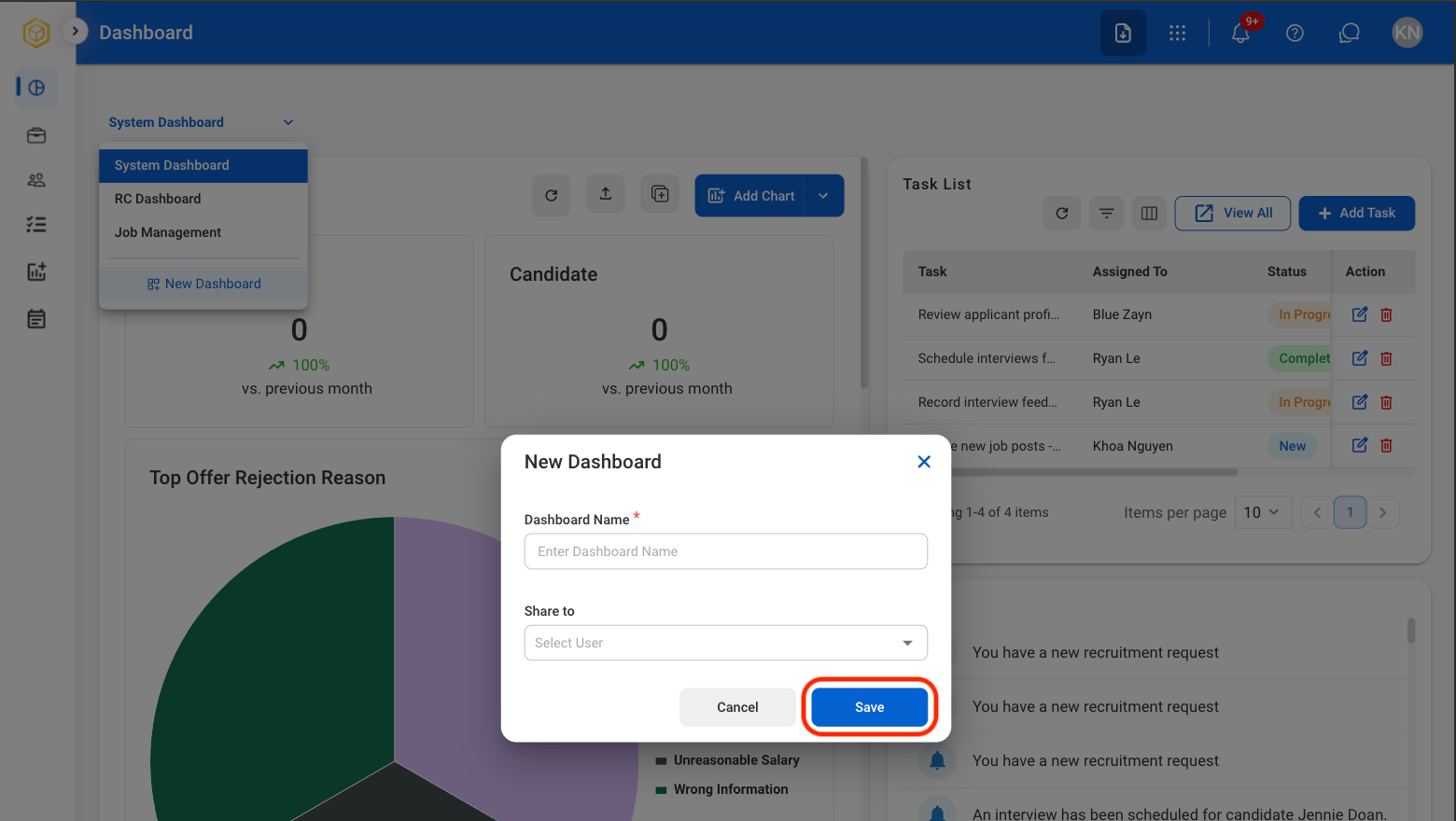
Select System Dashboard to open the dashboard dropdown list
3
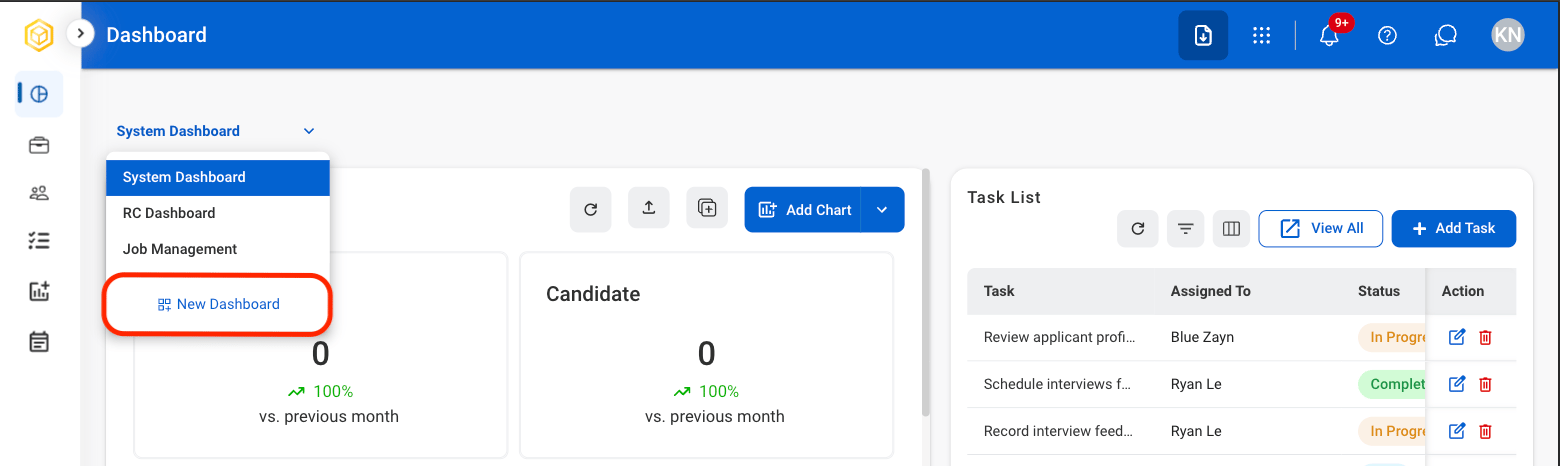
Select New Dashboard
4
Fill in the required information
Dashboard Actions
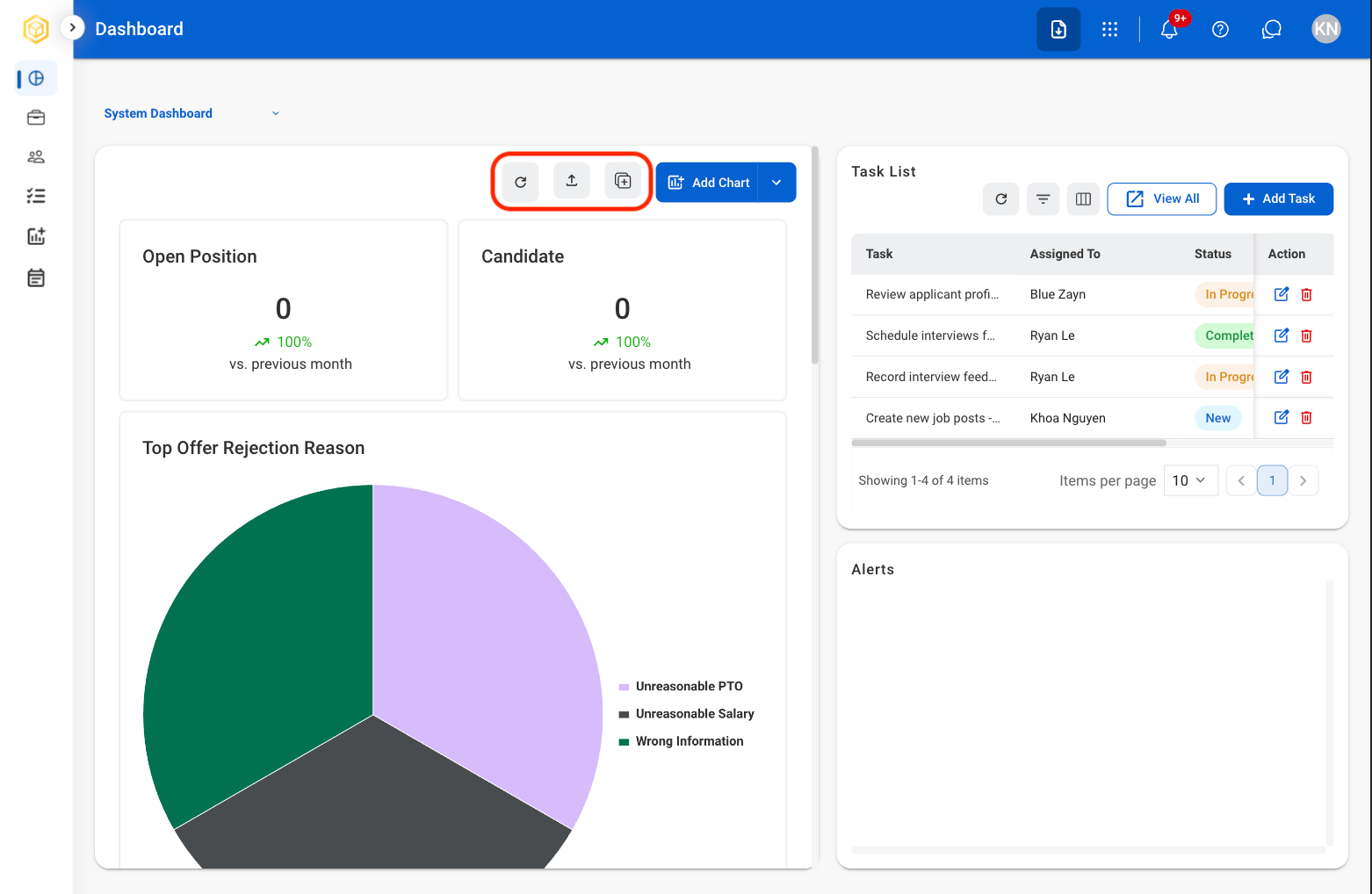
- Refresh icon: Refresh the information of the dashboard
- Export icon: Export the data
- Duplicate icon: Duplicate the dashboard
Add a Chart
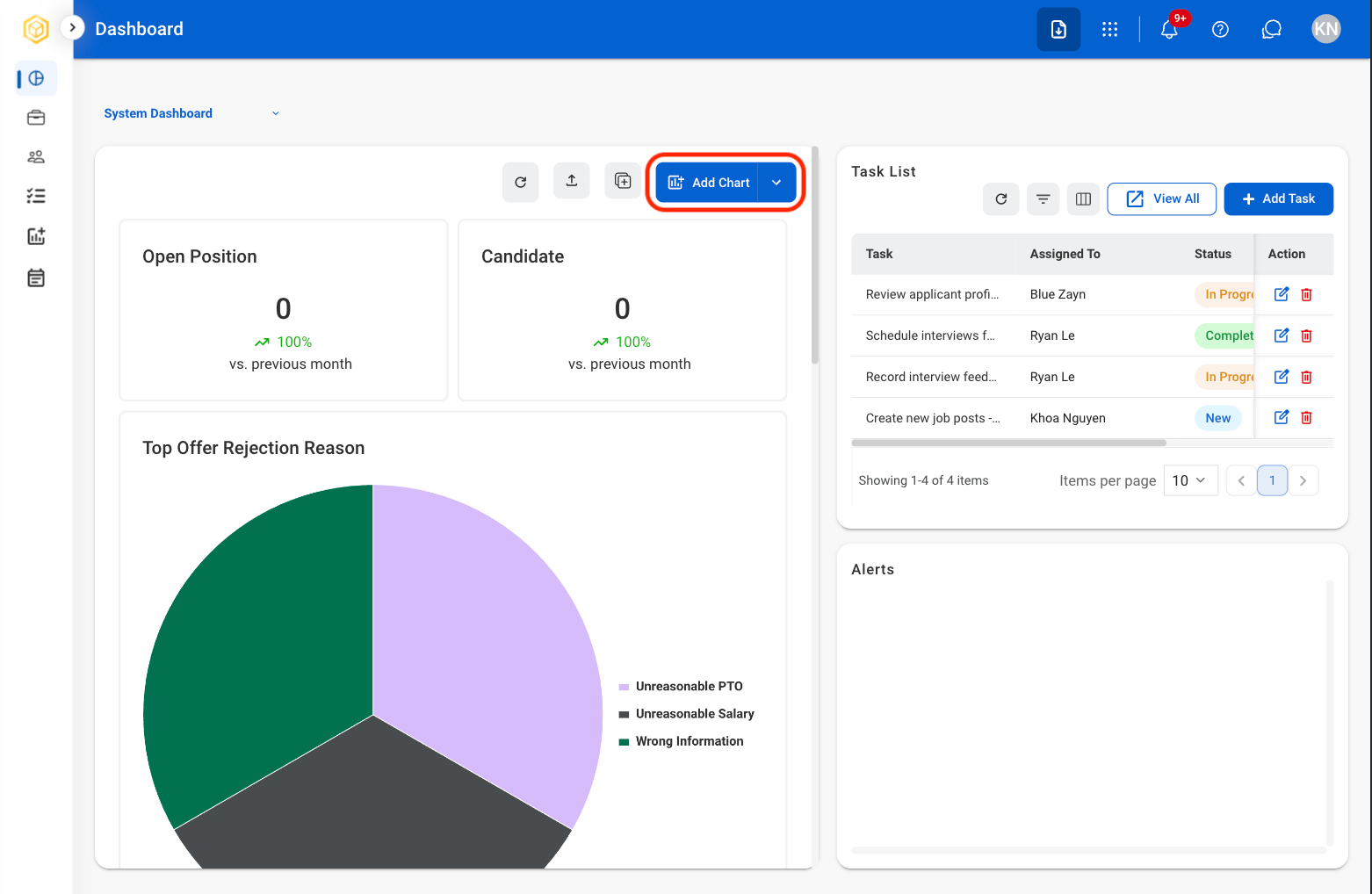
1
Select the Add Chart button
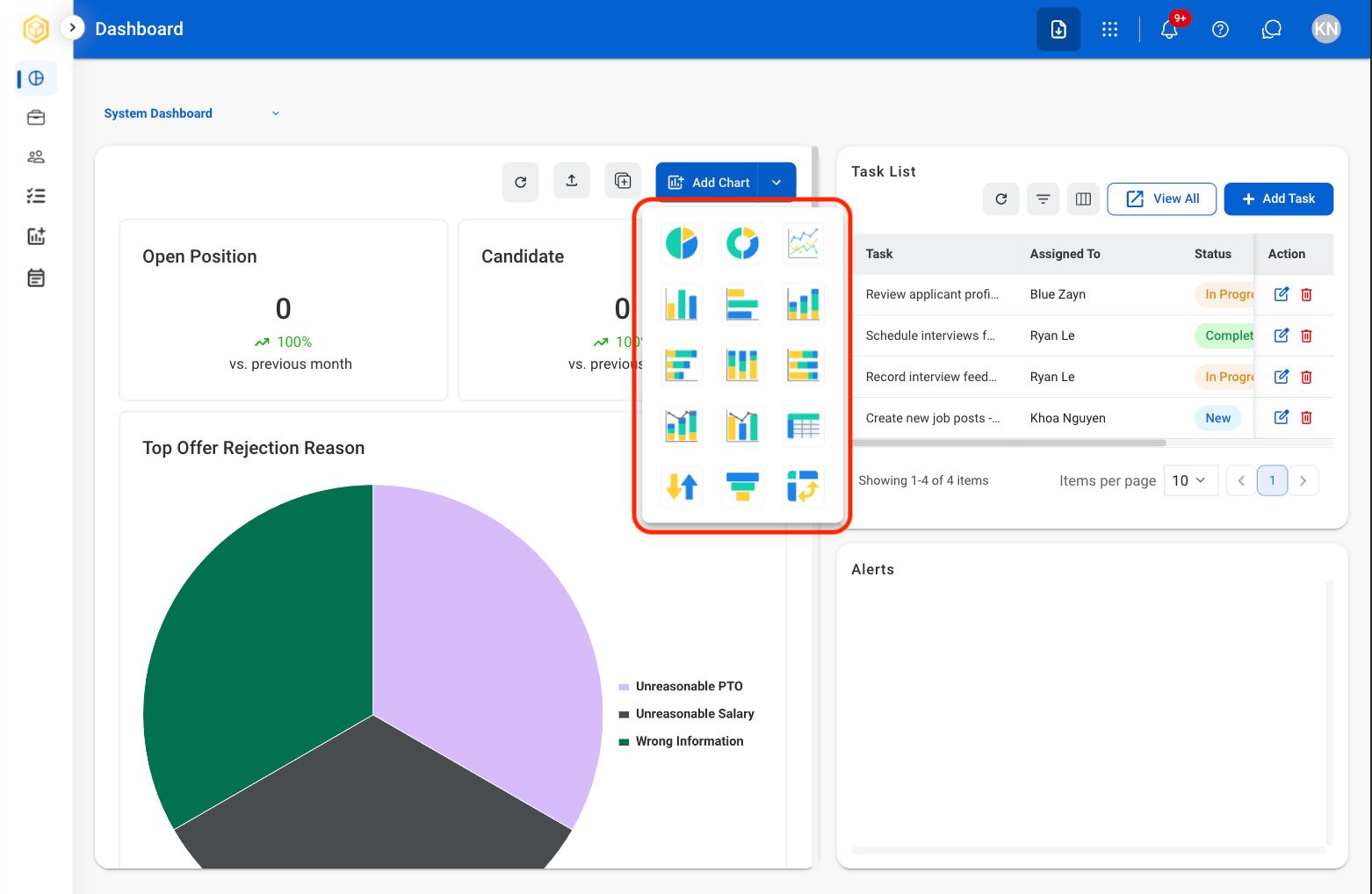
2
Select the desired chart
3
Fill the required information
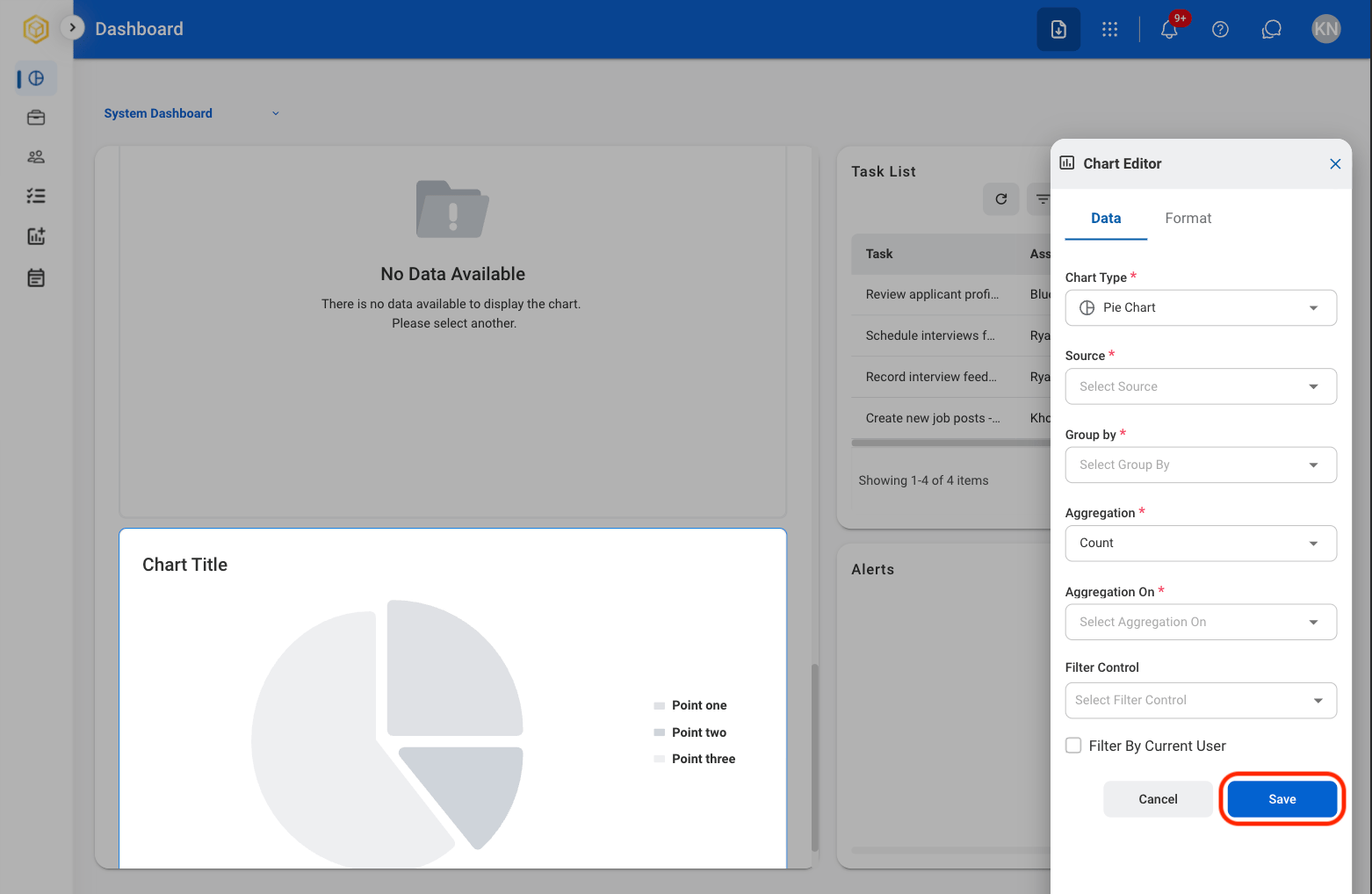
Chart Actions
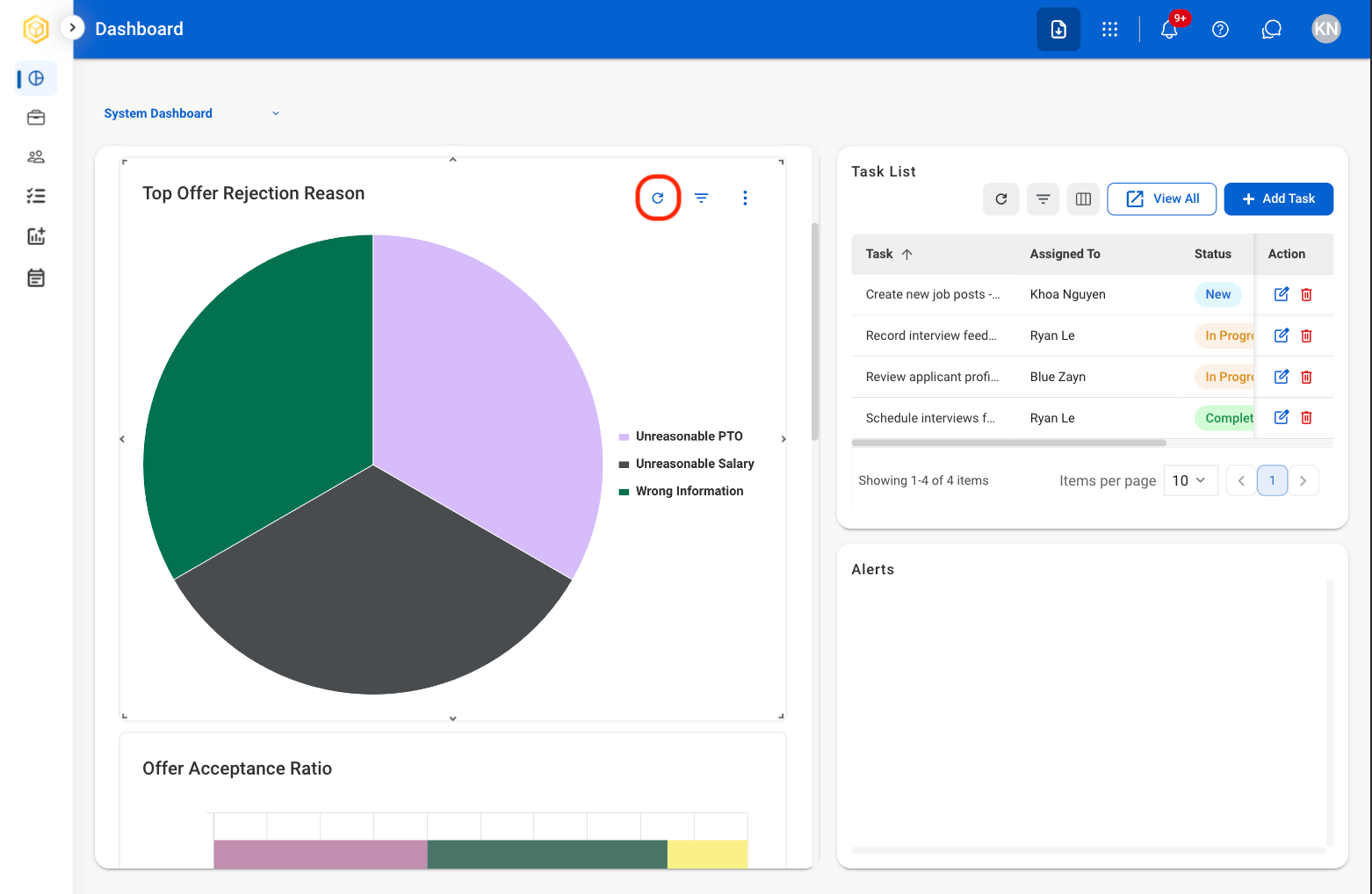
Select a chart to interact with its functions using the following icons.Refresh
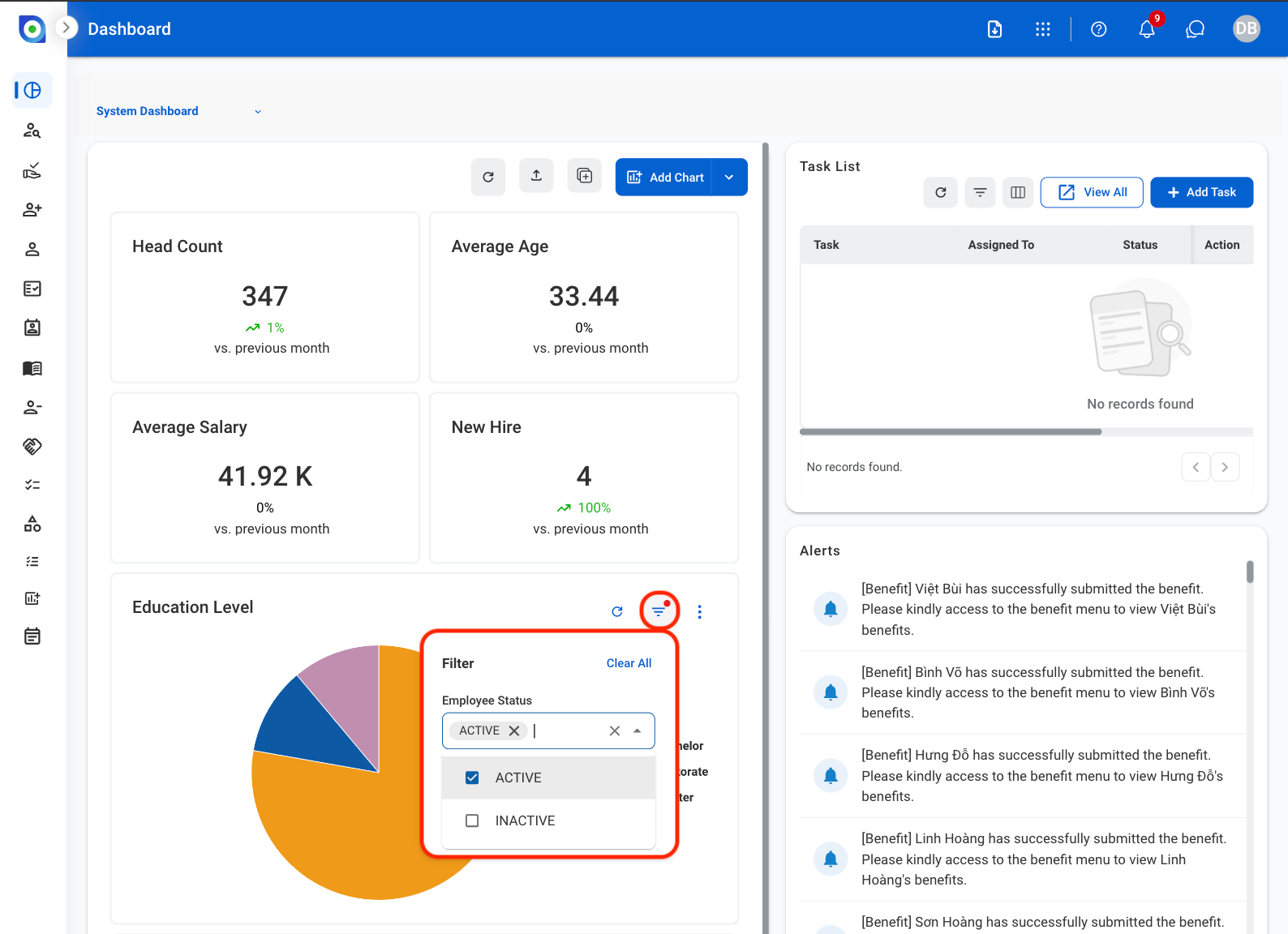
Filter
Additional Functions
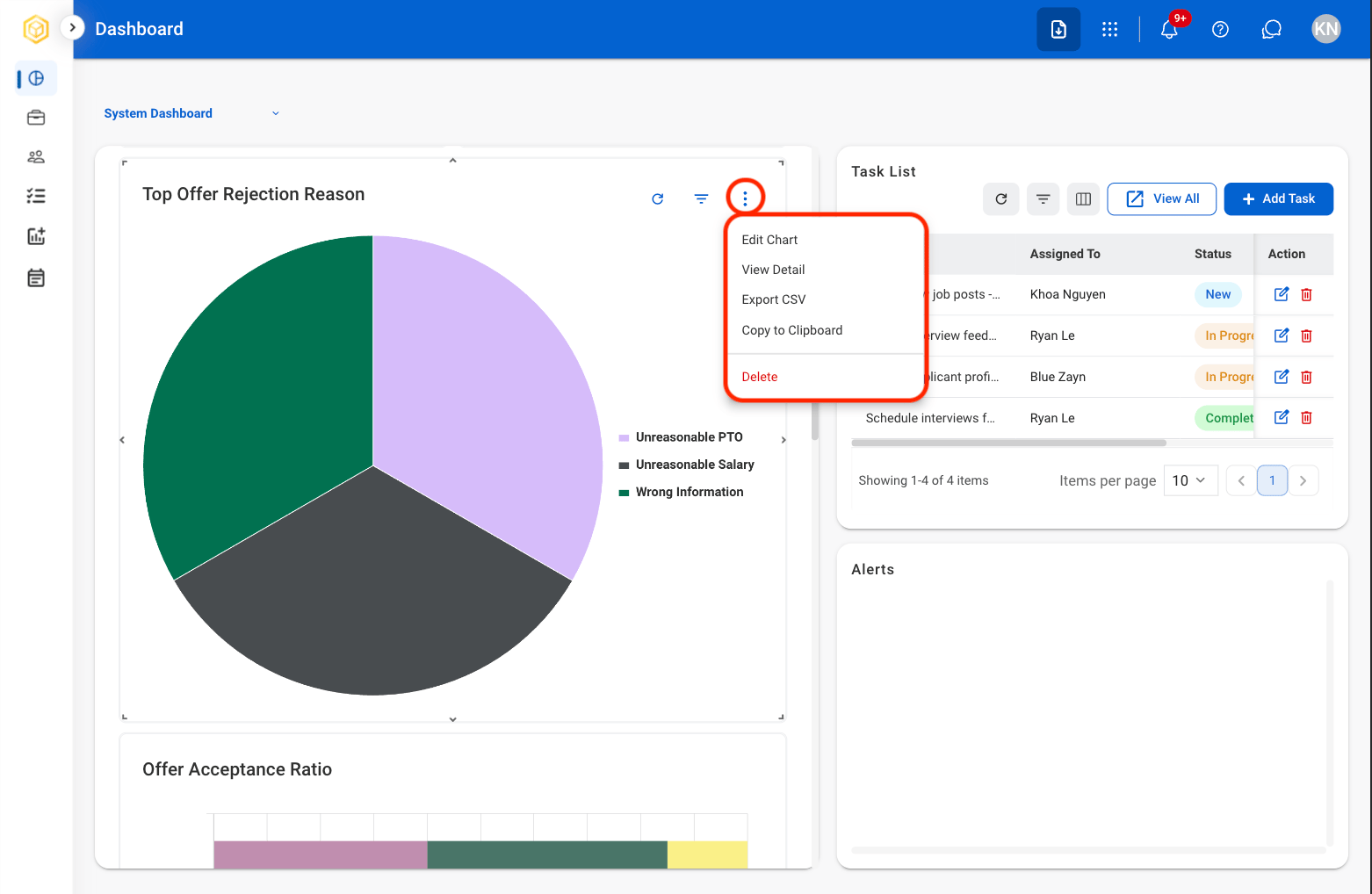
- Edit Chart: Modify chart settings, data, or display options.
- View Detail: View the underlying data used to generate the chart.
- Export CSV: Export the chart data as a CSV file.
- Copy to Clipboard: Copy an image of the chart to the clipboard.
- Delete: Remove the selected chart from the dashboard
Task List
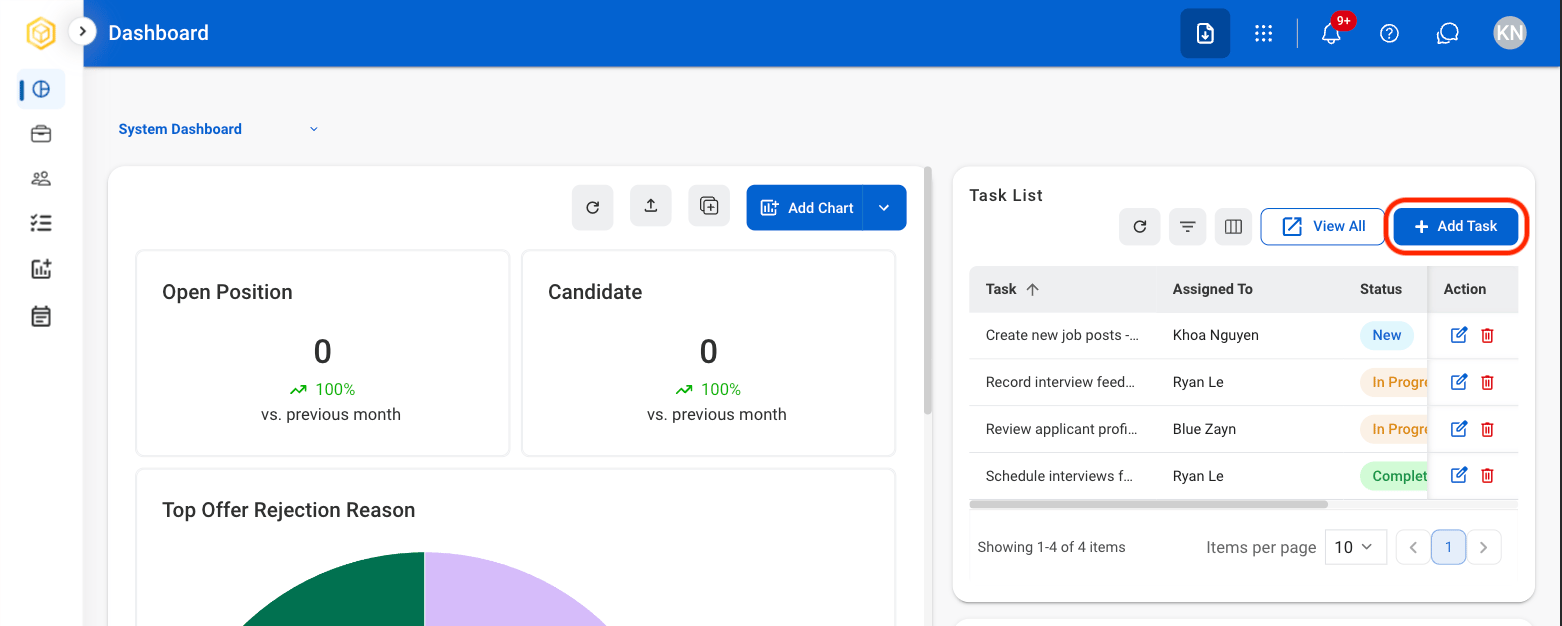
A centralized location to assign, track status, and monitor progress of tasks.Add Task
Create and assign new tasks for tracking and completion.1
Select Add Task
2
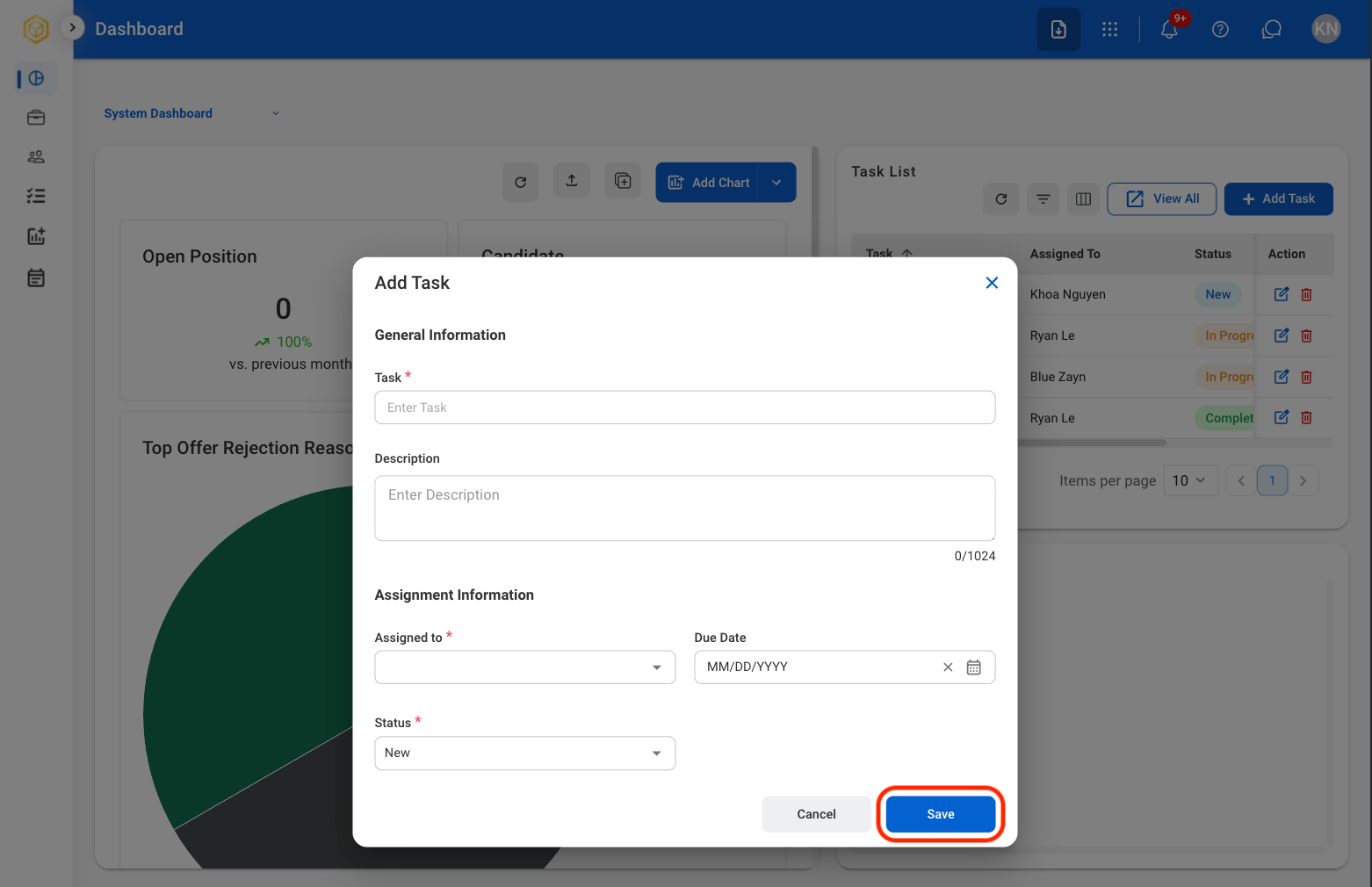
Fill in the required information
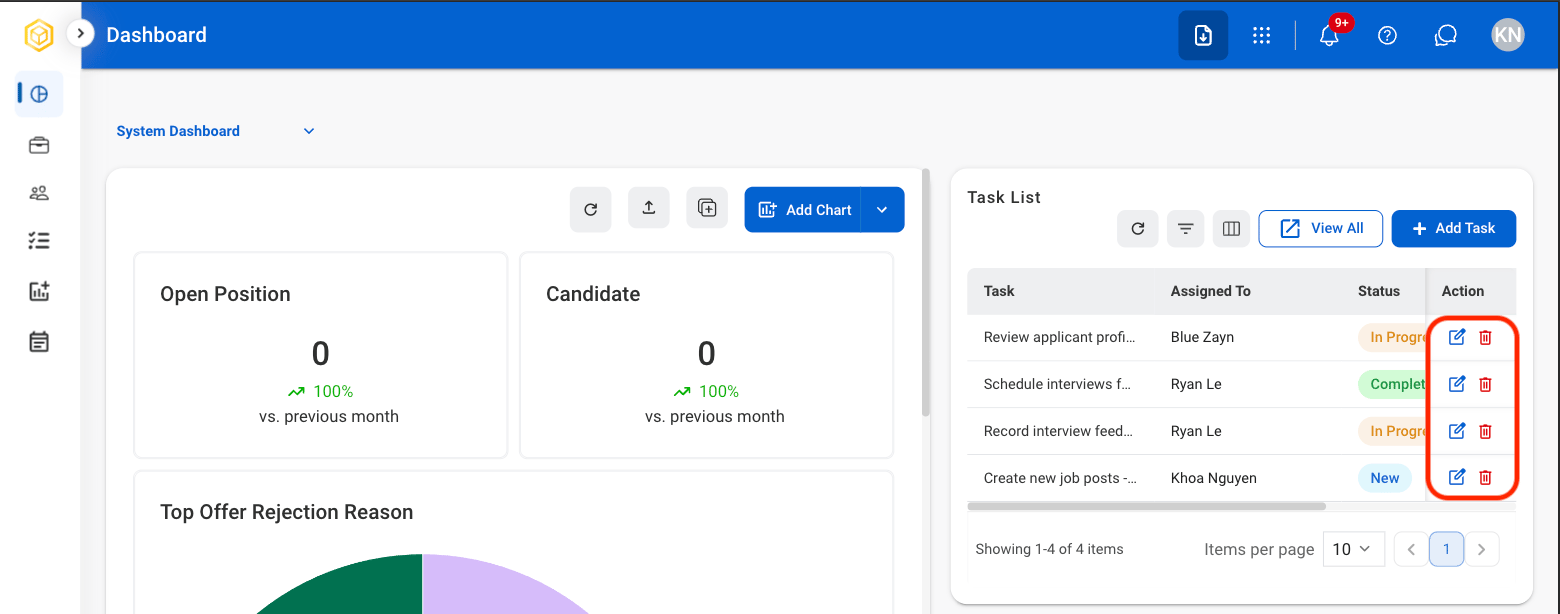
Edit or Delete Task
1
Select the Edit or Delete icon in the Action column
2
Confirm action
- Edit: Fill in the required information and select Save to complete or Cancel to exit without saving changes.
- Delete: Select Delete to complete or Cancel to exit without saving changes.
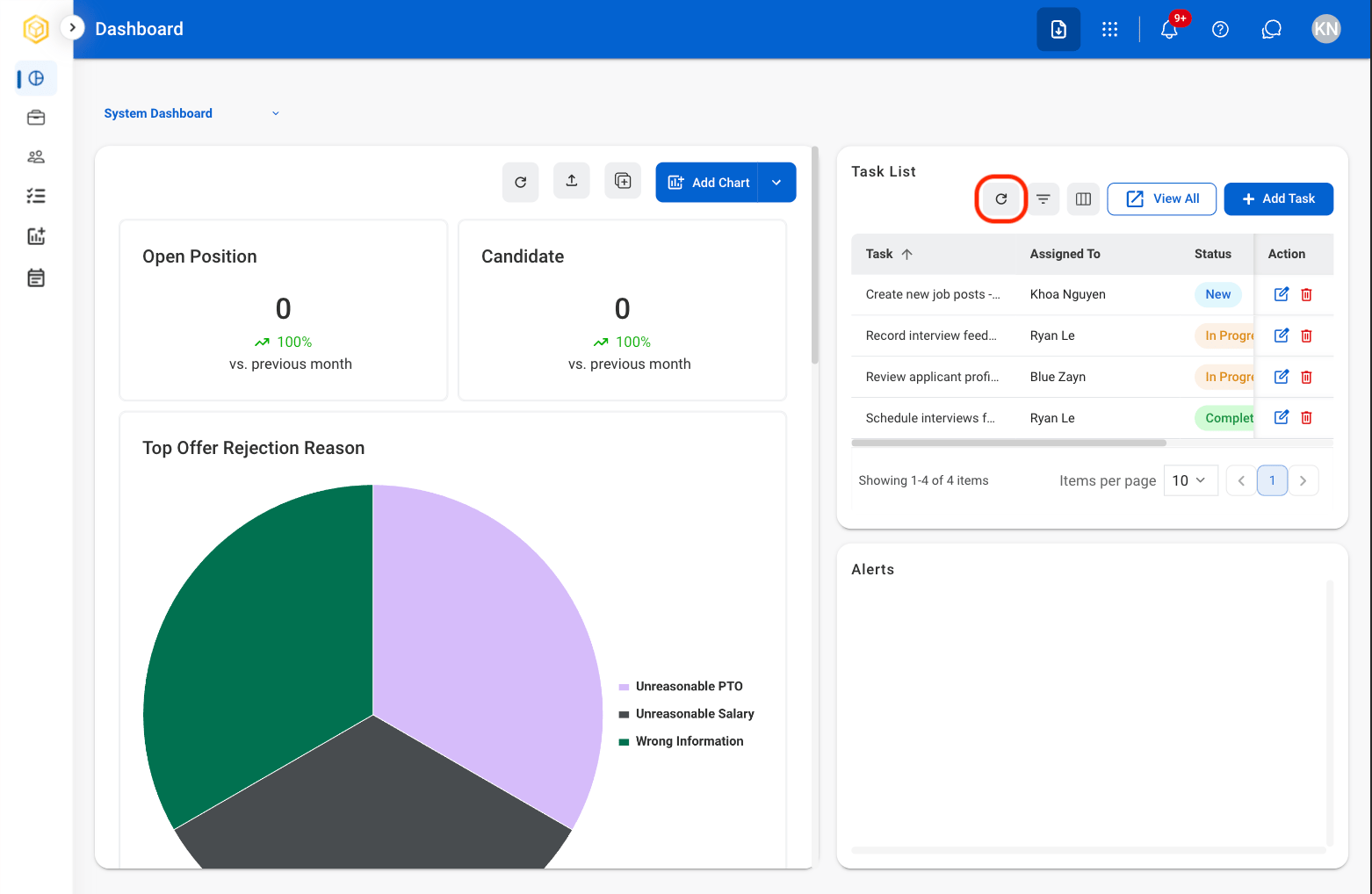
Task List Actions
Refresh
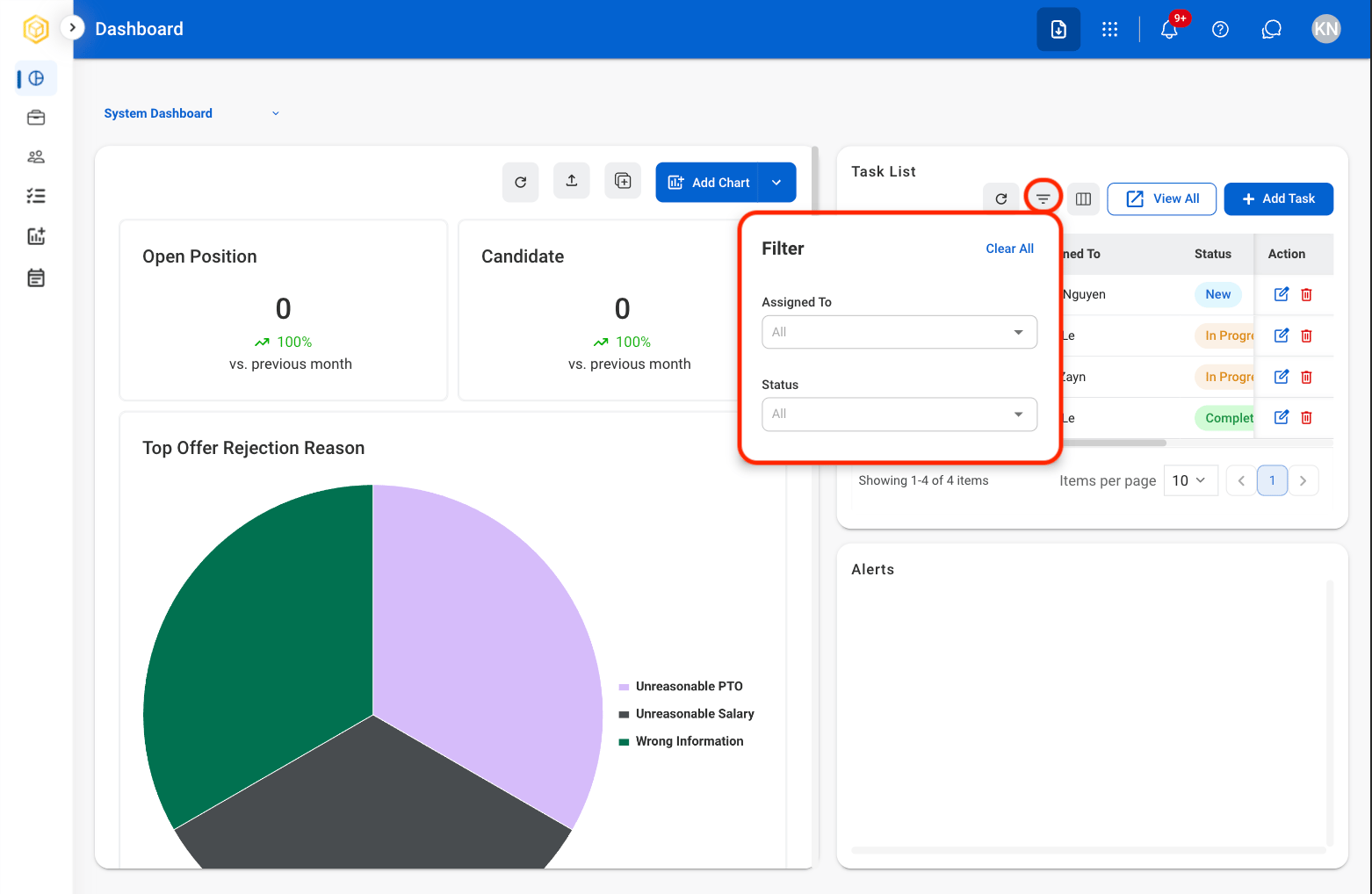
Filter
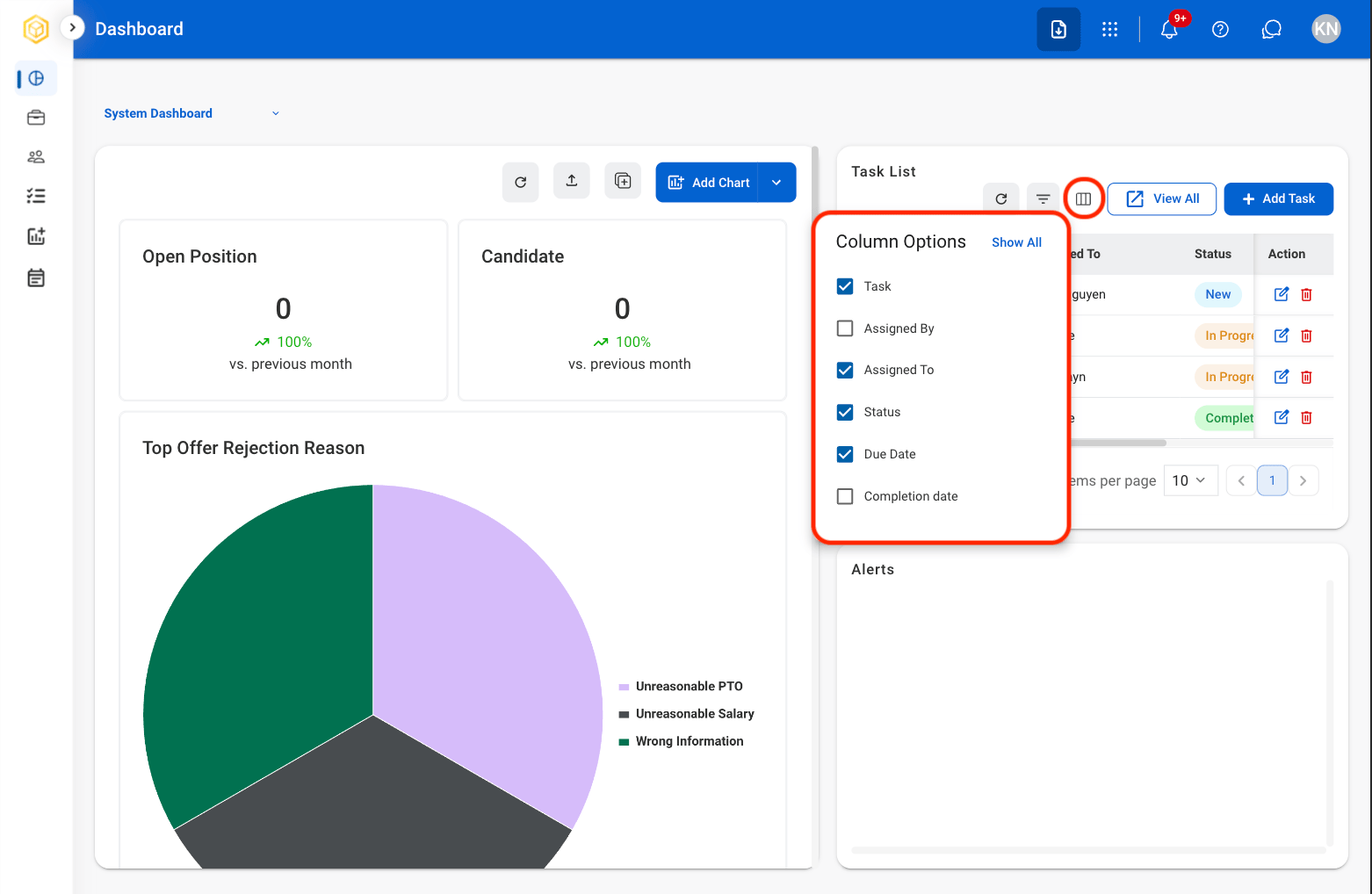
Column
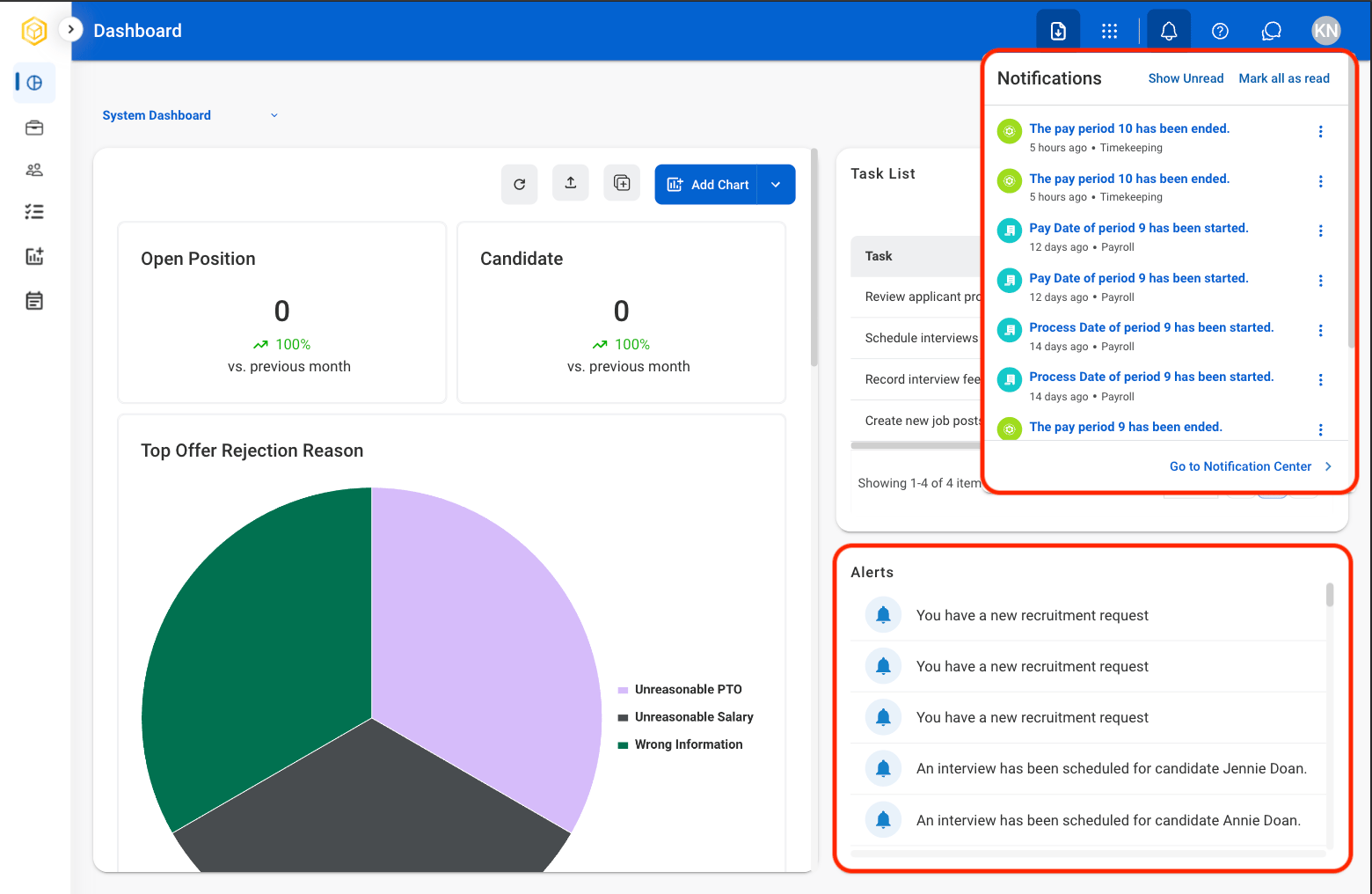
View Alerts
View system-generated alerts and notifications related to module activities, requests, approvals, and pending actions.