> ## Documentation Index
> Fetch the complete documentation index at: https://docs.bizbone.com/llms.txt
> Use this file to discover all available pages before exploring further.

# Purchase Orders

> Manage purchase orders used to procure goods and services. Supports the creation, tracking, approval, and management of purchasing transactions throughout the procurement process.

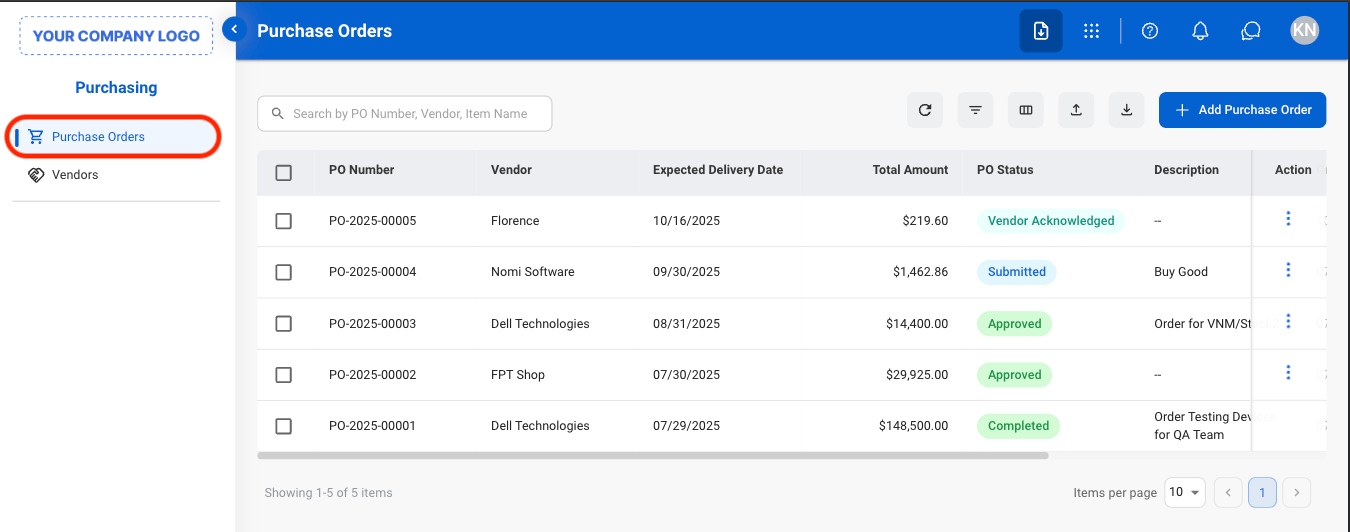
## **Add Purchase Order**
<Steps>
  <Step title="Navigate to Purchase Orders">
    <Frame>
      <img src="https://mintcdn.com/bizbone/pbQvDnPVNhYcuslV/images/P-PO-Nav.png?fit=max&auto=format&n=pbQvDnPVNhYcuslV&q=85&s=143a1a42858a42aa62d6c9823c25c033" alt="P PO Nav" width="1350" height="532" data-path="images/P-PO-Nav.png" />
    </Frame>
  </Step>

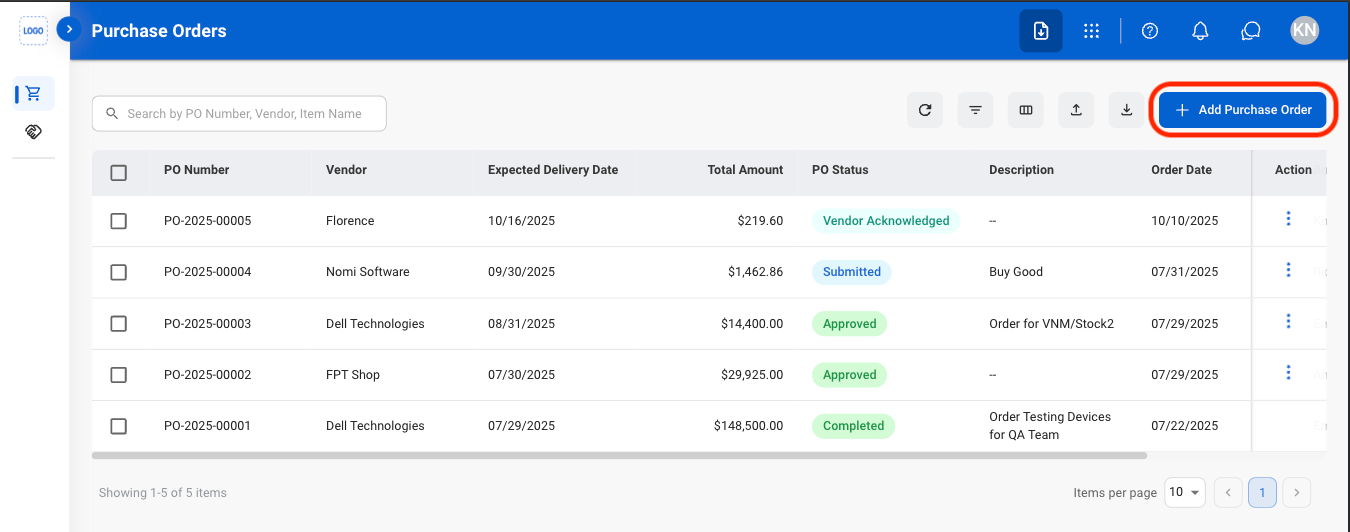
  <Step title="Select Add Purchase Order">
    <Frame>
      <img src="https://mintcdn.com/bizbone/pbQvDnPVNhYcuslV/images/P-PO-Add.png?fit=max&auto=format&n=pbQvDnPVNhYcuslV&q=85&s=dc5503c25b7128c6b0bf951c4c55df36" alt="P PO Add" width="1350" height="532" data-path="images/P-PO-Add.png" />
    </Frame>
  </Step>

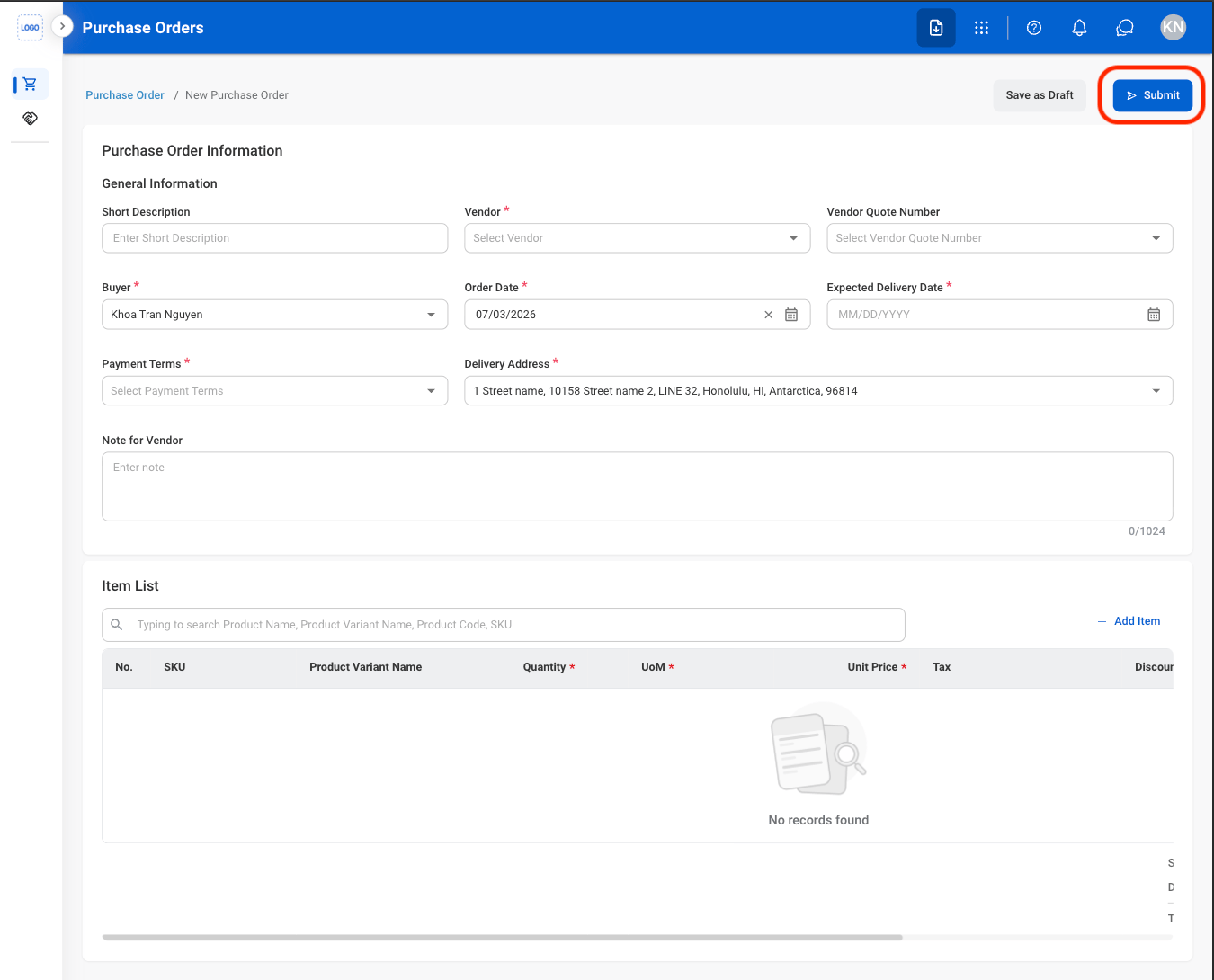
  <Step title="Fill in the required information">
    <Frame>
      <img src="https://mintcdn.com/bizbone/pbQvDnPVNhYcuslV/images/P-PO-Add-C.png?fit=max&auto=format&n=pbQvDnPVNhYcuslV&q=85&s=b6ef829e065e00d132facdad73d073e8" alt="P PO Add C" width="1350" height="1090" data-path="images/P-PO-Add-C.png" />
    </Frame>

    Select **Submit** to complete or \*\*Save as Draft \*\*to save the record without submitting. 
  </Step>
</Steps>

## View Purchase Order Details

<Steps>
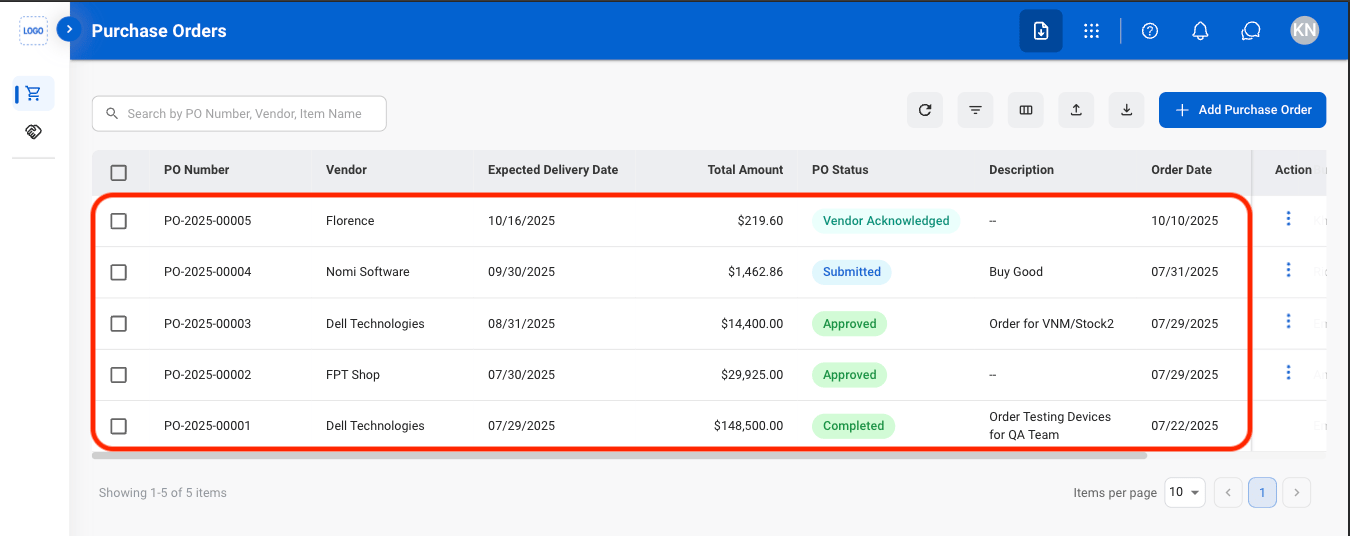
  <Step title="Select a purchase order">
    <Frame>
      <img src="https://mintcdn.com/bizbone/pbQvDnPVNhYcuslV/images/P-PO-Select.png?fit=max&auto=format&n=pbQvDnPVNhYcuslV&q=85&s=c57e578811ad034152f508c656f6aa7a" alt="P PO Select" width="1350" height="536" data-path="images/P-PO-Select.png" />
    </Frame>
  </Step>

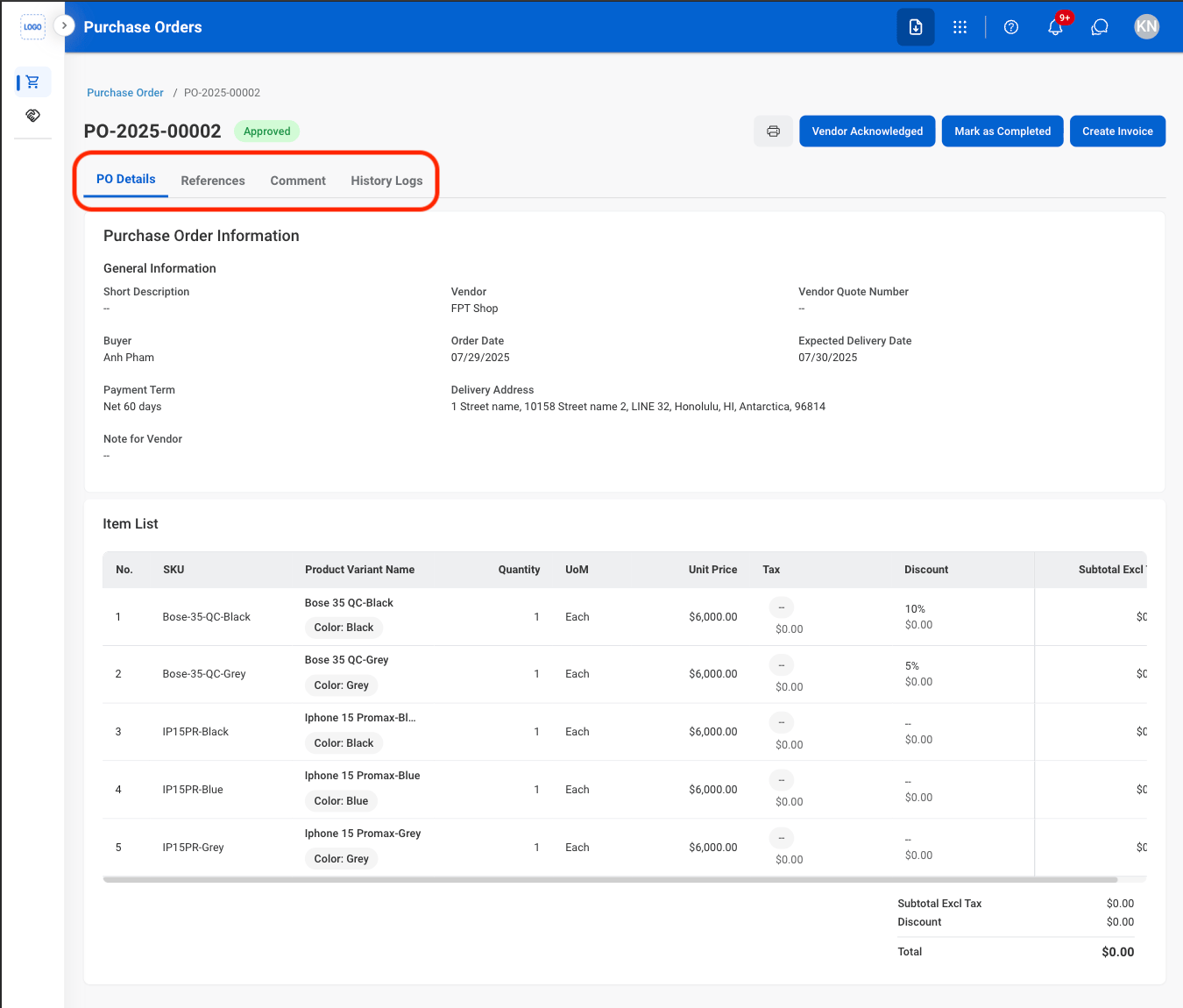
  <Step title="Select a tab to view more information">
    <Frame>
      <img src="https://mintcdn.com/bizbone/O54KWBvXAjoTGYsh/images/P-PO-All-Details.png?fit=max&auto=format&n=O54KWBvXAjoTGYsh&q=85&s=99abaa1cf0a006cf8cadfd0730bfc023" alt="P PO All Details" width="1350" height="1150" data-path="images/P-PO-All-Details.png" />
    </Frame>
  </Step>
</Steps>

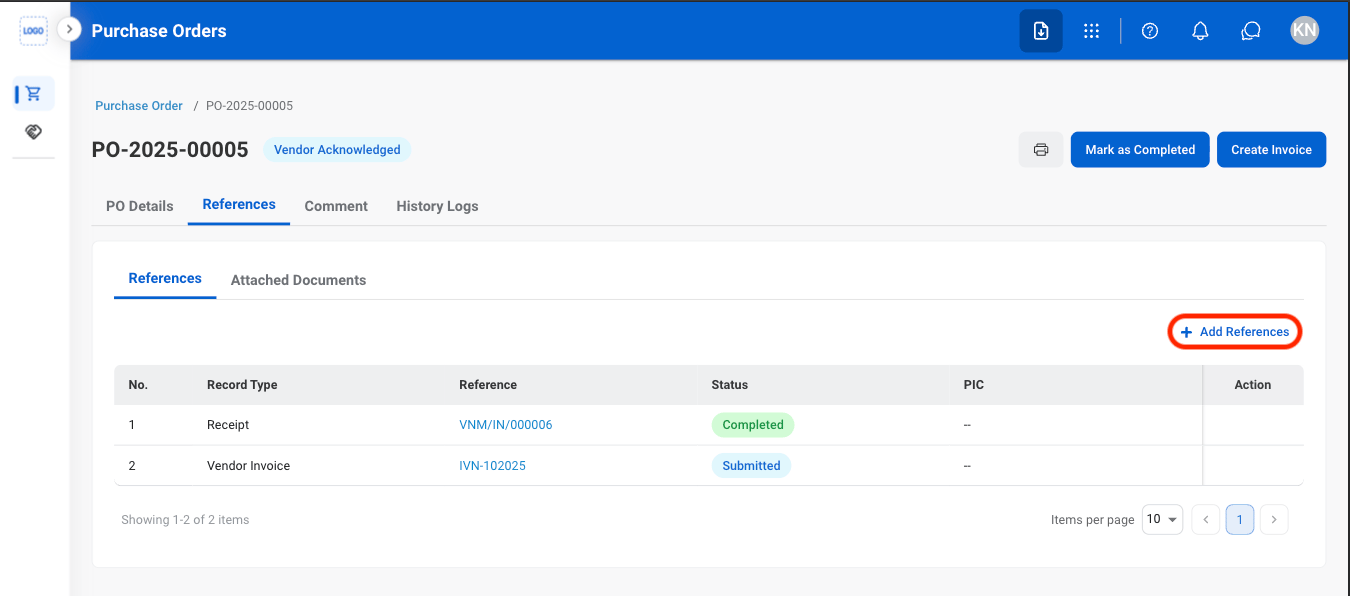
## Add References

<Steps>
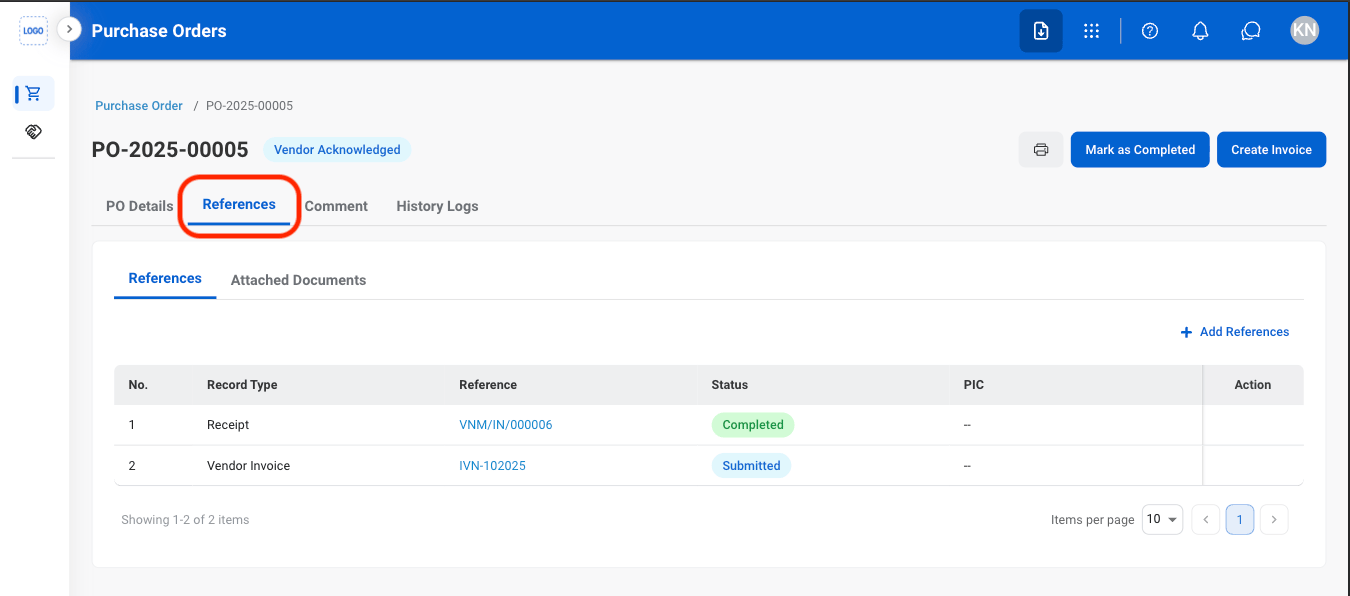
  <Step title="Navigate to References ">
    <Frame>
      <img src="https://mintcdn.com/bizbone/pbQvDnPVNhYcuslV/images/P-PO-References.png?fit=max&auto=format&n=pbQvDnPVNhYcuslV&q=85&s=28316ec9659894099d7b2609287859c8" alt="P PO References" width="1350" height="596" data-path="images/P-PO-References.png" />
    </Frame>
  </Step>

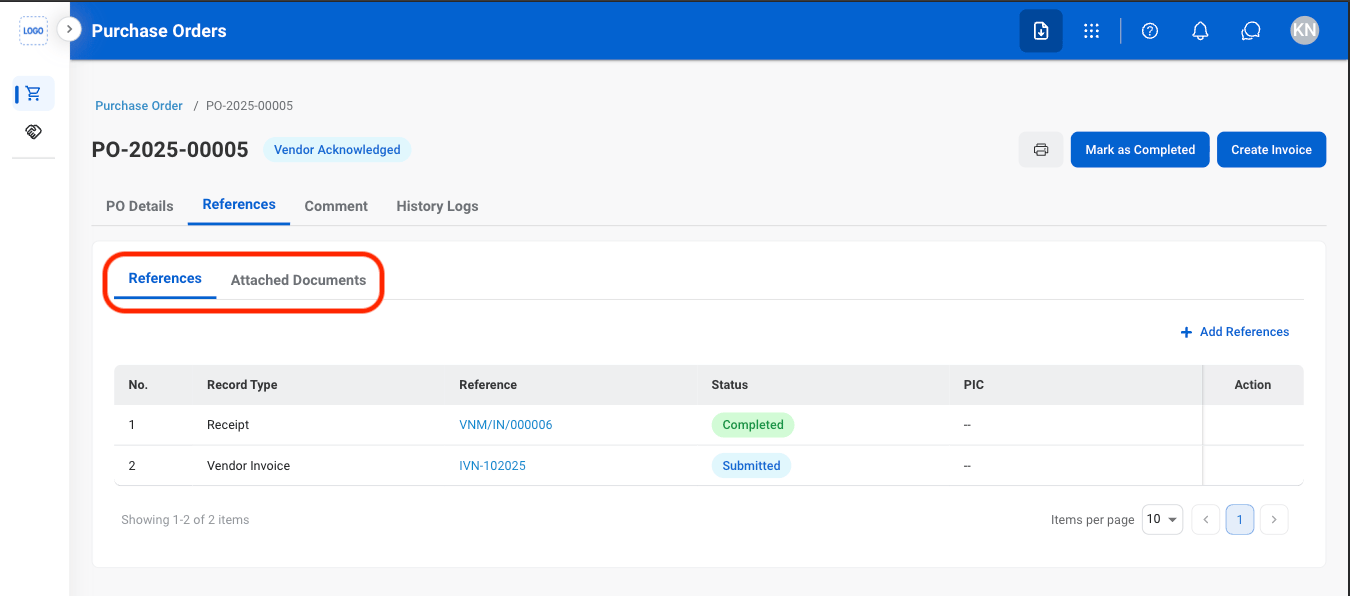
  <Step title="Select a reference type">
    <Frame>
      <img src="https://mintcdn.com/bizbone/pbQvDnPVNhYcuslV/images/P-PO-Ref-Type.png?fit=max&auto=format&n=pbQvDnPVNhYcuslV&q=85&s=6368db759ef664268dd16440954dd451" alt="P PO Ref Type" width="1350" height="596" data-path="images/P-PO-Ref-Type.png" />
    </Frame>

    **References:** Link related system records to the purchase order for traceability and cross-reference.

    **Attached Documents:** Upload supporting files associated with the purchase order, such as quotations, contracts, specifications, or other documentation. 
  </Step>

  <Step title="Select Add">
    <Frame>
      <img src="https://mintcdn.com/bizbone/pbQvDnPVNhYcuslV/images/P-PO-Add-R.png?fit=max&auto=format&n=pbQvDnPVNhYcuslV&q=85&s=cfe9d0dbdbde7278410f72f66a57d2fe" alt="P PO Add R" width="1350" height="596" data-path="images/P-PO-Add-R.png" />
    </Frame>
  </Step>

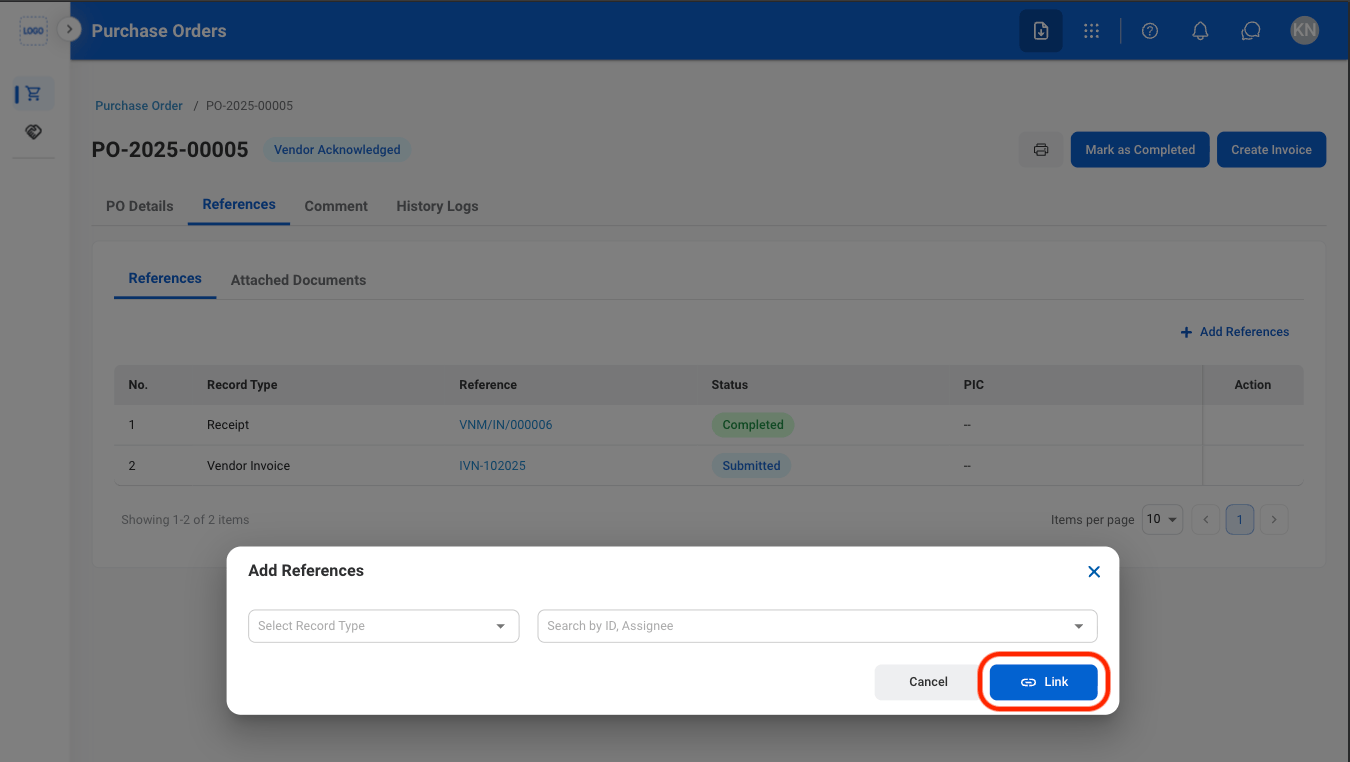
  <Step title="Fill in the required information">
    <Frame>
      <img src="https://mintcdn.com/bizbone/pbQvDnPVNhYcuslV/images/P-PO-Add-R-C.png?fit=max&auto=format&n=pbQvDnPVNhYcuslV&q=85&s=2c8224b2261ddf80480e7f7f08b7680d" alt="P PO Add R C" width="1350" height="762" data-path="images/P-PO-Add-R-C.png" />
    </Frame>

    Select **Link** to complete or **Cancel** to exit without saving changes. 
  </Step>
</Steps>

## Mark an Order Status

<Steps>
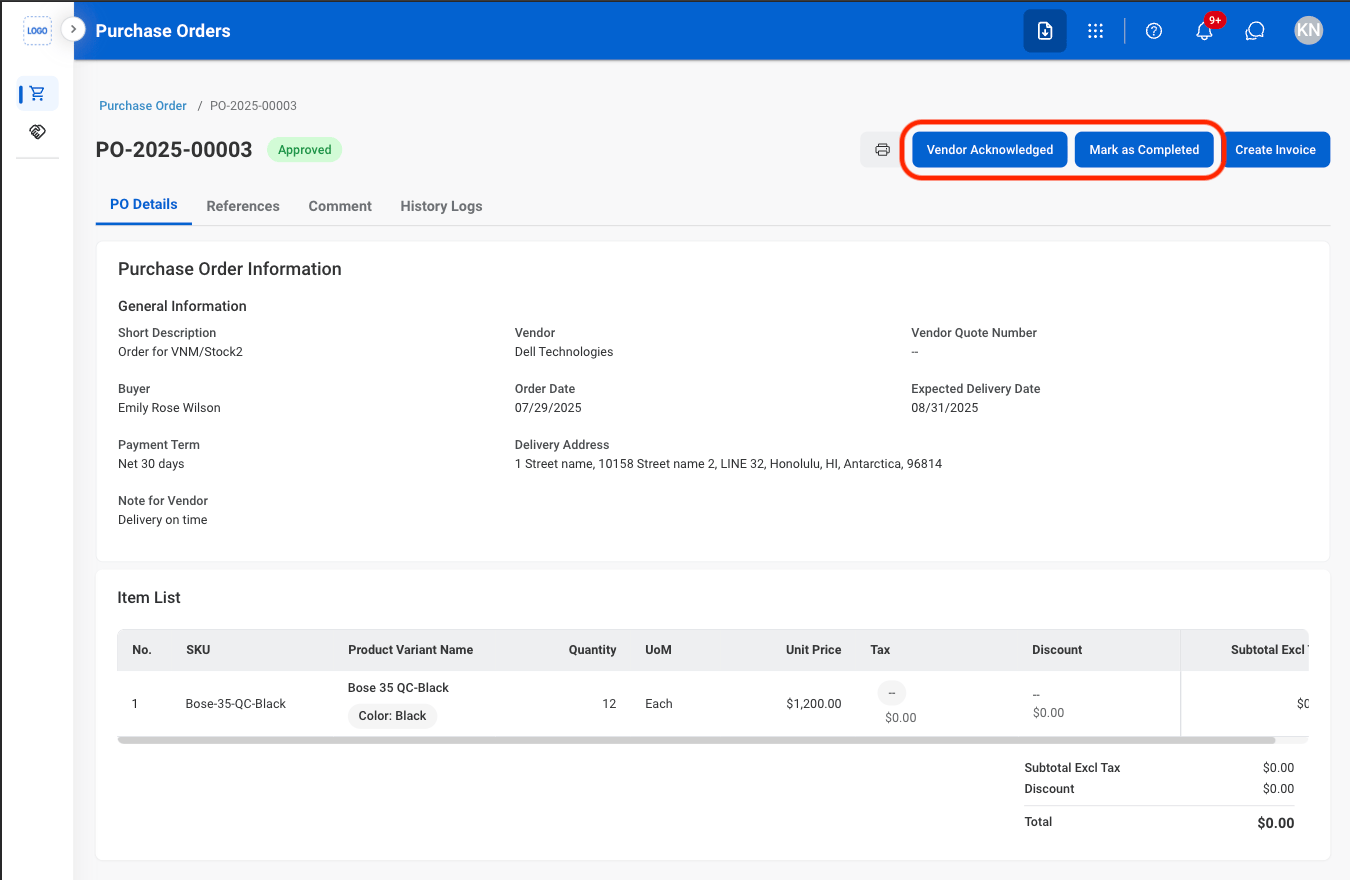
  <Step title="Select a status">
    <Frame>
      <img src="https://mintcdn.com/bizbone/O54KWBvXAjoTGYsh/images/P-PO-Status.png?fit=max&auto=format&n=O54KWBvXAjoTGYsh&q=85&s=b2ff055fc9a22dccad26f58f295018e7" alt="P PO Status" width="1350" height="880" data-path="images/P-PO-Status.png" />
    </Frame>

    * **Vendor Acknowledged:** Mark the purchase order as acknowledged by the vendor.
    * **Mark as Completed:** Mark the purchase order as completed once the procurement process has been fulfilled.
  </Step>

  <Step title="Confirm the status change">
    Select **Confirm** to complete or **Cancel** to exit without saving changes.

    <Info>
      Once a status is changed, it cannot be reversed. 
    </Info>
  </Step>
</Steps>

## Create an Invoice

<Steps>
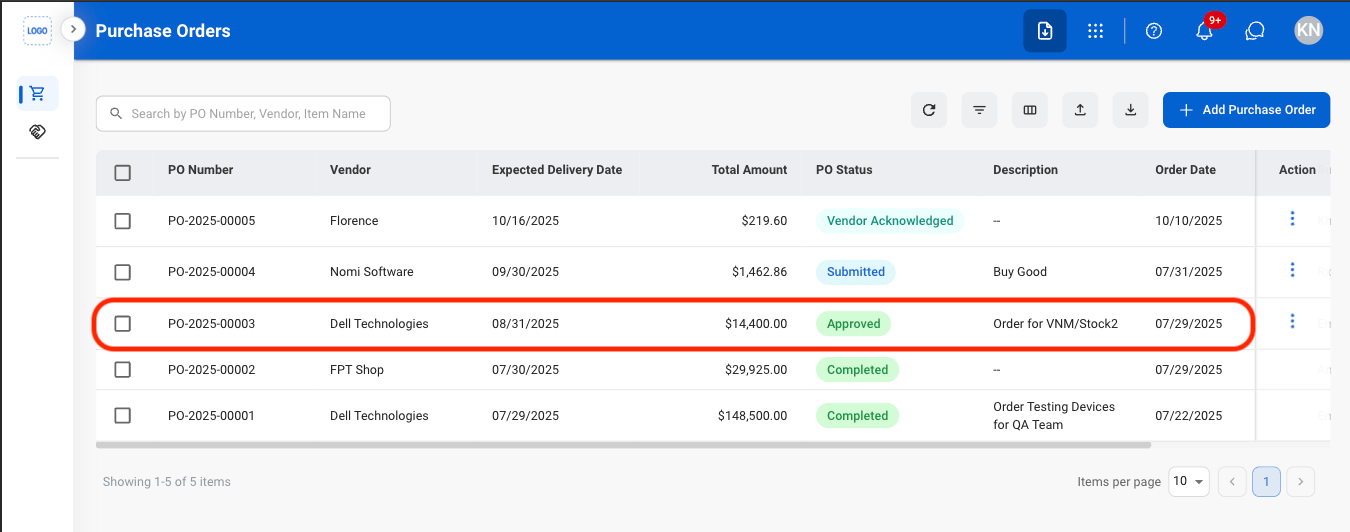
  <Step title="Select an approved Purchase Order">
    <Frame>
      <img src="https://mintcdn.com/bizbone/O54KWBvXAjoTGYsh/images/P-PO-Select-Approved.png?fit=max&auto=format&n=O54KWBvXAjoTGYsh&q=85&s=77ef02a84e646c3ff1ff808f637c66bf" alt="P PO Select Approved" width="1350" height="532" data-path="images/P-PO-Select-Approved.png" />
    </Frame>
  </Step>

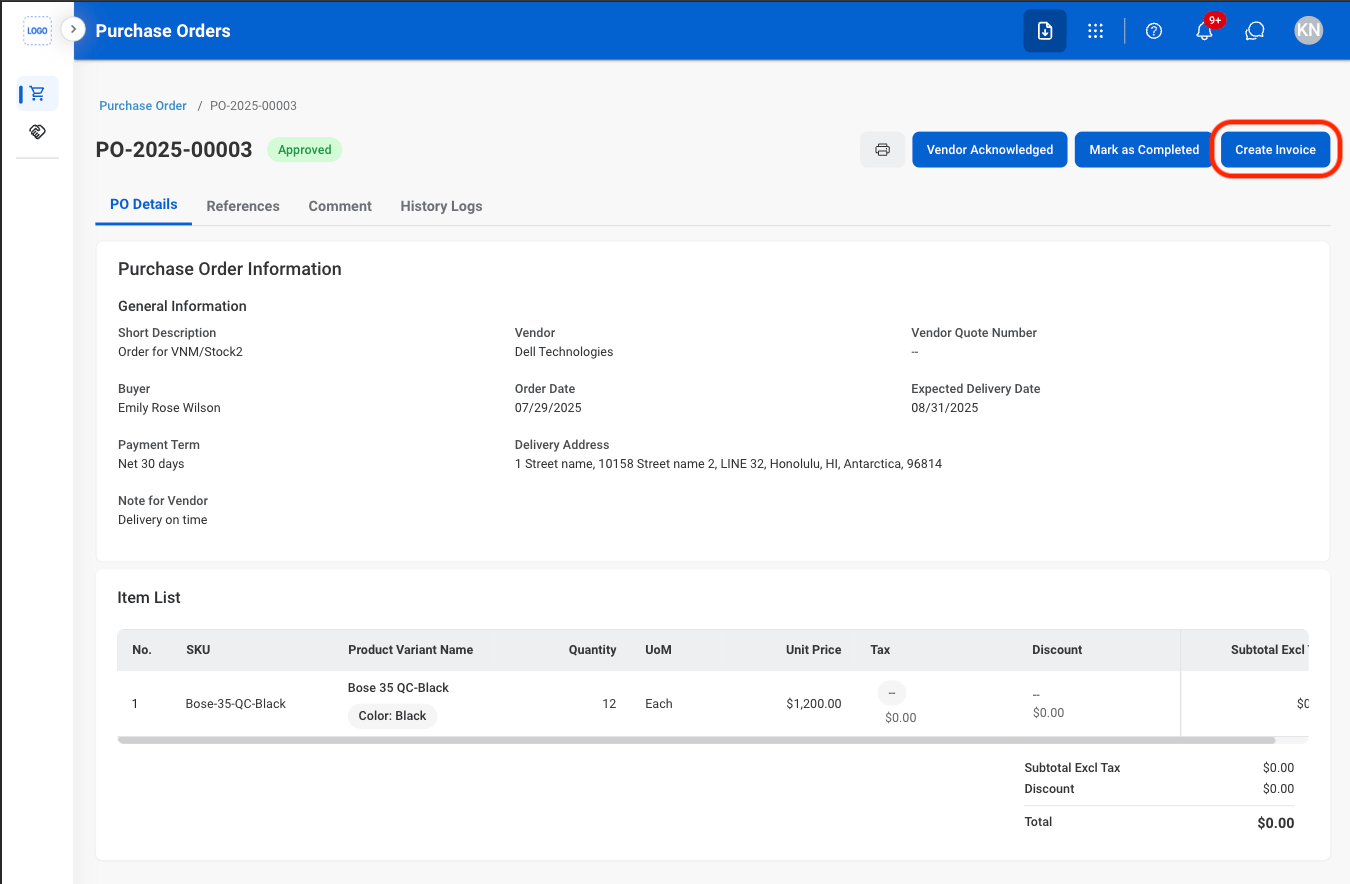
  <Step title="Select Create Invoice">
    <Frame>
      <img src="https://mintcdn.com/bizbone/O54KWBvXAjoTGYsh/images/P-PO-Create-Invoice.png?fit=max&auto=format&n=O54KWBvXAjoTGYsh&q=85&s=18aa90fa73ae835d404aaef0984b9284" alt="P PO Create Invoice" width="1350" height="884" data-path="images/P-PO-Create-Invoice.png" />
    </Frame>

    <Info>
      Selecting **Create Invoice** opens the invoice creation screen in the **Accounting** module, where you can enter and manage the invoice details.
    </Info>
  </Step>

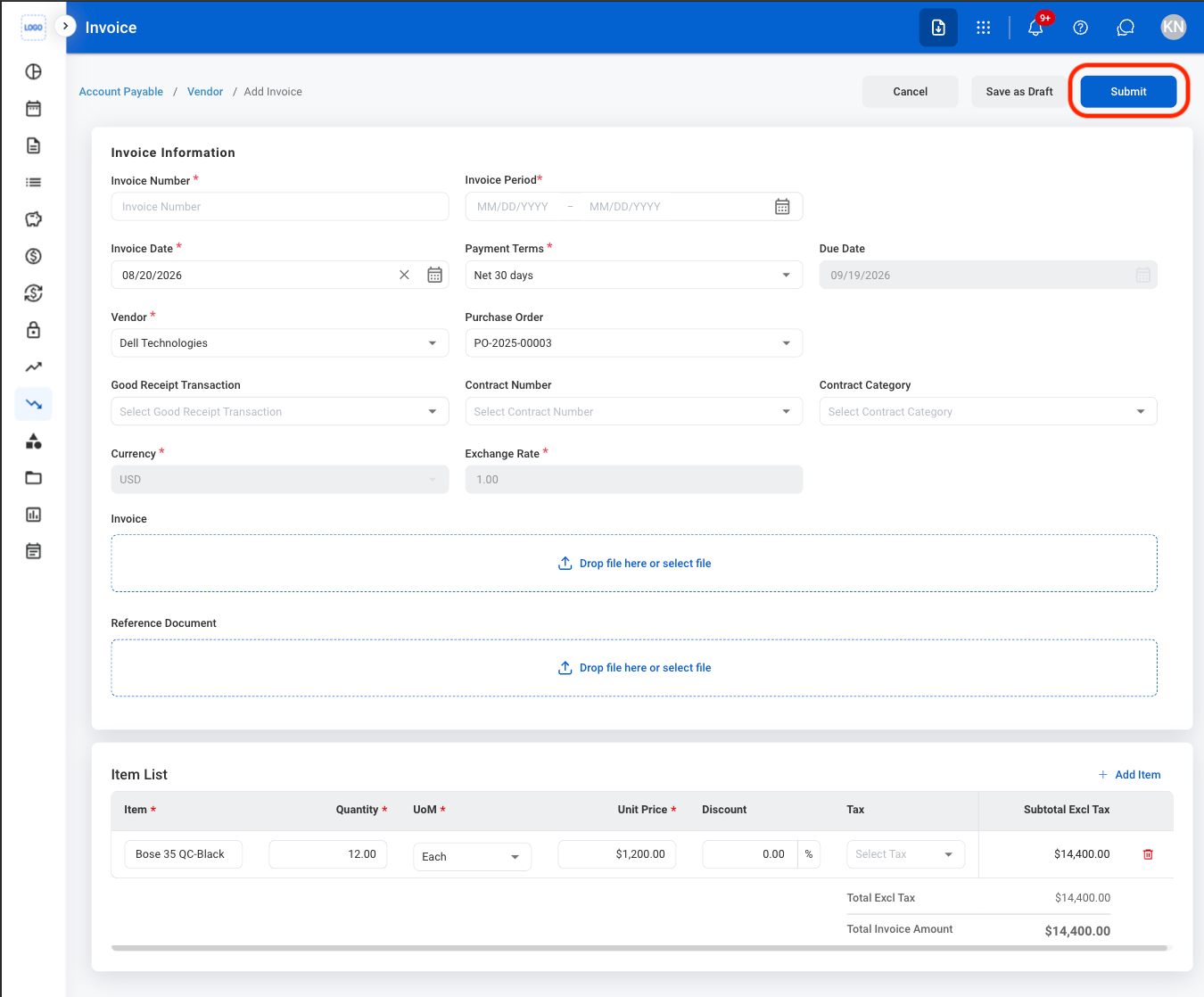
  <Step title="Fill in the required information ">
    <Frame>
      <img src="https://mintcdn.com/bizbone/O54KWBvXAjoTGYsh/images/P-PO-CCreate-Invoice.png?fit=max&auto=format&n=O54KWBvXAjoTGYsh&q=85&s=389f3abbd95a8ea235fe0bc3c1cc0c7c" alt="P PO C Create Invoice" width="1350" height="1118" data-path="images/P-PO-CCreate-Invoice.png" />
    </Frame>

    Select **Submit** to complete, **Save as Draft** to exit and save changes, or **Cancel** to exit without saving changes. 
  </Step>
</Steps>

## Review a Submitted Purchase Order

<Steps>
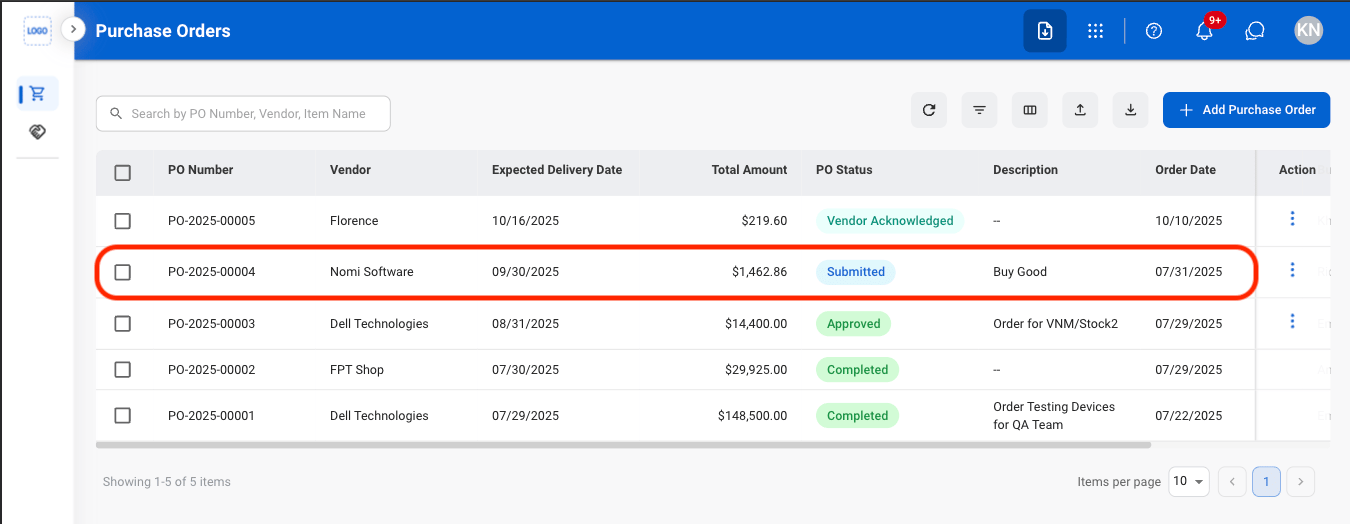
  <Step title="Select a submitted review ">
    <Frame>
      <img src="https://mintcdn.com/bizbone/O54KWBvXAjoTGYsh/images/P-PO-Select-Submitted.png?fit=max&auto=format&n=O54KWBvXAjoTGYsh&q=85&s=d197adda122535dc2ff7a94bc3f05527" alt="P PO Select Submitted" width="1350" height="524" data-path="images/P-PO-Select-Submitted.png" />
    </Frame>
  </Step>

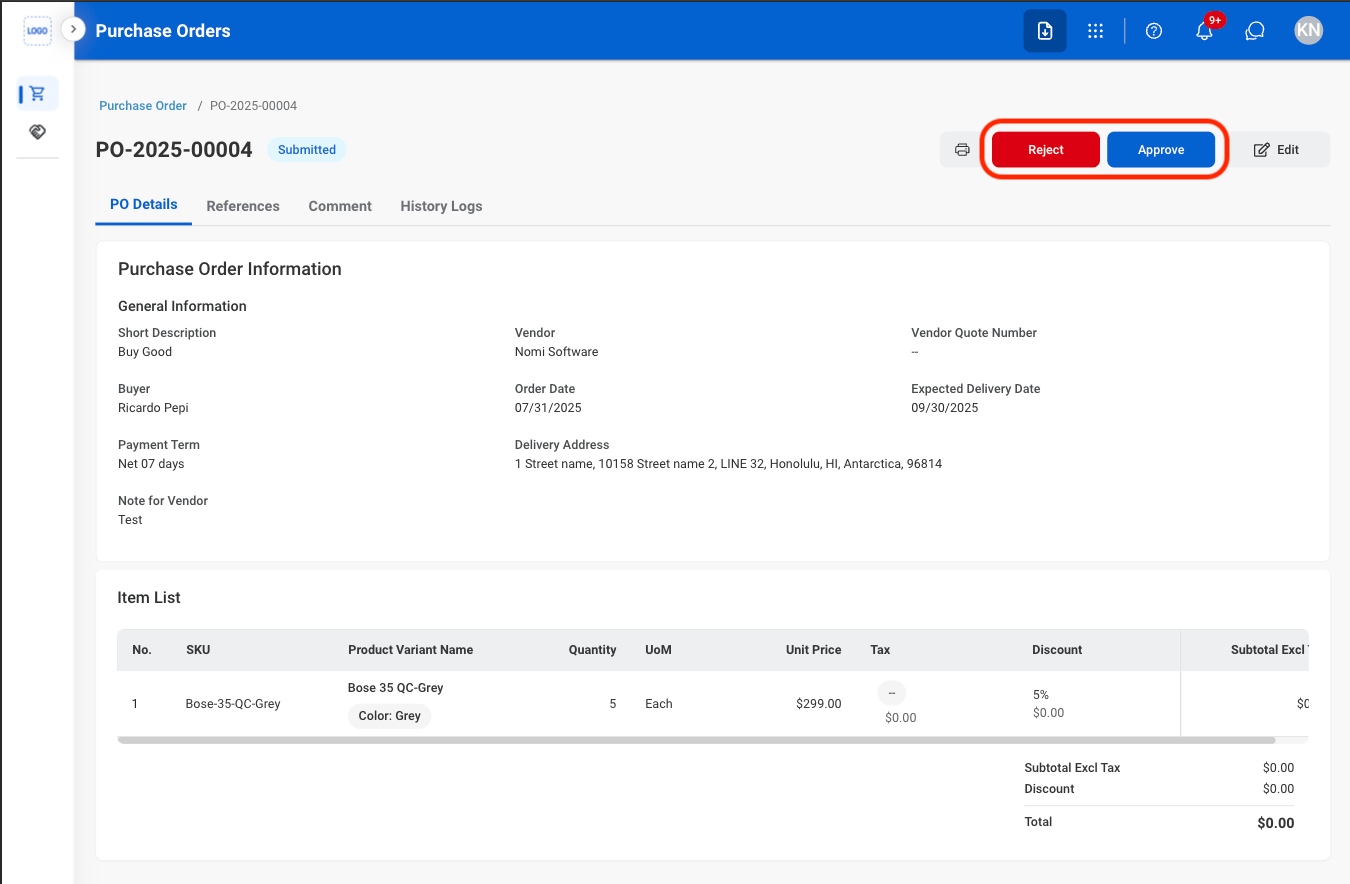
  <Step title="Select an approval decision ">
    <Frame>
      <img src="https://mintcdn.com/bizbone/O54KWBvXAjoTGYsh/images/P-PO-Approval.png?fit=max&auto=format&n=O54KWBvXAjoTGYsh&q=85&s=472fe1c25d46c141a63a9c0d5bb72da0" alt="P PO Approval" width="1350" height="884" data-path="images/P-PO-Approval.png" />
    </Frame>

    * **Approve:** Confirm that the purchase order is approved and can proceed for fulfillment.
    * **Reject:** Decline the purchase order and prevent it from proceeding for fulfillment
  </Step>
</Steps>

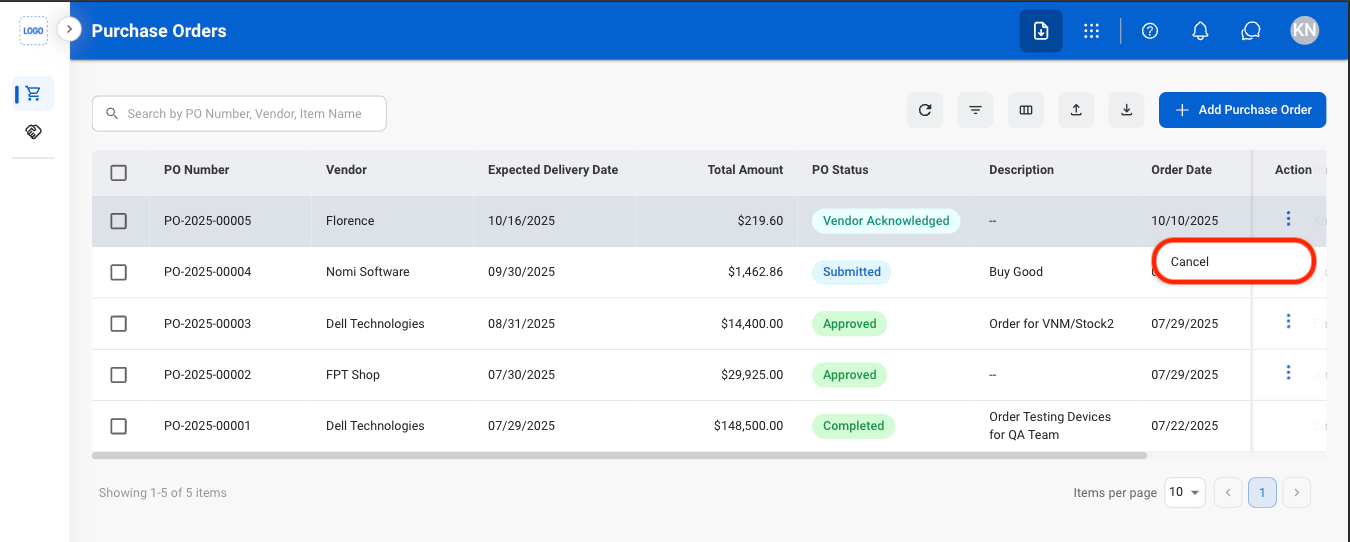
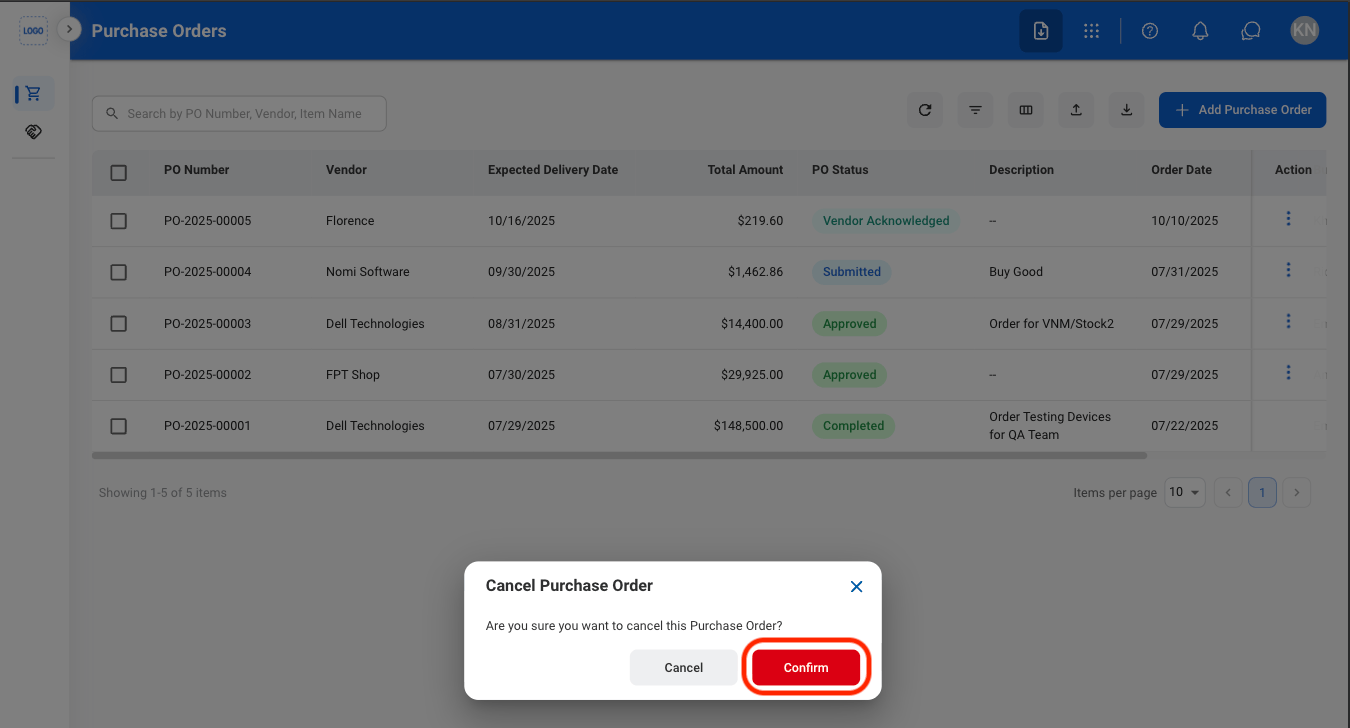
## Cancel Purchase Order

<Steps>
  <Step title="Select the ellipsis in the Action column">
    <Frame>
      <img src="https://mintcdn.com/bizbone/pbQvDnPVNhYcuslV/images/P-PO-Cancel.png?fit=max&auto=format&n=pbQvDnPVNhYcuslV&q=85&s=7e5a0f8ca72830007ea44d13c6f94b32" alt="P PO Cancel" width="1350" height="542" data-path="images/P-PO-Cancel.png" />
    </Frame>
  </Step>

  <Step title="Confirm the action ">
    <Frame>
      <img src="https://mintcdn.com/bizbone/pbQvDnPVNhYcuslV/images/P-PO-Cancel-C.png?fit=max&auto=format&n=pbQvDnPVNhYcuslV&q=85&s=a875f761cedd4a6e2e6839457c5ea9e4" alt="P PO Cancel C" width="1350" height="728" data-path="images/P-PO-Cancel-C.png" />
    </Frame>
  </Step>
</Steps>