> ## Documentation Index
> Fetch the complete documentation index at: https://docs.bizbone.com/llms.txt
> Use this file to discover all available pages before exploring further.

# Time Card

## View Timecard
<Steps>
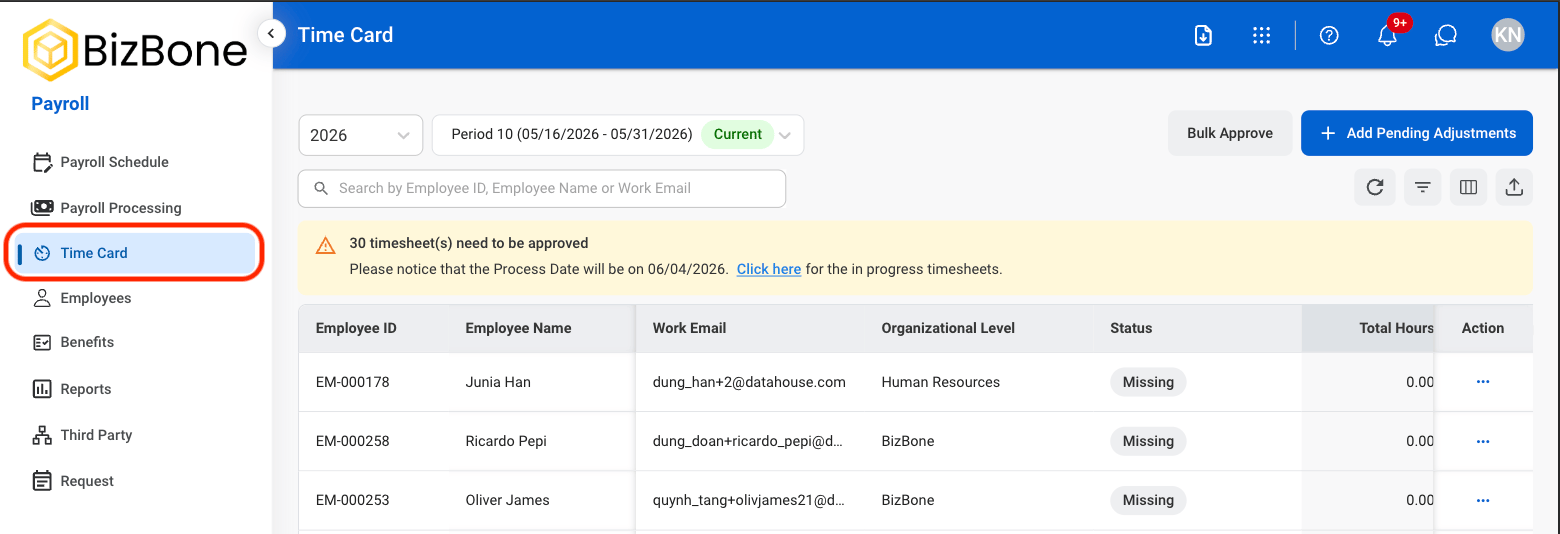
  <Step title="Navigate to Timecard">
    <Frame>
      <img src="https://mintcdn.com/bizbone/hVdW0Cdb5EFCxb5_/images/P-Time-Card.png?fit=max&auto=format&n=hVdW0Cdb5EFCxb5_&q=85&s=bb51d84e0ecddfb563f5252e191e85d1" alt="P Time Card" width="1560" height="534" data-path="images/P-Time-Card.png" />
    </Frame>
  </Step>

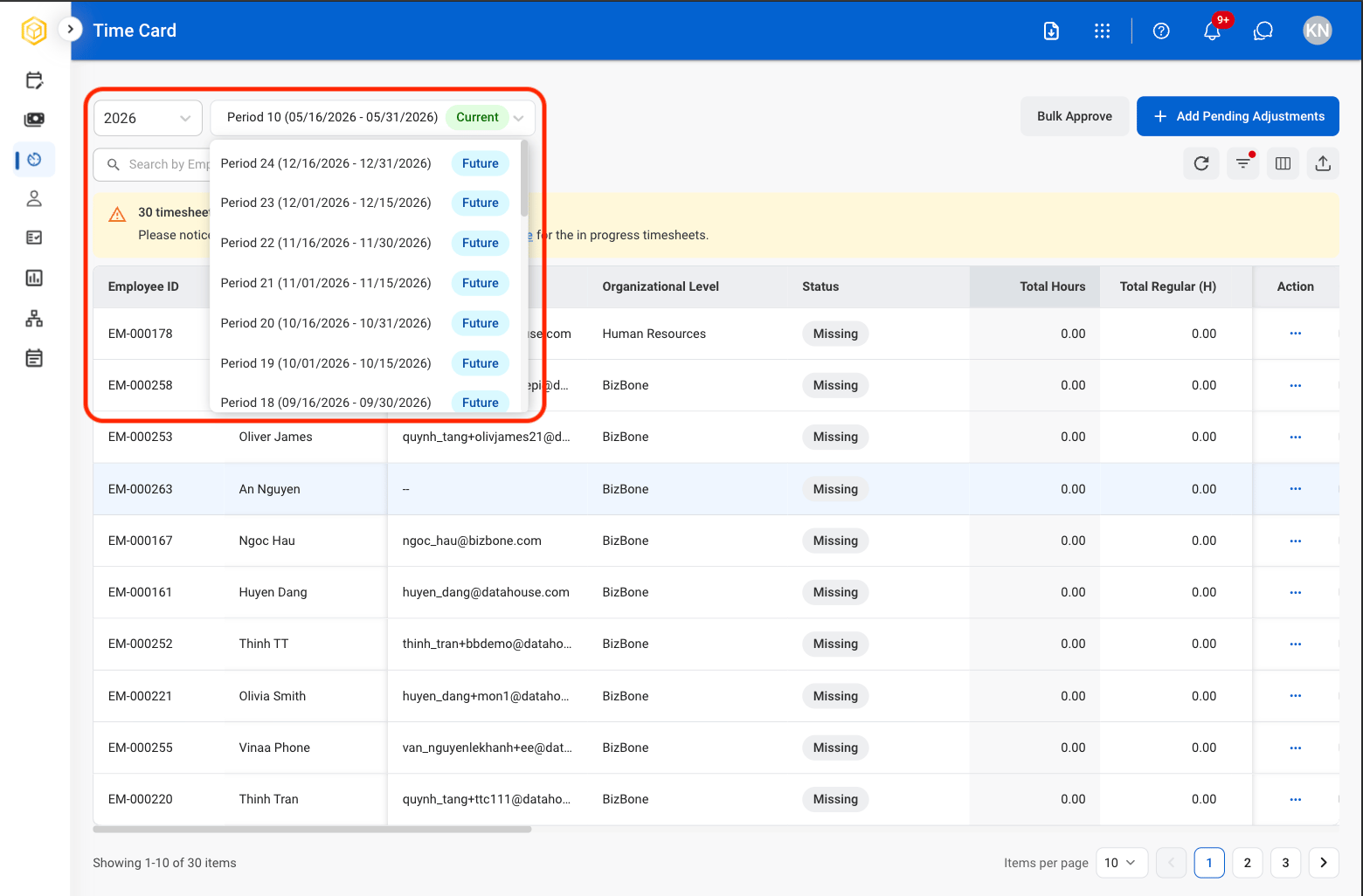
  <Step title="Select a time period">
    <Frame>
      <img src="https://mintcdn.com/bizbone/hVdW0Cdb5EFCxb5_/images/P-T-Period.png?fit=max&auto=format&n=hVdW0Cdb5EFCxb5_&q=85&s=613001742f0a188c00b5bc7a564dcc10" alt="P T Period" width="1560" height="1026" data-path="images/P-T-Period.png" />
    </Frame>
  </Step>

  <Step title="Select View Timesheet under the Action column">
    <Frame>
      <img src="https://mintcdn.com/bizbone/hVdW0Cdb5EFCxb5_/images/P-T-View-Timesheet.png?fit=max&auto=format&n=hVdW0Cdb5EFCxb5_&q=85&s=8fa613babcb1006b880e9f6d929c97cc" alt="P T View Timesheet" width="1560" height="592" data-path="images/P-T-View-Timesheet.png" />
    </Frame>
  </Step>
</Steps>

## Add Pending Adjustments

Review and process pending timecard adjustment requests submitted by employees for payroll correction and approval.
<Steps>
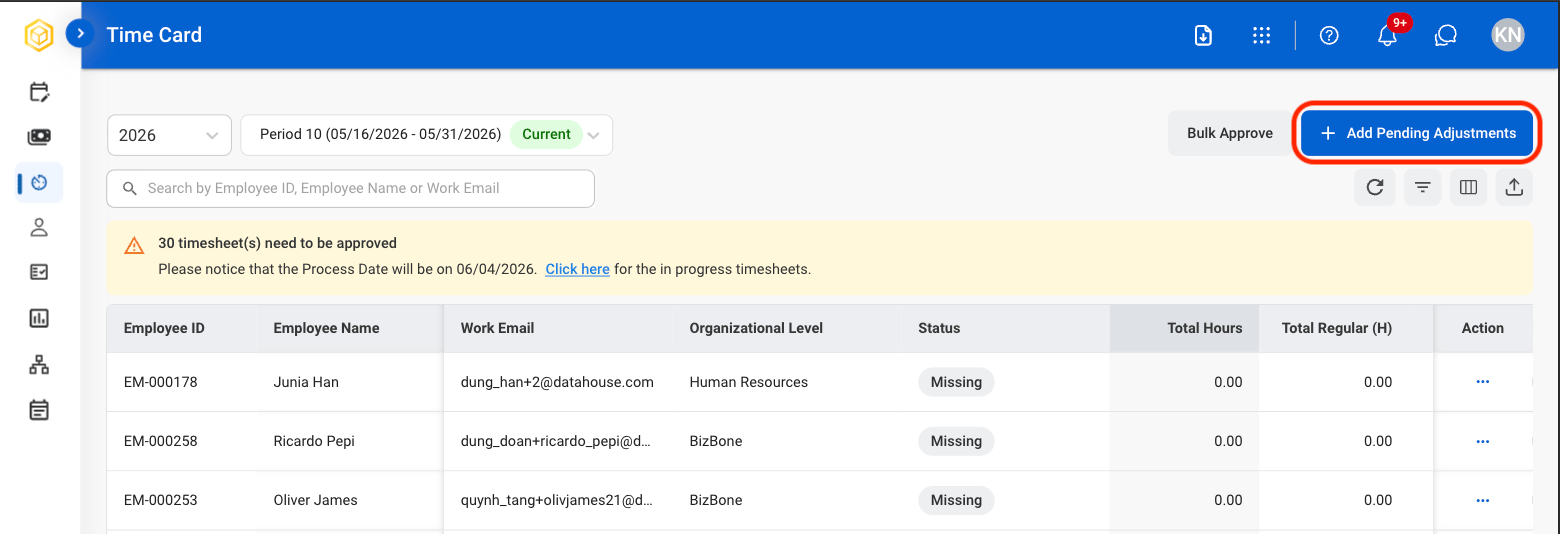
  <Step title="Select Add Pending Adjustments">
    <Frame>
      <img src="https://mintcdn.com/bizbone/hVdW0Cdb5EFCxb5_/images/P-T-Add-Pending.png?fit=max&auto=format&n=hVdW0Cdb5EFCxb5_&q=85&s=0cc52325c248bcc2efae03c46fc1aaad" alt="P T Add Pending" width="1560" height="534" data-path="images/P-T-Add-Pending.png" />
    </Frame>
  </Step>

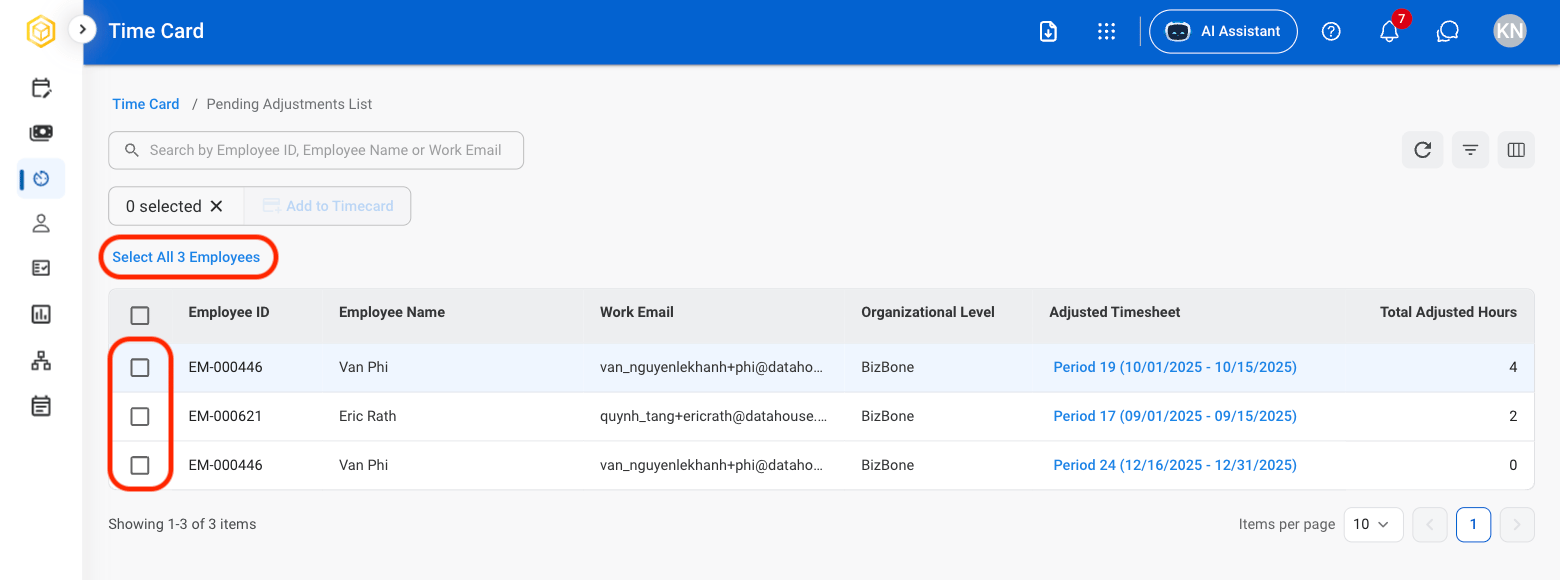
  <Step title="Select employee(s)">
    <Frame>
      <img src="https://mintcdn.com/bizbone/6oPBzRDpo6ZUIAeP/images/R-TC-Select-PA.png?fit=max&auto=format&n=6oPBzRDpo6ZUIAeP&q=85&s=d8dec5d1746eb810c046f236cf0787b4" alt="R TC Select PA" width="1560" height="580" data-path="images/R-TC-Select-PA.png" />
    </Frame>

    Select the checkmark by each employee's name, or **Select All (number) Employees**
  </Step>

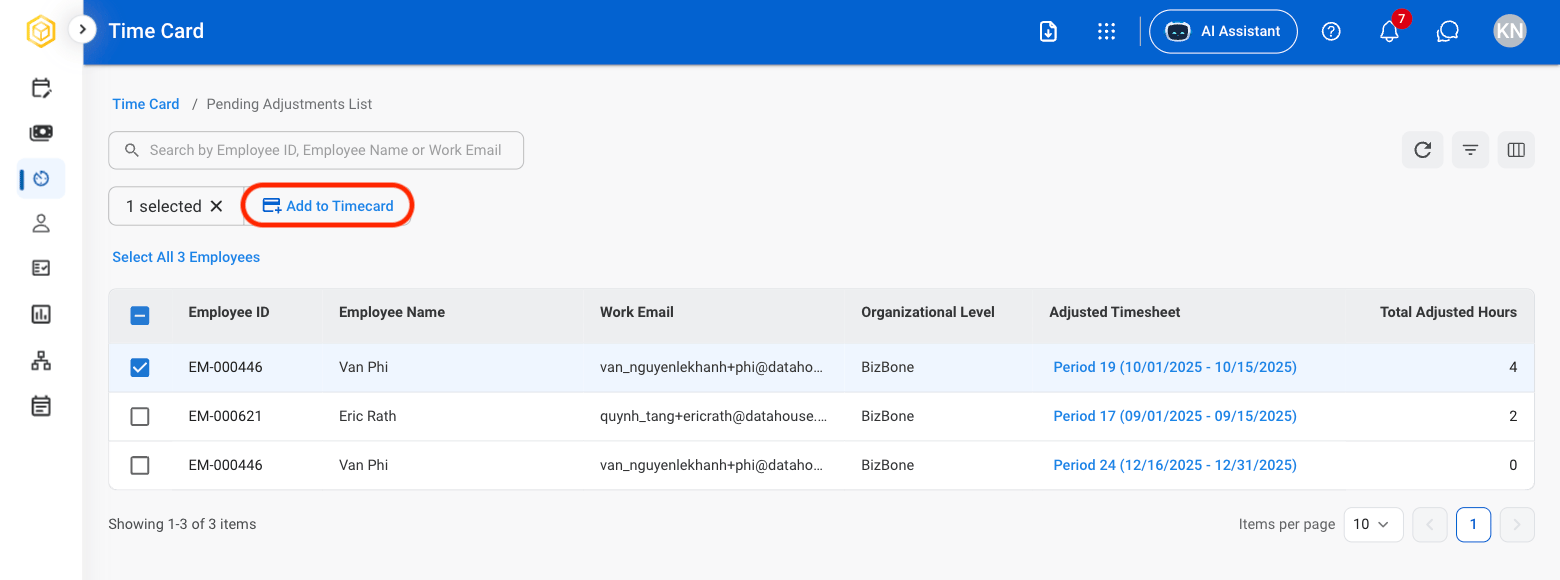
  <Step title="Select Add to Timecard">
    <Frame>
      <img src="https://mintcdn.com/bizbone/6oPBzRDpo6ZUIAeP/images/R-TC-Add.png?fit=max&auto=format&n=6oPBzRDpo6ZUIAeP&q=85&s=4df4796cde421f43b81422ac4984ac58" alt="R TC Add" width="1560" height="580" data-path="images/R-TC-Add.png" />
    </Frame>
  </Step>

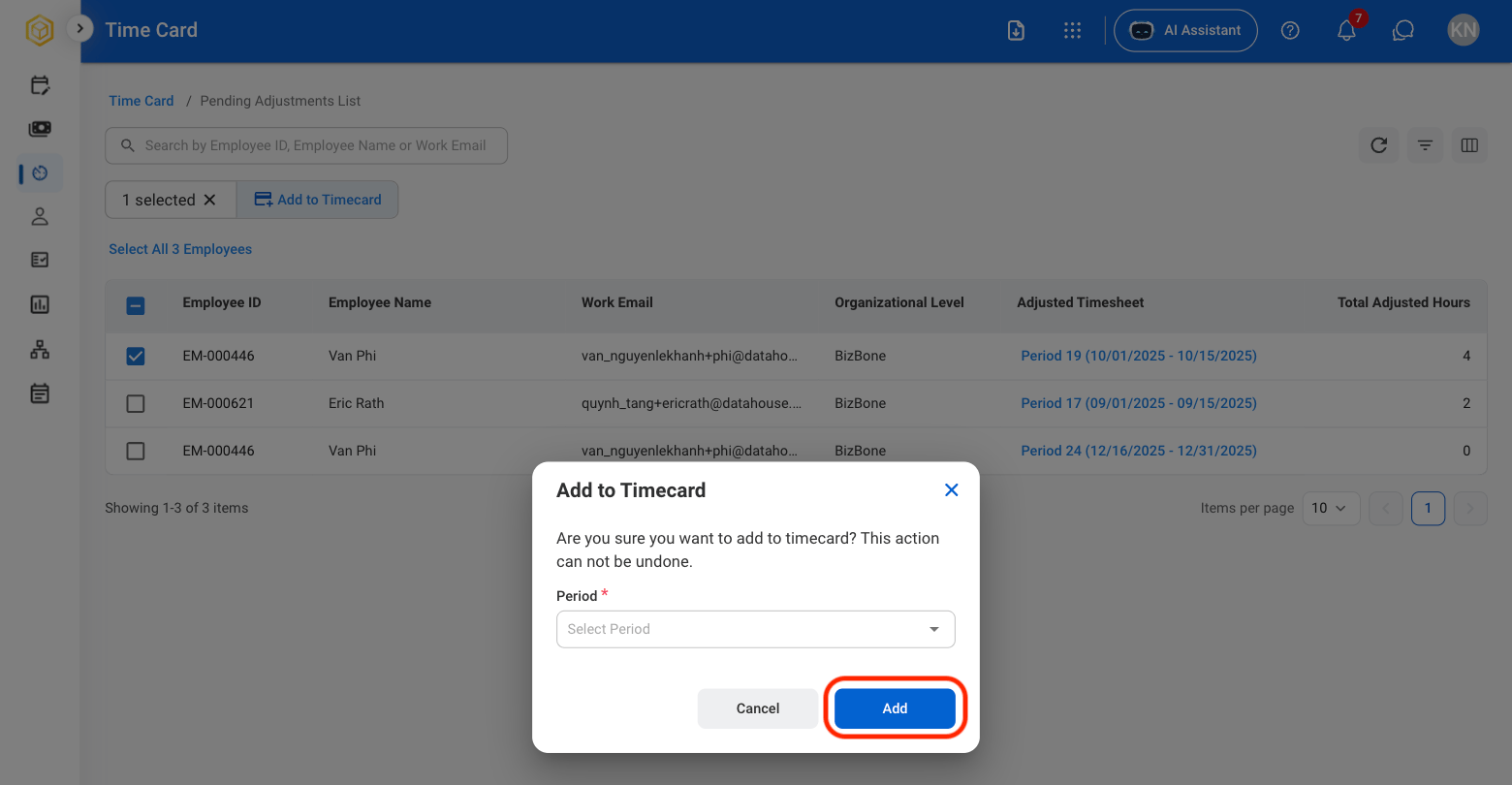
  <Step title="Select the time period">
    <Frame>
      <img src="https://mintcdn.com/bizbone/6oPBzRDpo6ZUIAeP/images/R-TC-Add-C.png?fit=max&auto=format&n=6oPBzRDpo6ZUIAeP&q=85&s=8d6cd272071cbc73cf923eba4bf52c45" alt="R TC Add C" width="1560" height="810" data-path="images/R-TC-Add-C.png" />
    </Frame>

    Select **Add** to complete or **Cancel** to exit without saving changes. 

    <Info>
      Once employee(s) are added to a timecard, the action cannot be undone. 
    </Info>
  </Step>
</Steps>